

You are here: Home / Deals / Create and manage deals
Deals
Create and manage deals
Inhaltsverzeichnis
- Create new deal
- Opening the detailed view
- Opening the context menu
- Postpone deal to other phase
- Create task from checklist
- Sorting and filters
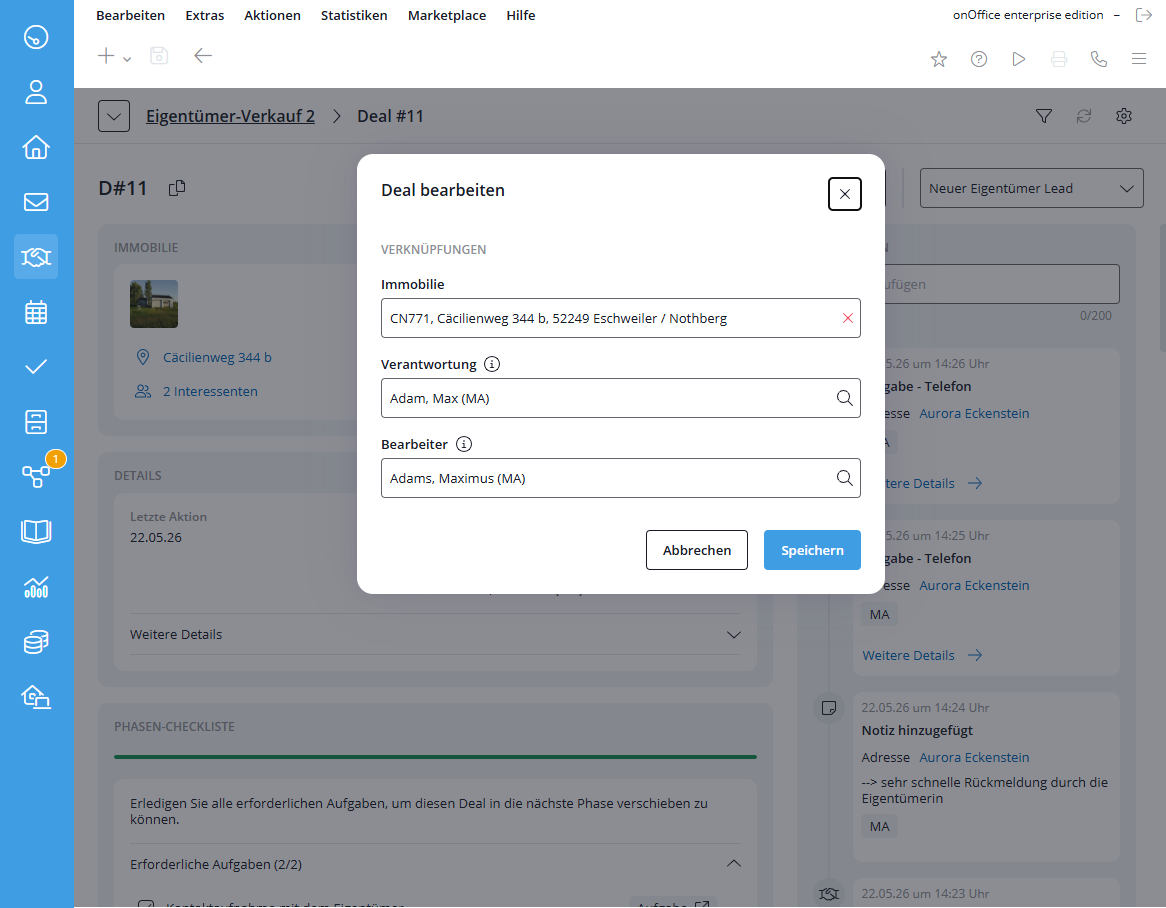
- Edit deal
- Activities of a deal
- What activities are shown in a deal?
- Further conditions and functions for the display
- Notes
- Put deal on hold
- Put the deal in the recycle bin
- Delete deal permanently
- Bulk Actions: Edit Multiple Deals at Once
- Move to Phase
- Reset
- Move to Trash
- Opening the prospect deals to an owner deal
- Converting Owner Deals into Prospective Buyer Deals
- Open owner deal from property
- View a prospect deal based on a contact
- Create appointments in a deal
Create new deal
Necessary role: Owner or creator
-
Open the desired pipeline. In the first phase, click on “+ Create new deal” or on the plus sign at the top left.
Assignments: Link a property and (for prospect deals) a contact as prospect. Simply enter a suitable search term in the input field (e.g. the address of the property or the first or last name of the contact). The search is refined with each additional character entered. Each property can only be assigned to one owner deal. Different prospect deals cannot be linked to both the same property and the same prospect.
Without a link to a property or a prospect, deals cannot be moved beyond the first phase to an advanced phase; instead, they can only be moved to the “Deal Lost” phase.
- Values: If required, enter the deal value, the commission, the expected closing date and the probability of closing as a percentage.
- Assign the responsibility and enter the processor of the deal. Our recommendation: The person responsible bears overall responsibility for the deal and is the central contact person. The processor is actively and operationally working on the to-dos for this deal. Responsibility and processor can be exchanged later in the detailed view of the deal.
- After saving, the deal is displayed as card in the pipeline. New deals can also be created directly from a contact or a property via “Create deal” in the action bar.
- Quick info via hover function In the pipeline view, you can view details on prospects or properties without leaving the page. Simply move your mouse over the name on the deal card.
- Prospect deals: Shows the customer number, name, company and address of the prospect.
- Owner deals: Shows the property number, title and address of the property.
- Visibility of deals based on access rights: The pipeline view takes into account your read permissions for contacts and properties. Deals for whose linked data records you do not have read permission are automatically hidden. This also applies to the counting of prospects in owner deals.
- The new deal is shown as the first deal in the first phase of the pipeline.
- Notice: This does not apply to deals that have been generated automatically – e.g. by a portal request . These are filed as the last deal in the first phase of a pipeline.
- You can also create a new deal directly from a property or contact by clicking “Create Deal” in the action bar at the bottom.
Opening the detailed view
Necessary role: Owner, creator, editor or reader
The detailed view opens as an independent, structured full page in the Deals module instead of in a pop-up. This also applies to filtered views and the recycle bin.
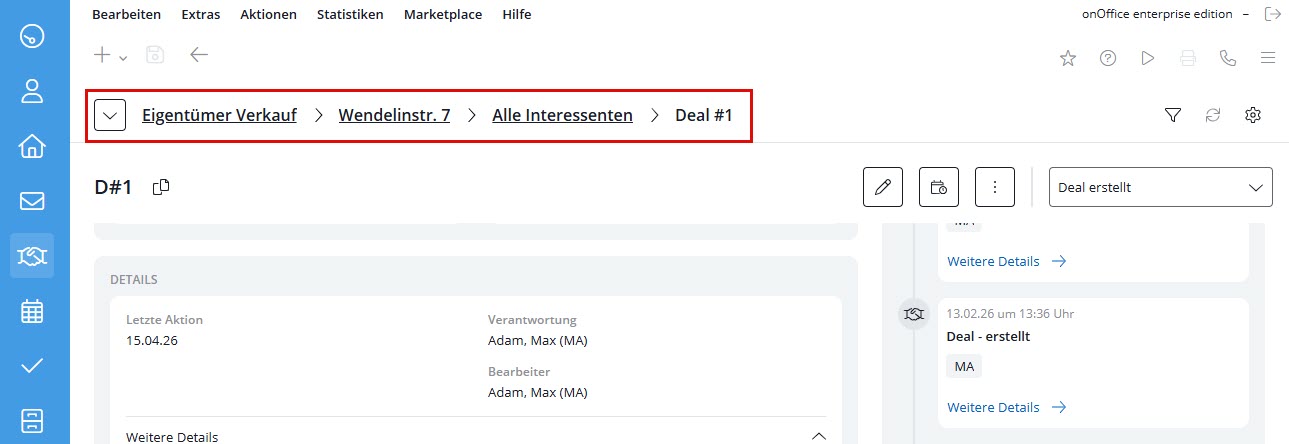
- Breadcrumb navigation: The exact path is displayed at the top left (e.g. Pipeline / Property / Deal). Higher levels can be clicked on directly (does not apply to the recycle bin).
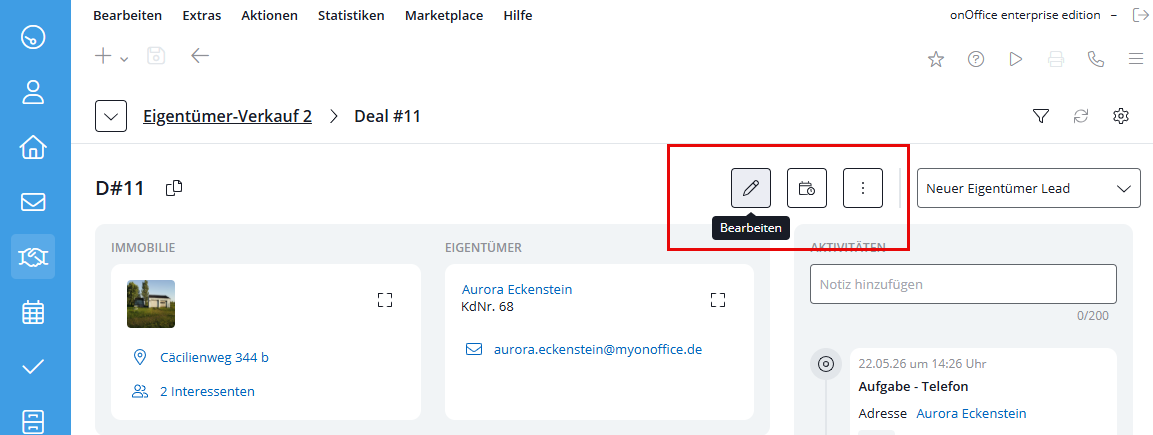
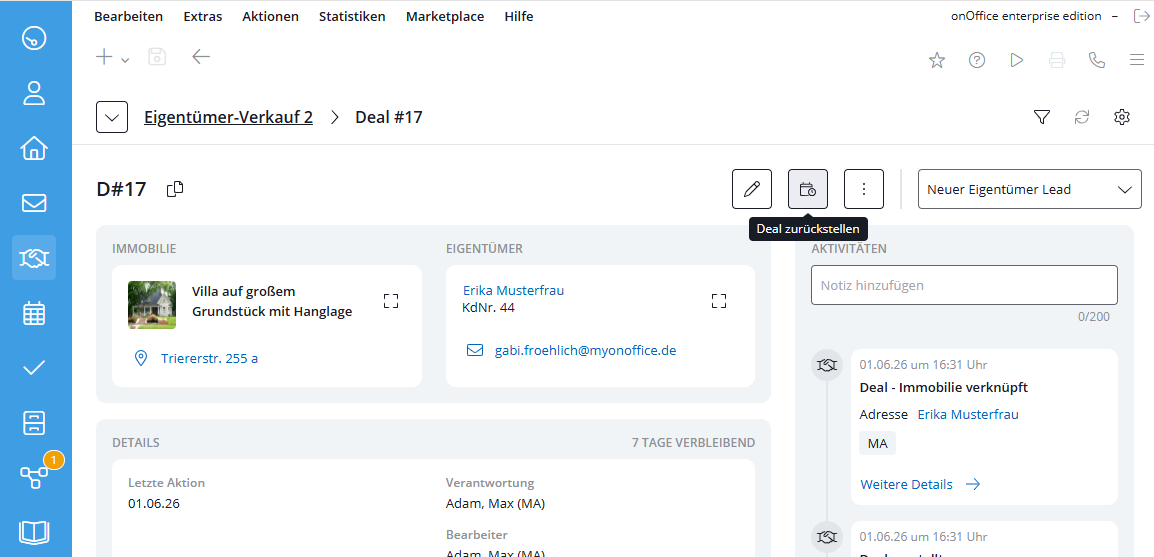
- Placement of the action buttons: The buttons for Edit, Reset or Delete are clearly visible in the top right-hand corner
Opening the context menu
Necessary role: Owner, creator, editor or reader
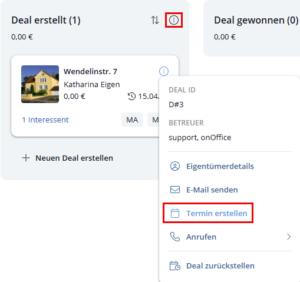
By clicking on the three-dot icon on the deal card, you have quick access to important information and functions.
Postpone deal to other phase
Necessary role: Owner, creator or processor
A deal can be moved to another phase via drag-and-drop of the map and via the phase selection in the detailed view. Deals in the “Deal won” and “Deal lost” phases cannot be moved or edited.
When moving deals to these phases, you may be given the option to move deals linked to the same prospect or the same property to “Deal lost” and adjust the status of the property. For the latter, the “Status”, “Status 2 (detail)” and “Marketing status” fields are adjusted.
A deal can only be moved to the next phase if all required checklist tasks of the current phase have been completed and no phases with mandatory tasks are skipped. Invalid phase changes, e.g. due to unfinished mandatory tasks, are displayed with an error message in the pipeline view, while invalid target phases are deactivated in the detail dropdown.
Create task from checklist
If you are allowed to edit the deal and the task module is active, you can create a global task directly from an open checklist item in the deal:
- Create: Move the mouse over the checklist element and click on the “Create task” button (symbol: arrow pointing upwards to the right). The task opens in a new browser tab.
- Automatic preallocation: The system fills in the new task with the data from the deal: Title (Deal D#<ID>: <Checklist text>), responsibility, processor, property and associated contact (main owner for owner deals, prospect for prospect deals).
- Link & lock: A system comment with a link to the deal is stored in the course of the task. In the deal, the button permanently changes to a gray “Task” tag with a direct link to the task. Multiple creation is blocked until the task is deleted in the Tasks module.
- The status of checklist tasks within deals and the corresponding tasks in the Tasks module are automatically synchronized with each other, so that changes made in one module are immediately reflected in the other.
Specifically, this means: When a checklist task is checked off in the Deals module, the task’s status in Enterprise automatically changes to “Completed.” Conversely, the task is set back to “In Progress” as soon as the check mark is removed from the checkbox. This synchronization also works in the opposite direction: Changes to a task’s status in Enterprise (e.g., to “Completed” or “In Progress”) automatically check or uncheck the box in the Deals module.
Sorting and filters
Necessary role: Owner, creator, editor or reader
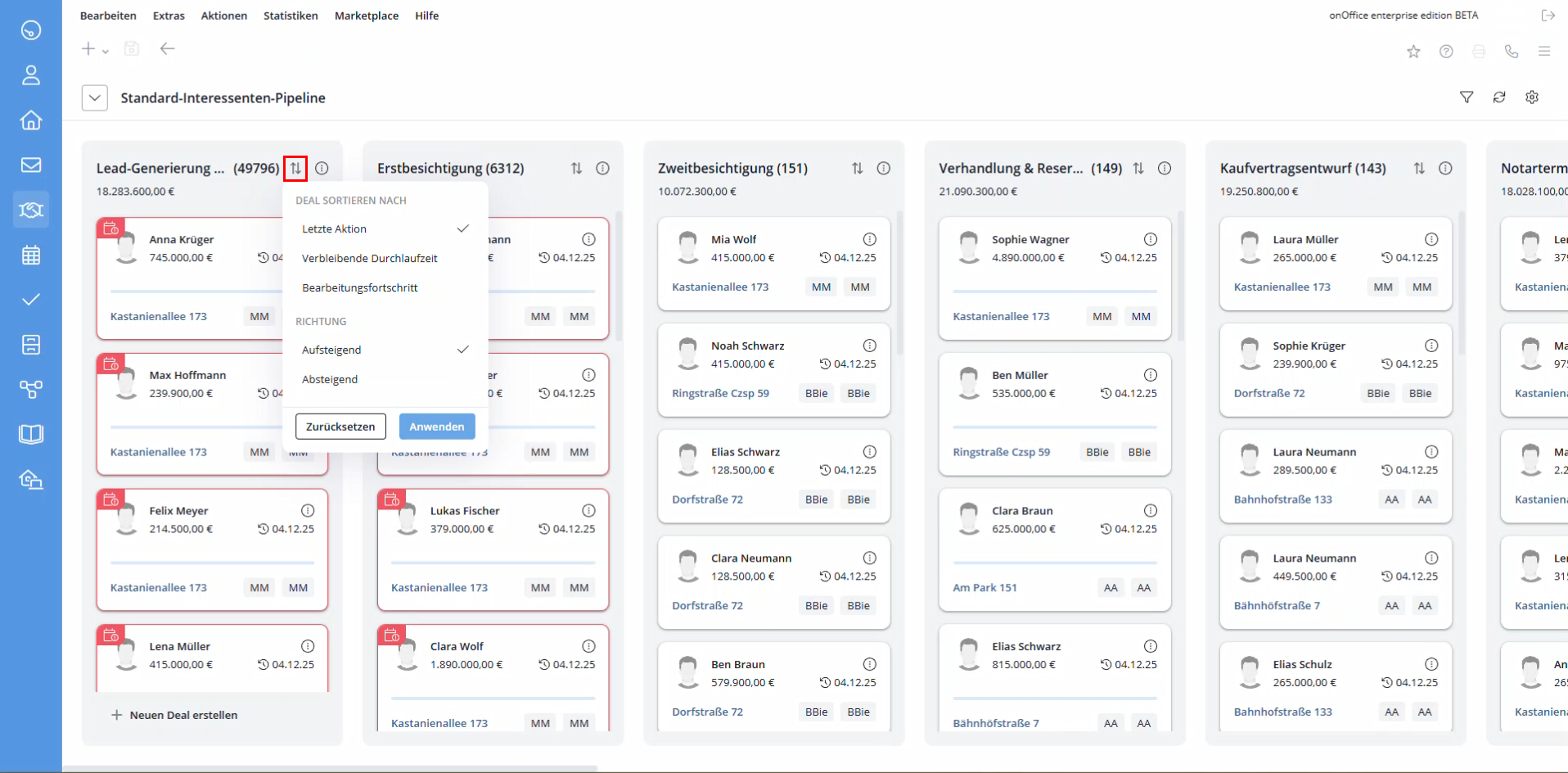
- Sort by: Using the sort icon in each phase, the deals can be sorted in ascending or descending order according to criteria such as “Last action”, “Remaining lead time” or “Processing progress”.
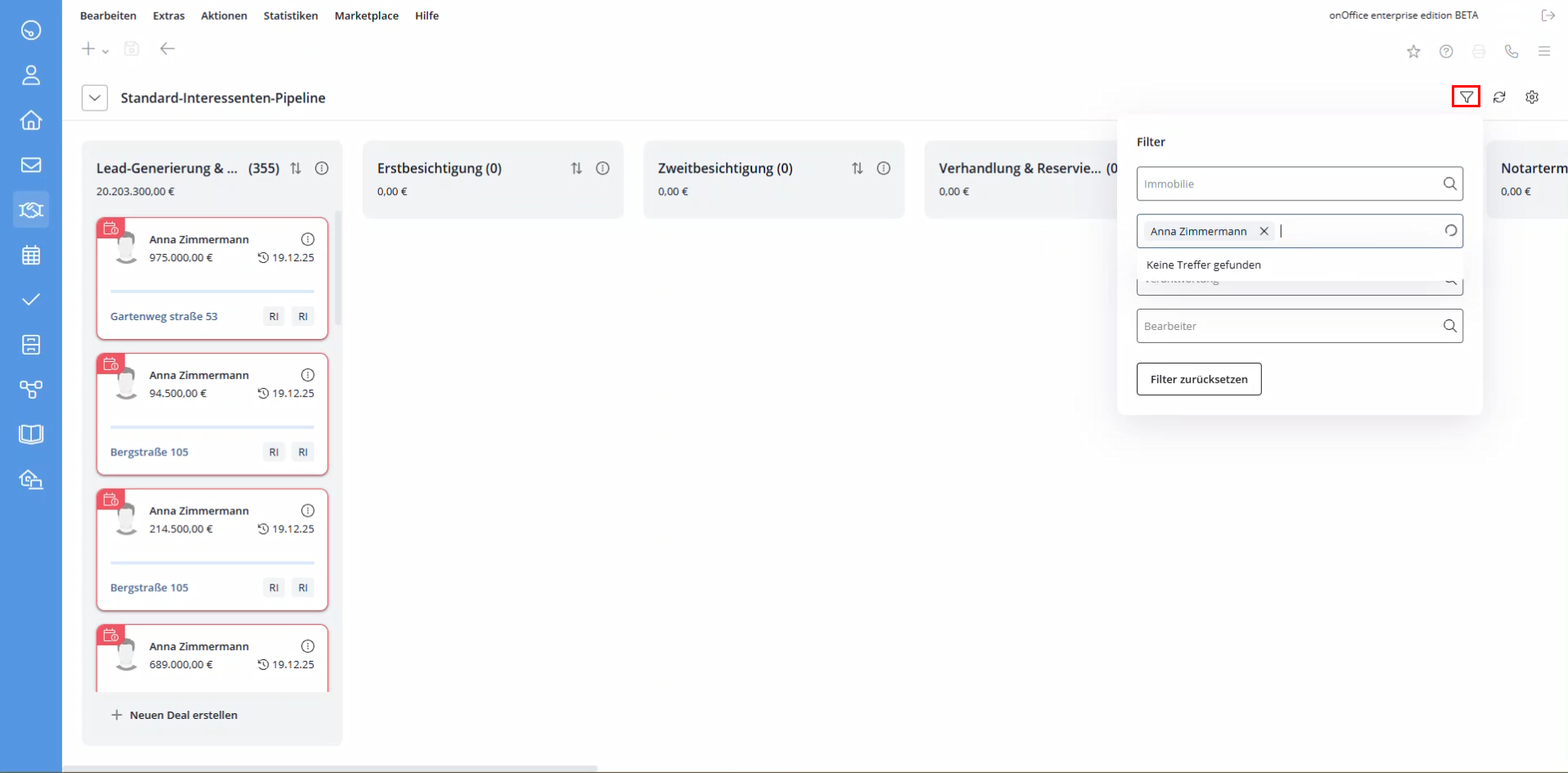
- Filter: Use the funnel symbol at the top right to restrict the view according to properties, prospects, responsible persons or processors.
- Active filters are indicated by a dot on the filter symbol.
- You can reset the filters and sorting using the “Reset”icon to the right.
Edit deal
Necessary role: Owner, creator or processor
In the detail view of a deal, you can make adjustments to the deal. You can change the deal properties via “Edit”.
Please note: Linked properties or prospects can only be exchanged during the first phase. In addition, moving a deal from the first phase (except to the “Deal Lost” status) is only possible if a link already exists. If, after a phase change, it becomes apparent that a deal has been linked to the wrong person or property, thenthe incorrect deal must be closed or discarded, and a new deal must be set up correctly to maintain a clean history and ensure the data remains analyzable.
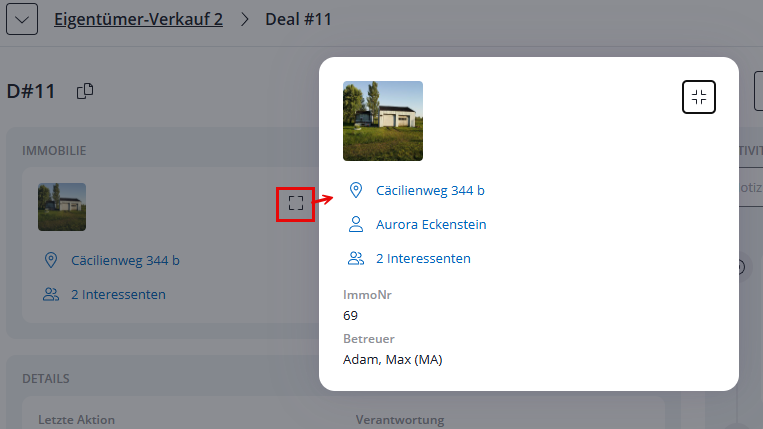
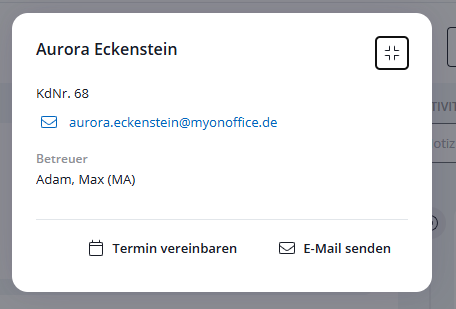
A click on the contact/property cards opens a compact information overlay for direct actions (e.g. send mail). The positioning of the information cards depends on the deal type. For prospect deals, the contact comes first, for owner deals the property.
Activities of a deal
In the detailed view of a deal, you will see a chronological activity timeline that displays all relevant actions in a list (newest first). All relevant actions of a deal are logged as activities and also under “Extras → Log” .
What activities are shown in a deal?
- Direct deal actions: Regardless of the linked data records, this list automatically includes all activities resulting from direct actions on the deal itself. This also applies if no property or a different property/contact was linked to the deal at the time of the promotion.
- In a prospect deal: The activities of the prospect and the property are included here. All Activities and agent’s log entries that are linked to both the prospect (contact) and the property of the deal are displayed – both criteria must apply to the activity.
- In an owner deal: This shows all agent’s log entries that are linked to the property in the deal. An additional link to a contact is not required for this.
Further conditions and functions for the display
- No duplicates / automatic cleanup: To ensure clarity, activities that have been entered more than once are automatically cleaned up and only displayed once. If an activity is recorded by several criteria (e.g. created on the deal and linked to the property at the same time), it is still only displayed once in the list.
- Authorizations: Activities for which the user does not have read authorization due to data record rights remain hidden. They are automatically filtered out and not even displayed.
- Visual identification: Future activities, such as appointments, are visually recognizable at first glance.
- Interaction: You can click on any activity to open the agent’s log or activity view in a pop-up.
Notes
Important comments can be entered directly in the “Activities” area as a note.
To do this, enter the text in the input field and click on “Add note”. The note immediately appears as the “Note” kind of action in the activity list. Please note that the text field has a maximum of 200 characters and the “Add note” button remains deactivated as long as the field is empty.
If the user authorization “Agent’s log / Activities” is generally deactivated, your notes will still be visible in the deal activity list.
Put deal on hold
Necessary role: Owner, creator or processor
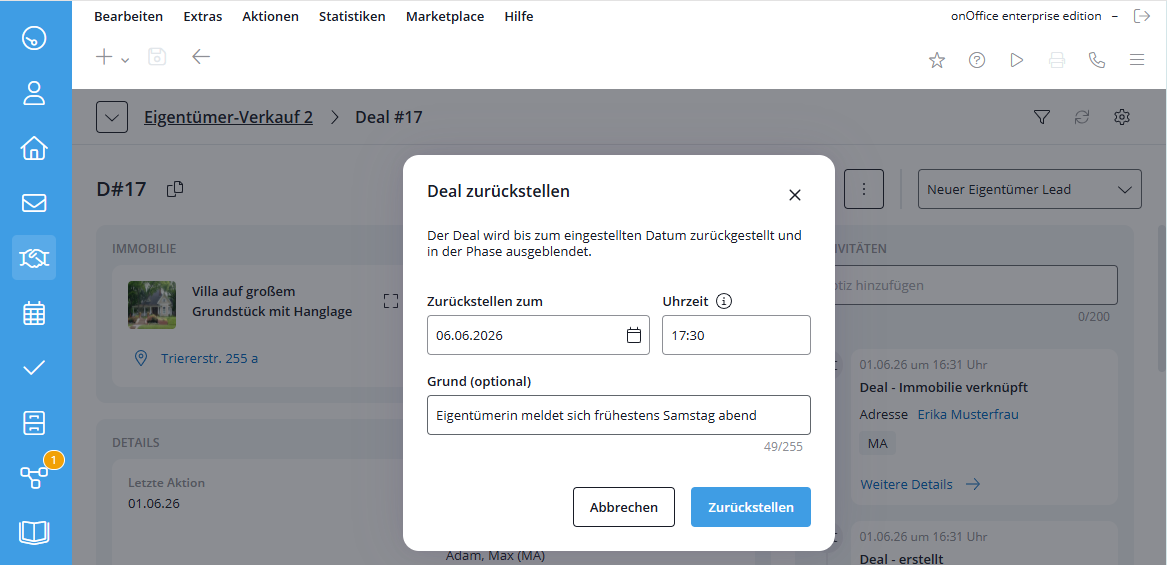
In the context menu of a deal card and in the detailed view of a deal, you have the option of resettinga deal with a date and reason (e.g. “Waiting for feedback”). It is then hidden in the pipeline until the date entered. For deferred deals, you can edit or remove the deferral. If required, you can also display the deferred deals for each phase via “Show deferred deals”.
View deferred deals: The detailed view of a deferred deal shows which user last deferred the deal.
Put the deal in the recycle bin
Necessary role: Owner, creator or processor
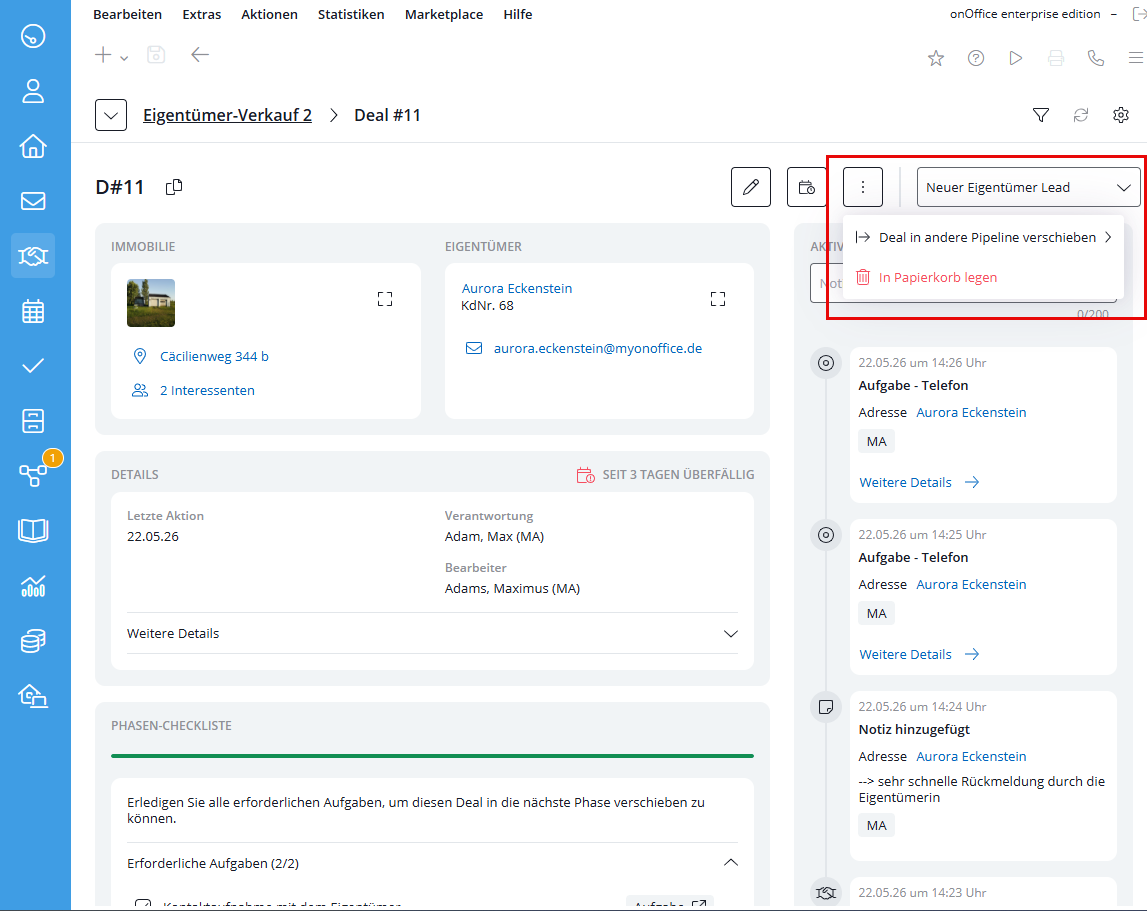
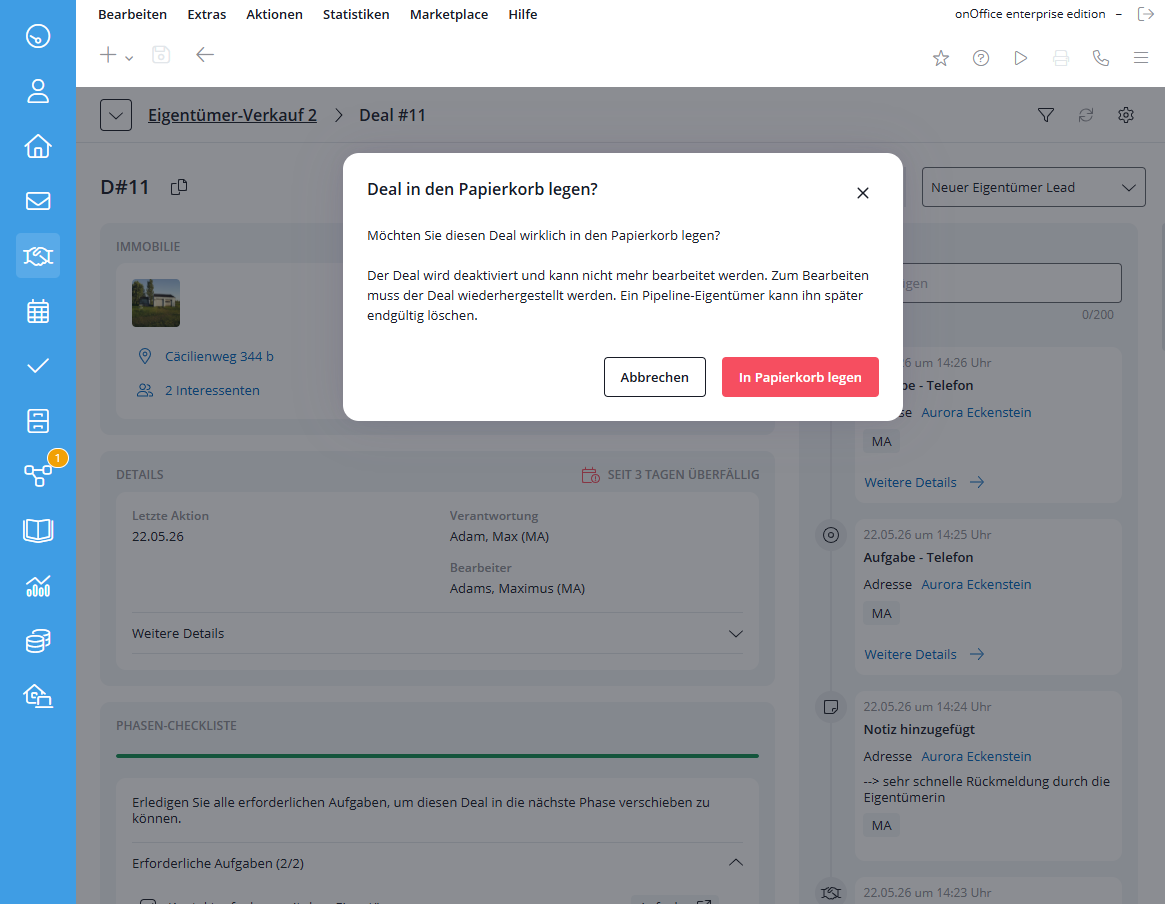
In the detailed view of a deal, you can move it to the recycle bin .
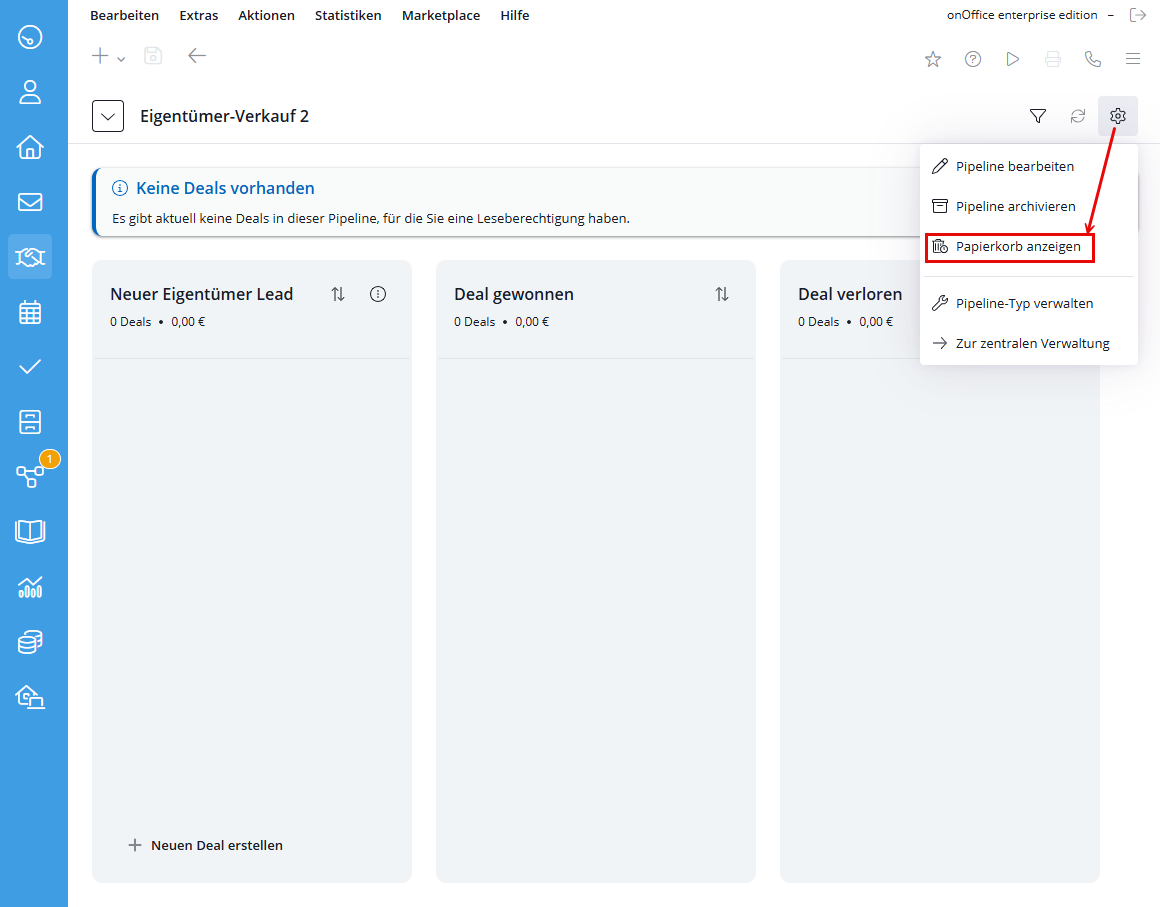
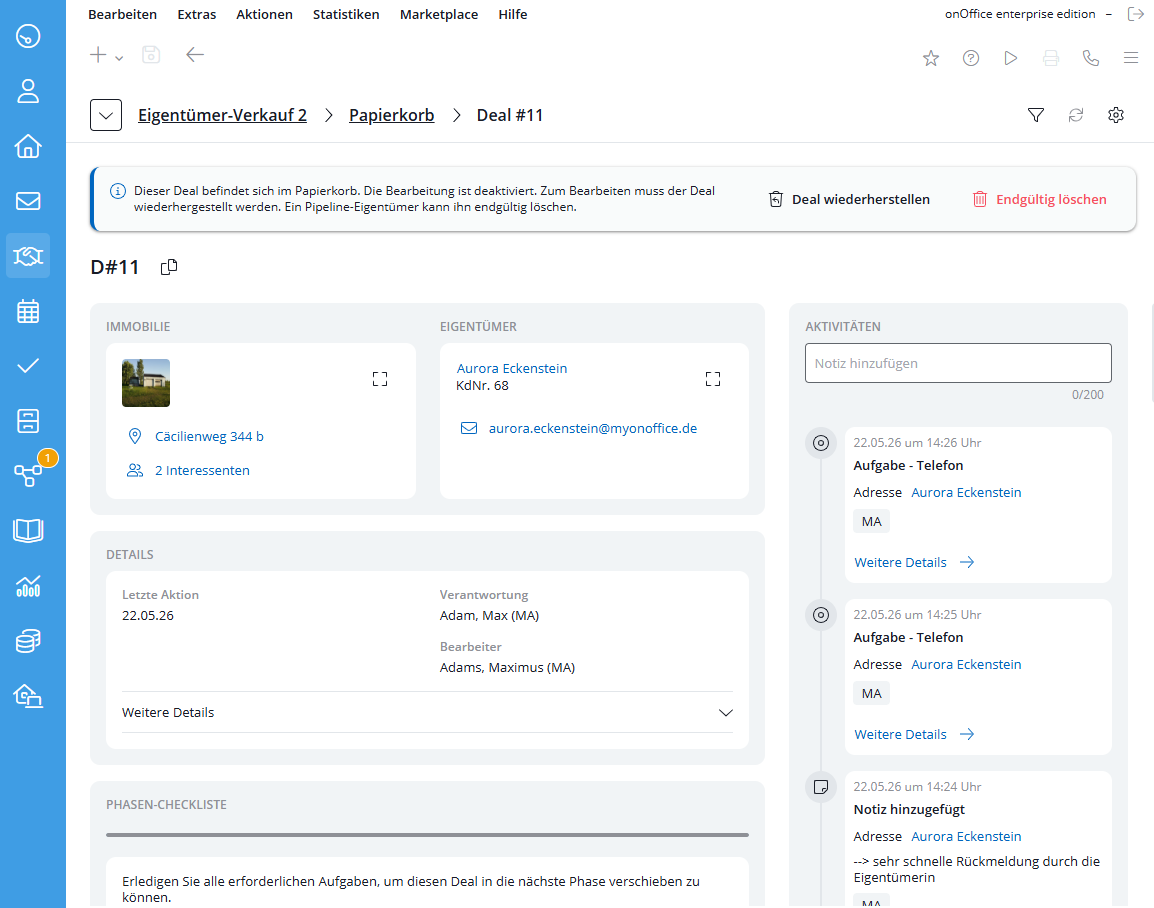
However, this does not mean that the deal has been permanently deleted, but only marked for deletion and blocked for further processing. You can open the recycle bin via the gear icon at the top right of the pipeline view and restoredeals from the recycle bin if required.
Delete deal permanently
Necessary role: Owner
In the recycle bin, you can delete deals either individually (via the context menu of the deal or the deal detail view) or per month finally. In the detailed view of a deal in the recycle bin, the action buttons at the top right change to “Restore” and “Delete permanently”.
Bulk Actions: Edit Multiple Deals at Once
Necessary role: Owner, creator or processor
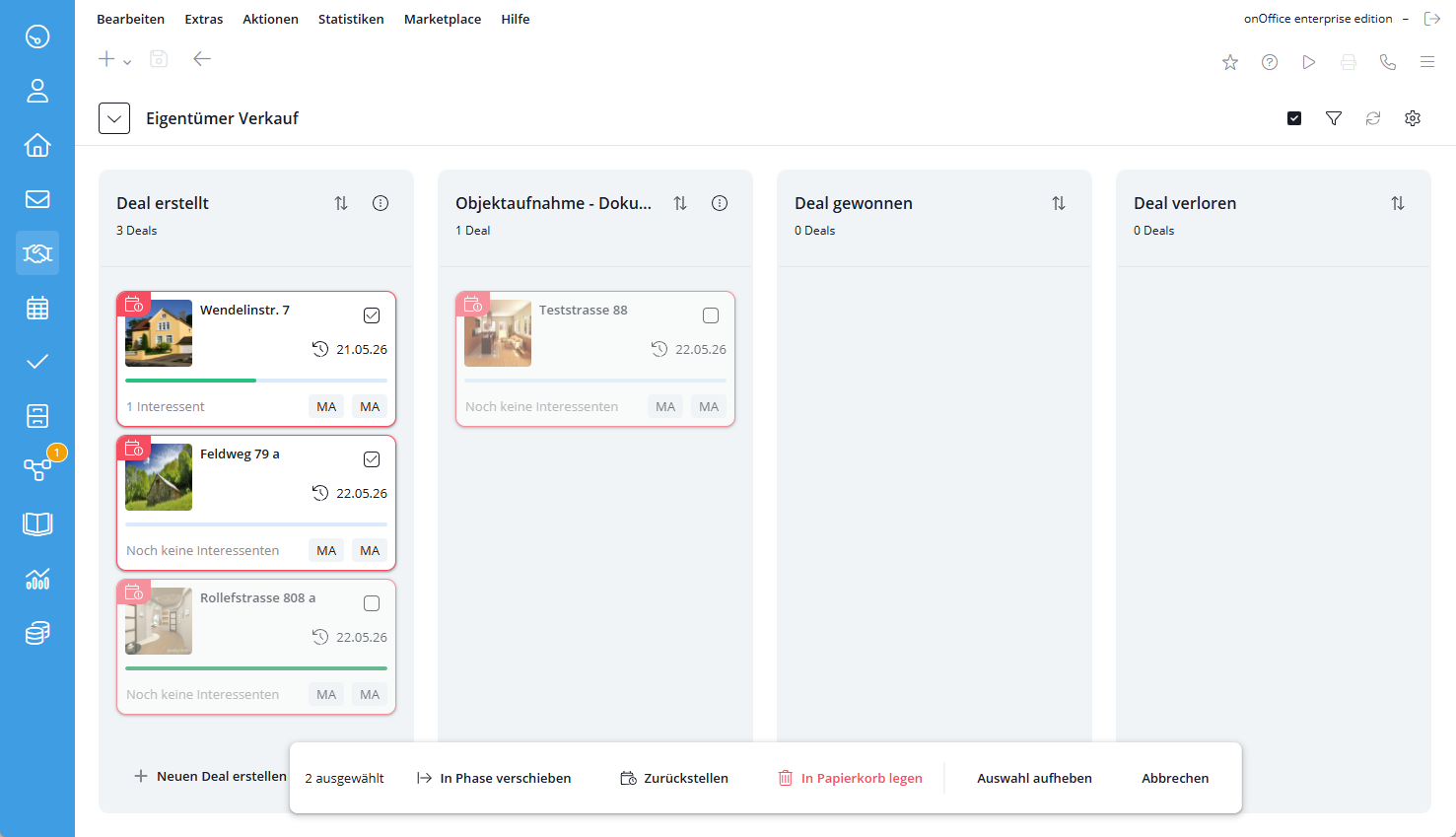
Use the checkbox icon in the upper-right corner of the pipeline view (to the left of the funnel icon) to enable multiple selections. A checkbox will then appear on each of the deal cards.
You can select as many deals as you like, even across multiple phases. As soon as at least one deal is selected, the action bar appears at the bottom, showing the number of selected deals and the available actions:
- Move to Phase
- Reset
- Move to Trash
- Deselect – deselects the entire selection without performing any action
- Cancel – ends the multiple selection
To remove individual deals from the selection, uncheck their checkboxes. The rest of the selection remains unchanged.
Move to Phase
Moves all selected deals to a stage of your choice. The same restrictions apply as for an individual deal (see “Move a Deal to a Different Phase”): Permissions, required checklist tasks, and the “Deal Won” and “Deal Lost” phases. Deals that do not meet these requirements remain in their current phase—the action is then only partially executed.
Reset
Resets all selected deals. You set the date and reason once; they apply to all selected deals. It is not possible to specify different details for each deal using the bulk action. The pipeline’s constraints are taken into account, including permissions, turnaround times, and the “Deal Won” and “Deal Lost” phases.
Move to Trash
Moves all selected deals to the trash. As with individual deals, this does not mean that the deals have been permanently deleted; rather, they are merely flagged for deletion and locked for further processing. Deals for which you lack the necessary permissions remain in the pipeline.
Opening the prospect deals to an owner deal
Necessary role: Owner, creator, editor or reader
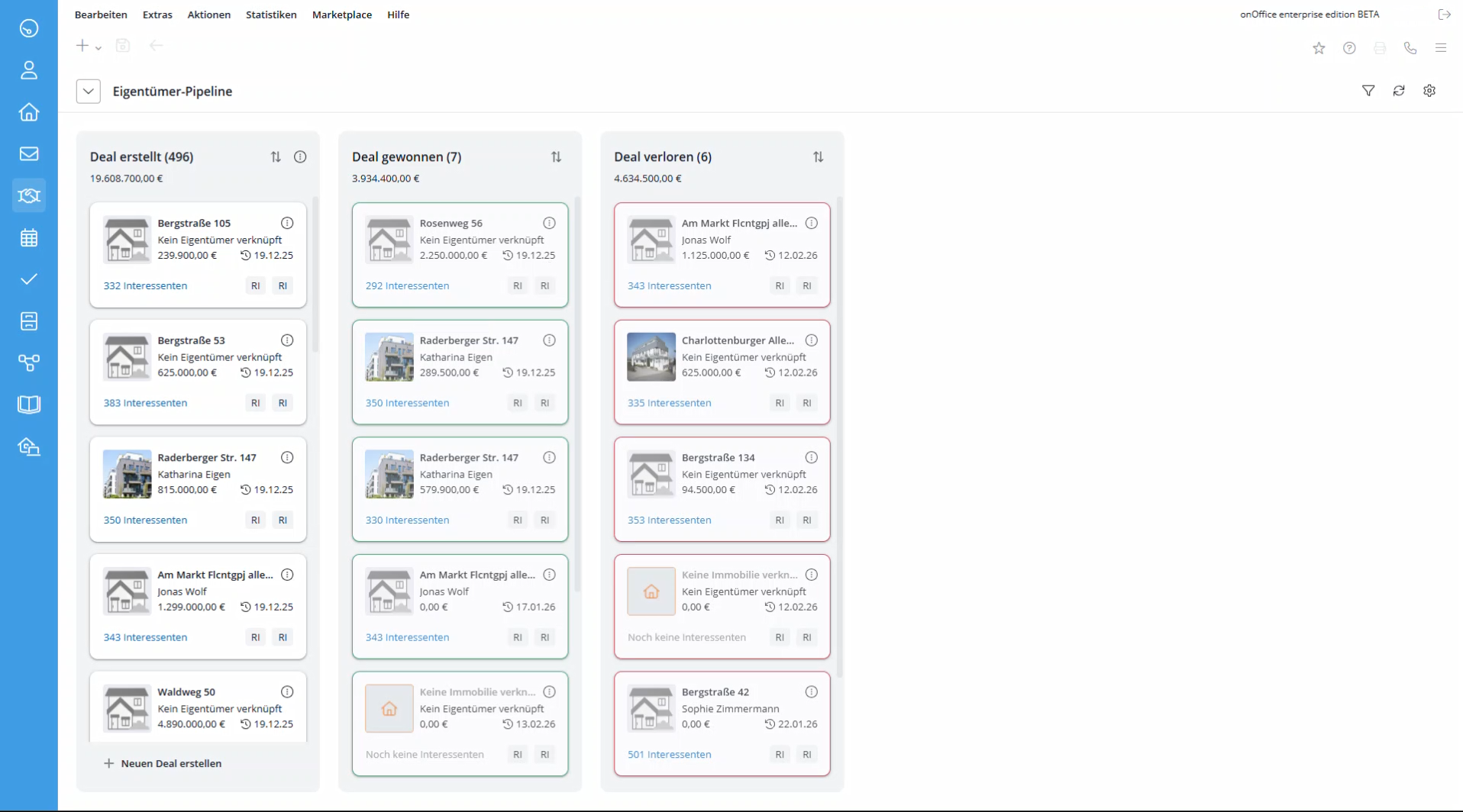
The number of prospect deals linked to the same property as an owner deal is displayed on the deal card and shown in the deal detail view.
- If you are in an owner deal and click on the linked prospects (deepdive), the path is displayed at the top left of the screen (breadcrumb). You will see separate, clickable links for the property or the owner deal and the pipeline of prospects. This allows you to jump directly back to the desired detail page with just one click, without having to make detours via menus. In addition, the detailed view of an owner deal contains a direct link to the associated prospect deals.
Converting Owner Deals into Prospective Buyer Deals
If there is an active owner deal associated with a prospect deal, you can open it directly by clicking the contact link on the prospect deal card, by selecting “Open Property” from the card’s context menu, or by clicking the corresponding link in the prospect deal’s detail view.
Open owner deal from property
In the info bar of a property detail view, a “Owner Deal” link appears directly below the image and the icons, provided there is an active Owner Deal for this property that you can view. Clicking on it opens the details page for this deal in a new tab.
View a prospect deal based on a contact
In the information bar of a contact detail view, a link labeled “Prospect Deal(s)” appears directly below the image and icons, provided there are one or more active prospect deals associated with this contact that are visible to you. Clicking on it opens the details page for this deal in a new tab. If there are multiple options, you can select the pipeline in the new tab.
Create appointments in a deal
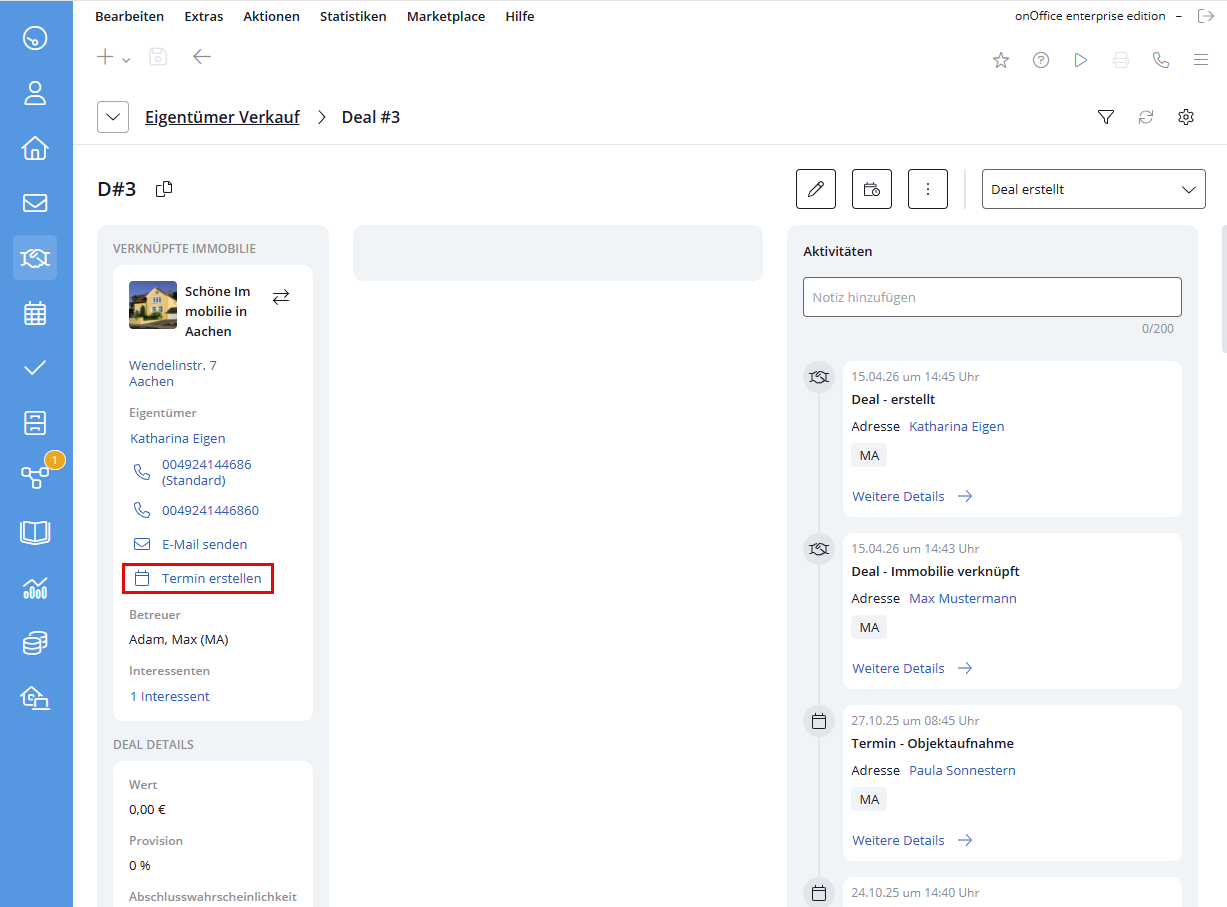
You can create appointments directly from a deal without interrupting the workflow. This function is available both in the context menu of the deal card and in the detailed view.
- Automatic preallocation: The linked contact (prospect or owner) and the property are automatically transferred to the appointment pop-up.
- Owner selection: If there is more than one owner, the one who is also shown on the deal card is selected for the appointment.
- In the detail view of a prospect deal , an appointment with the owner can be created in addition to an appointment with the prospect if the owner is linked in the property.
Entry
Dashboard
Contacts
Properties
Email
Calendar
Tasks
Acquisition Cockpit
Audit-proof mail archiving
Automatic brochure dispatch
Billing
Groups
Intranet
Marketing Box
Multi Property module
Multilingual Module
onOffice sync
Presentation PDFs
Process manager
Project Management
Property value analyses
Enquiry Manager
Showcase TV
Smart site 2.0
Statistic Tab
Statistics toolbox
Success Cockpit
Time Tracking
Address from clipboard
Text block
Customer communication
External Tools
Favorite links
Calculating with formulas
Mass update
onOffice-MLS
Portals
Property import
Quick Access
Settings
Templates
Step by step