

You are here: Home / Deals / Configuring pipelines and phases

Deals

Configuring pipelines and phases

Pipelines form the basis for your various business models, for example for sales or acquisition.

Required user right: Create/modify pipeline

To be able to use the Deals module, you must first create a pipeline.

Create new pipeline

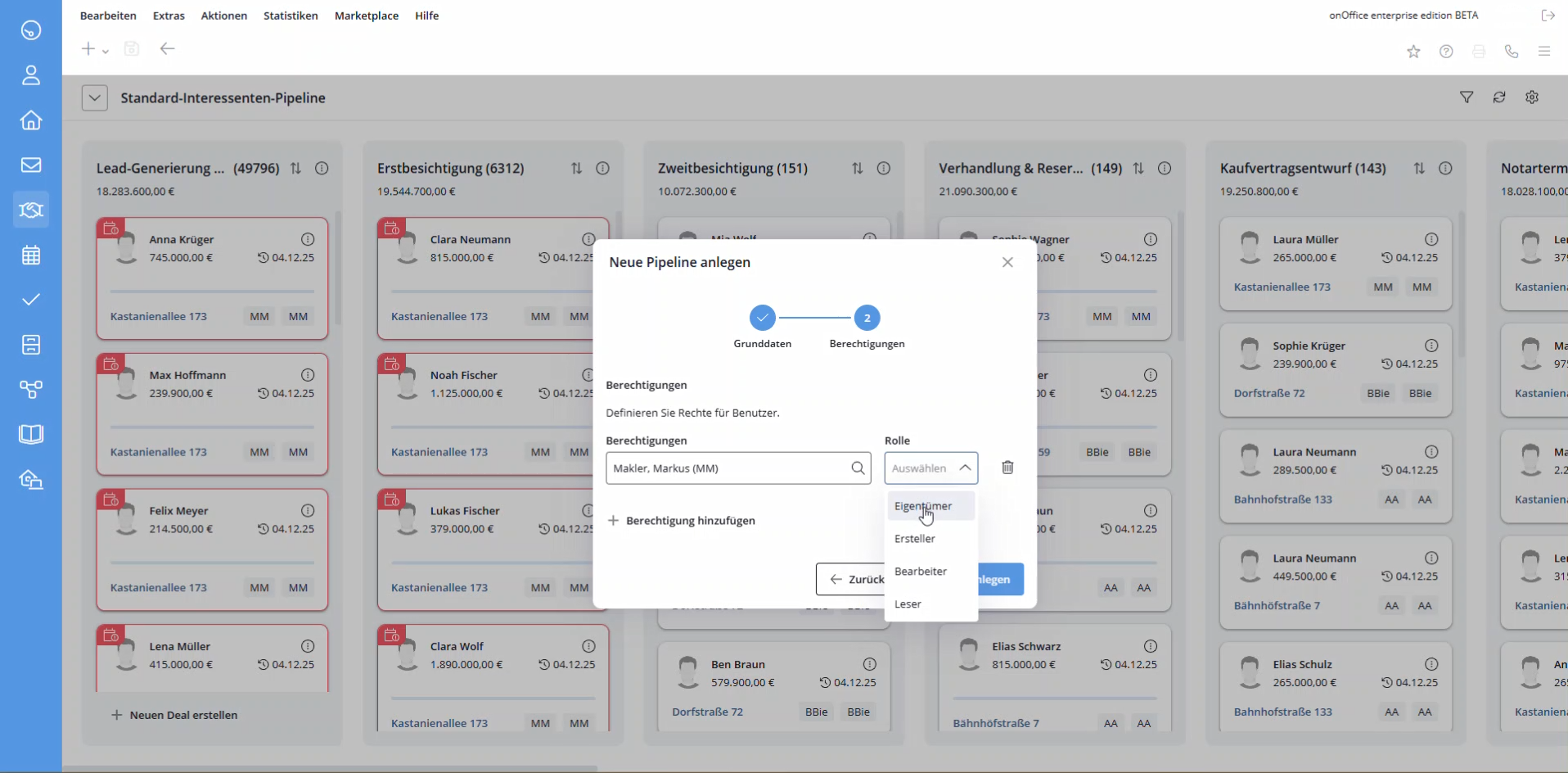
Select “Create new pipeline”in the pipeline selection below.

Basic data

Assign a name (here e.g. “Prospect sales”) and select the type of the pipeline (owner or prospect). You can change the name later, but the type can no longer be changed. Prospect pipelines can be configured for the creation of deals from portal requests .

Authorisations

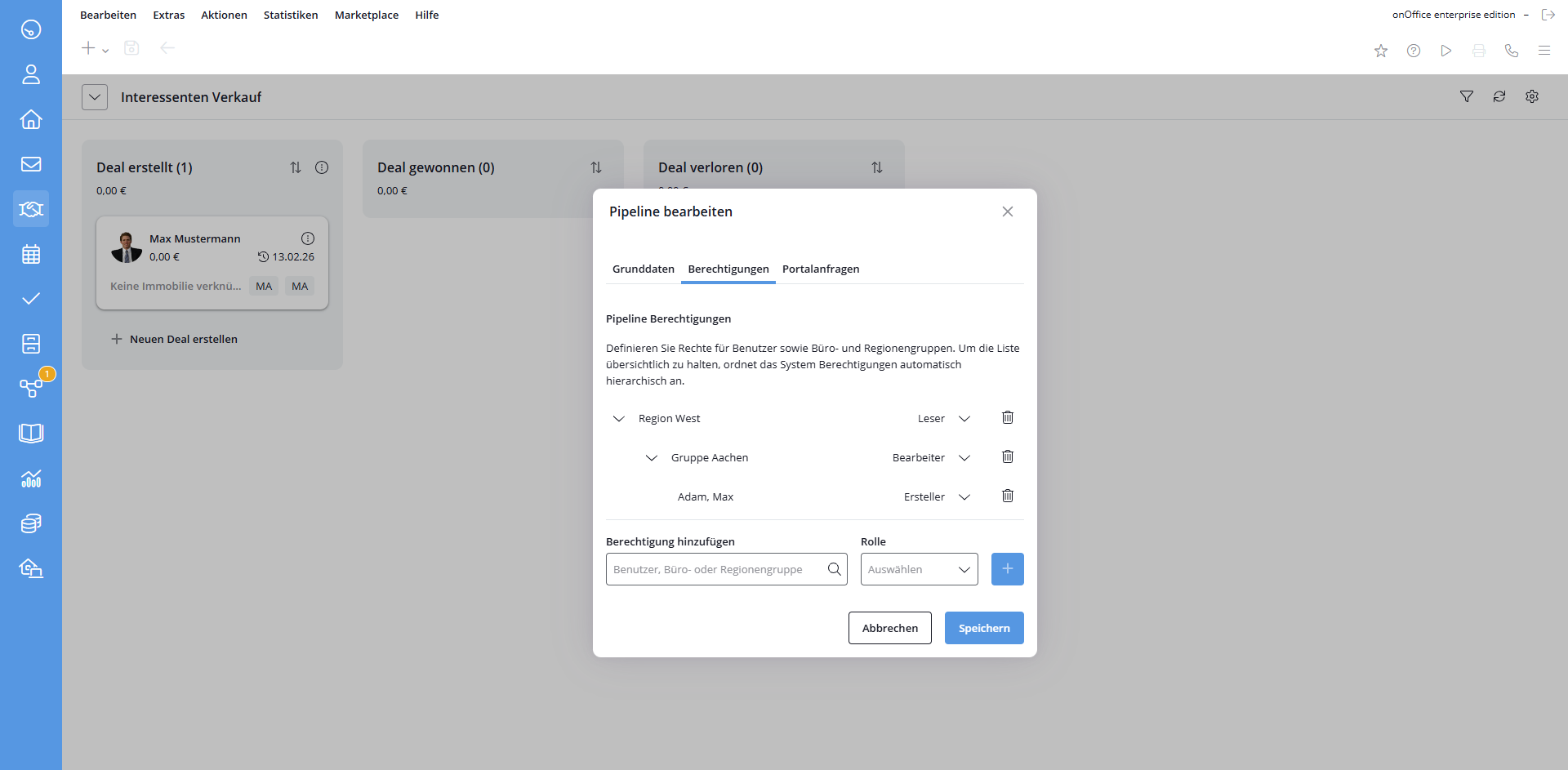
In the Authorizations step, you define which users have access to the pipeline deals and which role (owner, creator, editor or reader) they have.

  • Owners may read, create, edit and delete deals.
  • Creators may read, create and edit deals.
  • Editors are allowed to read and edit deals.
  • Readers may only read deals.
  • If a user does not have a role in the pipeline, they cannot see it unless they have the “Create/modify pipeline” user right.

When you create a new pipeline, your own user is automatically preselected with the role Owner . This prevents you from mistakenly not seeing any deals in it after creating a pipeline. You can edit or delete this entry as usual before saving.

In addition to users, office or regional groups can also be added.

By default, all users/office groups inherit the rights of the parent group/region. However, you can define different roles for individual users within a group. This individual assignment overrides the general group right.

Example: You assign the “Reader” right to an office group. However, you can explicitly give a specific user in this group the “Editor” right.

You can also revoke the rights of individual users in a group using the “No access” option so that they cannot see the pipeline, even though the rest of the group has access.

Corresponding regions, groups and/or users can be searched for via the input field for “Add authorization”.

Confirm with “Create pipeline”. You are then automatically forwarded to the new pipeline and can define the name of the first phase.

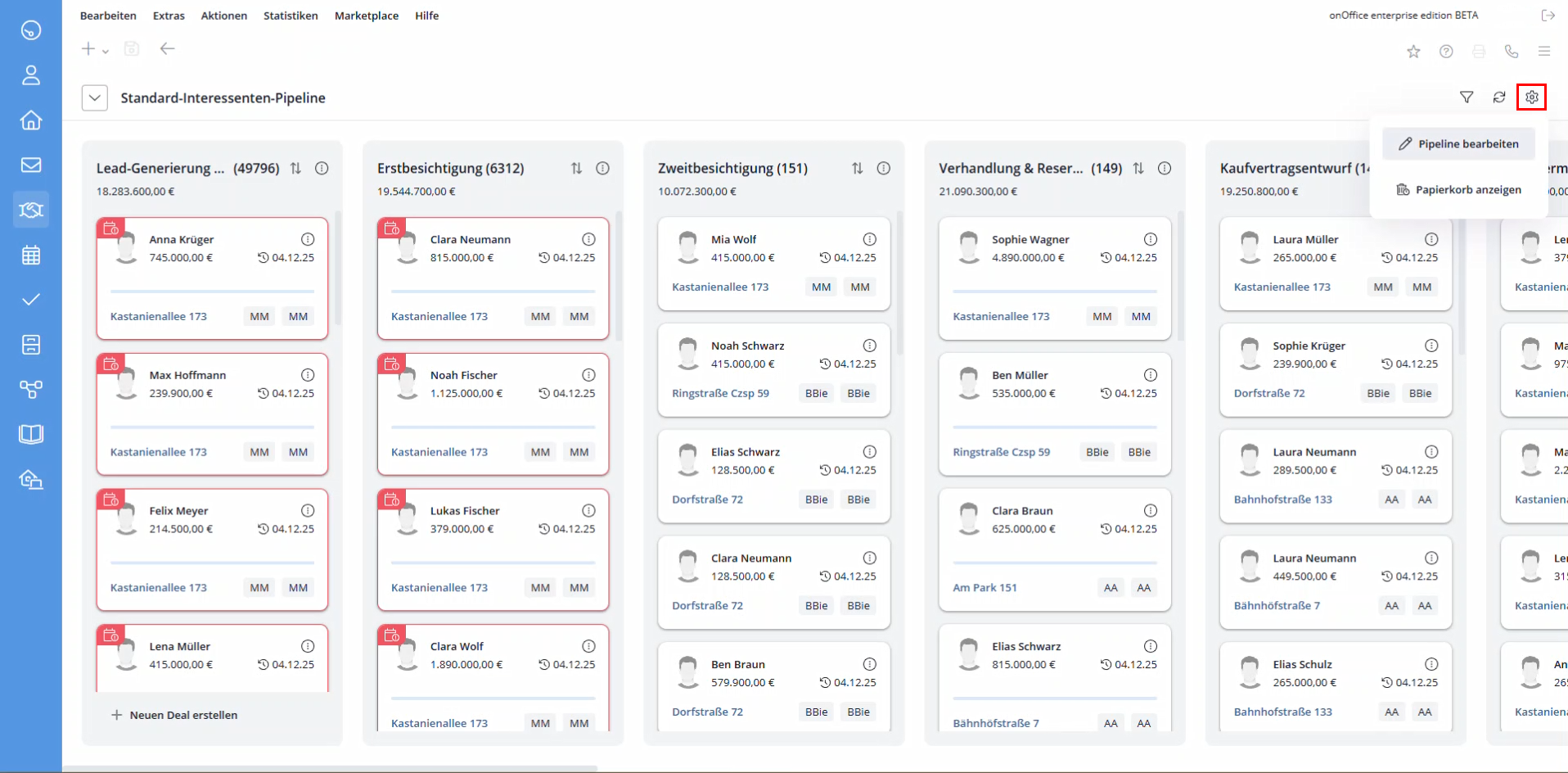
You can change the name and permissions of the pipeline at any time using the cogwheel icon in the top right-hand corner.

You can select created pipelines in the pipeline selection (top left) if you have the corresponding access.

You can also define a favorite pipeline using the star symbol in the pipeline dropdown. This pipeline is then opened by default when the deal module is called up. You can remove the favorite by clicking on the icon again.

Archive pipelines

You can archive pipelines that are no longer actively used in order to focus on the current day-to-day business.

  • What happens during archiving? The pipeline disappears from the list of active pipelines and is moved to the new subfolder “Archived pipelines”. Existing deals in this pipeline can continue to be processed as normal. However, no more new deals can be created in this pipeline or moved to it. Automatic links to portal requests are also removed.
  • Recovery: You can reactivate an archived pipeline at any time using the cogwheel symbol (“Restore pipeline”). Please note that you must then reconfigure the portal requests in prospect pipelines .

Adapt phases

Each pipeline consists of phases (displayed as columns), which you can configure individually using the three-dot icon   at the top right. You can also create additional phases there.

A maximum of 20 phases can be created per pipeline. You can adjust the order of the phases using drag-and-drop . In each phase (except “Deal won” and “Deal lost”) you have the following configuration options:

  • Name: Choose a meaningful title for the phase, e.g. one that describes the activities to be carried out in the phase (e.g. “Prepare marketing”). Alternatively, you can also describe intermediate goals achieved here (e.g. “Visit planned”).
  • Maximum throughput time: Specify the maximum length of time a deal should remain in the phase. On the day on which the defined maximum lead time expires, the deal is marked as “due today”, thereafter as “overdue”.
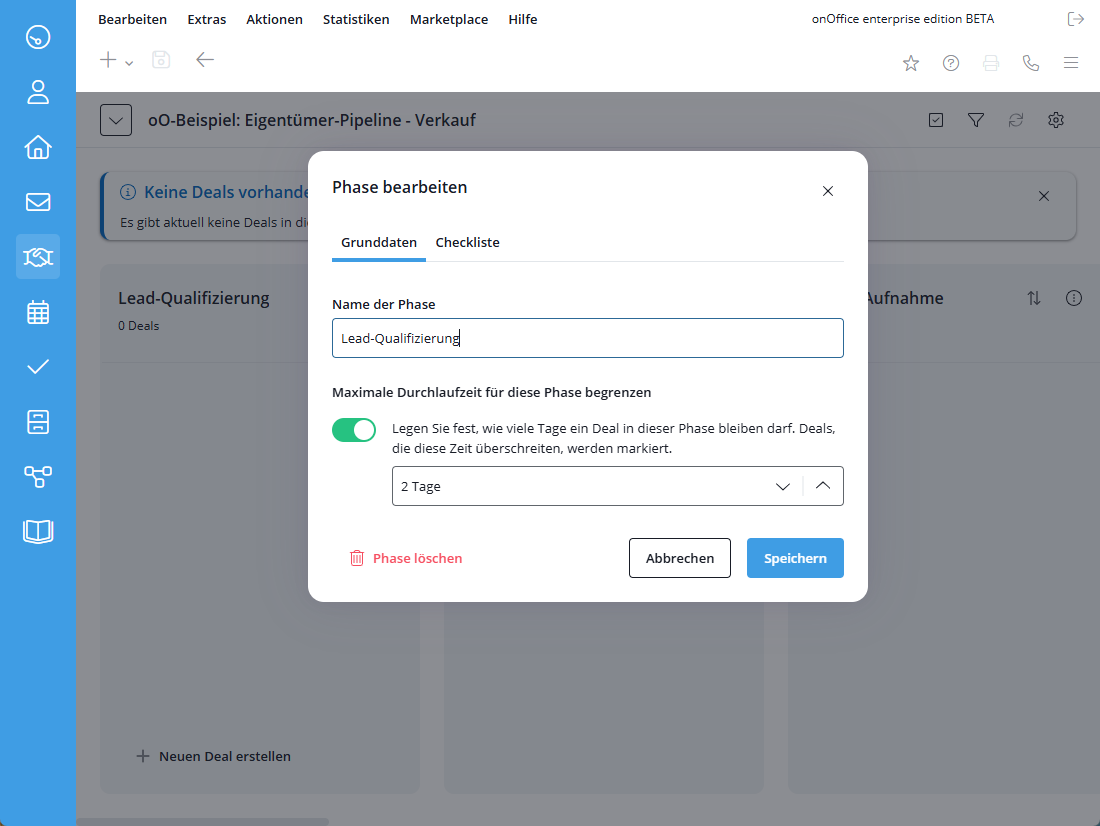
Deals - Configure Phase - Basic Data

  • Checklists: Add tasks to define the necessary activities in this phase. You can easily reorder the tasks using drag-and-drop. If desired, mark these as “required” so that a deal can only be moved to the next phase once the task has been completed. In the deals card and the deals detail view, a colored progress bar shows the current status of the checklist tasks.
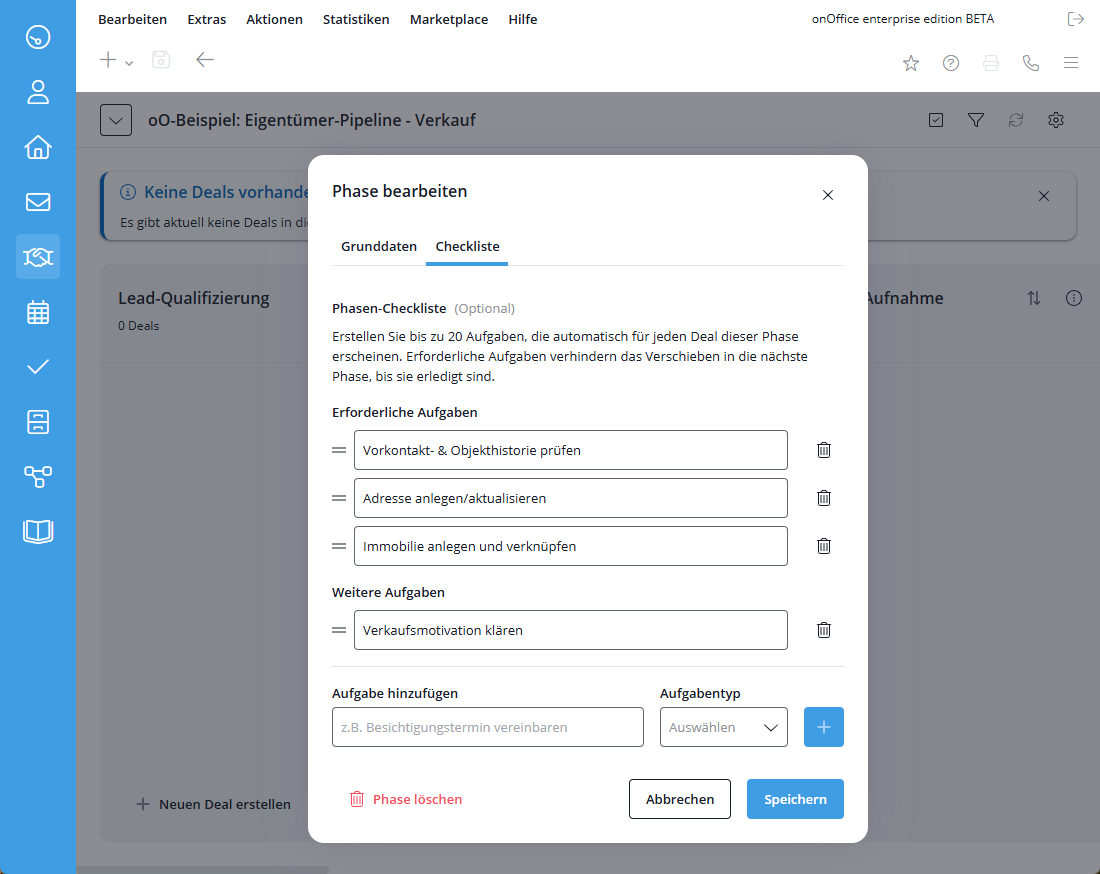
Deals - Configure Phase - Checklist
Reasons for Rejection

When a deal is moved to “Deal Lost,” a reason for the rejection is recorded.

Configure Rejection Reasons

Required user right: Create/modify pipeline

For each pipeline type (owner or prospect), use the gear icon (“Manage Pipeline Type → Deal Rejection Reasons” or “Go to Central Management → Configure Rejection Reasons“) maintain a separate list of rejection reasons (max. 10). “Other” is the default selection, but it can be changed.

Deal Lost

When you move a deal to “Deal Lost,” the completion dialog box opens, and you are required to select a reason for the rejection.

If other deals are linked, the dialog box also offers the option to mark them as “Deal Lost” as well. You can also specify a reason for the rejection for these.

Deal Won

When moving a deal to “Deal Won,” you can choose in the completion dialog to set all deals linked to the address and/or all deals linked to the property to “Deal Lost.” For each of the two groups, specify a separate reason for rejection (maximum of 2 in total).

View the reason for the rejection

Visible in the “Deal Lost” activity and in the deal’s detail view.

Deals