
You are here: Home / Deals / Deals

Deals

Deals

1. Deals

Deals will be the new control center of onOffice enterprise. Here, property acquisition and marketing are intelligently linked and you can map the entire sales process of a property in your company. So you always have an overview of your business.

The Deals module is organized in so-called pipelines in which you can map different use cases. Depending on your needs, you can, for example, create different pipelines for the sale and rental of properties, but also for different teams or departments.

In each pipeline, you can define phases that reflect the different stages of your sales process that a deal goes through from initial contact to contract closure.

There are currently two different types of pipelines: Owner pipelines with owner deals and Prospect pipelines with prospect deals.

In an owner deal , you map the communication with the owner, the preparation of marketing and all other activities that you have to carry out exactly once per property during the sales process. An owner deal is therefore linked to a property.

In a prospect deal , you map the communication with the prospect, the qualification of the prospect and all other activities that you have to carry out separately for each prospect during the sales process. A prospect deal is therefore linked to a property and a contact, the prospect.

2. Call up the Deals module

The module is called up via the module bar on the left .

Call up the deals module

In order for the Deals module to appear in the module bar, you must have the user right “Deals”. You can assign this as usual under Extras > Settings > Rights . Here you can also define who can create and edit pipelines in your company.

Deals - User rights

3. Configuring pipelines and phases

Pipelines form the basis for your various business models, for example for sales or acquisition.

Required user right: Create/modify pipeline

To be able to use the Deals module, you must first create a pipeline.

Create new pipeline

Select “Create new pipeline”in the pipeline selection below.

Deals - Create pipeline

Basic data

Assign a name (here e.g. “Prospect sales”) and select the type of the pipeline (owner or prospect). You can change the name later, but the type can no longer be changed. Prospect pipelines can be configured for the creation of deals from portal requests .

Select deal pipeline type
Authorizations

In the Authorizations step, you define which users have access to the pipeline deals and which role (owner, creator, editor or reader) they have.

  • Owners may read, create, edit and delete deals.
  • Creators may read, create and edit deals.
  • Editors are allowed to read and edit deals.
  • Readers may only read deals.
  • If a user does not have a role in the pipeline, they cannot see it unless they have the “Create/modify pipeline” user right.

Create pipeline - Authorizations

In addition to users, office or regional groups can also be added.

Edit pipeline rights

By default, all users/office groups inherit the rights of the parent group/region. However, you can define different roles for individual users within a group. This individual assignment overrides the general group right.

Example: You assign the “Reader” right to an office group. However, you can explicitly give a specific user in this group the “Editor” right.

You can also revoke the rights of individual users in a group using the “No access” option so that they cannot see the pipeline, even though the rest of the group has access.

Corresponding regions, groups and/or users can be searched for via the input field for “Add authorization”.

Confirm with “Create pipeline”. You are then automatically forwarded to the new pipeline and can define the name of the first phase.

You can change the name and permissions of the pipeline at any time using the cogwheel icon in the top right-hand corner.

Edit pipeline

You can select created pipelines in the pipeline selection (top left) if you have the corresponding access.

You can also define a favorite pipeline using the star symbol in the pipeline dropdown. This pipeline is then opened by default when the deal module is called up. You can remove the favorite by clicking on the icon again.

Adapt phases

Each pipeline consists of phases (displayed as columns), which you can configure individually using the three-dot icon   at the top right. You can also create additional phases there.

Edit phases

A maximum of 20 phases can be created per pipeline. You can adjust the order of the phases using drag-and-drop . In each phase (except “Deal won” and “Deal lost”) you have the following configuration options:

  • Name: Choose a meaningful title for the phase, e.g. one that describes the activities to be carried out in the phase (e.g. “Prepare marketing”). Alternatively, you can also describe intermediate goals achieved here (e.g. “Visit planned”).
  • Maximum throughput time: Specify the maximum length of time a deal should remain in the phase. On the day on which the defined maximum lead time expires, the deal is marked as “due today”, thereafter as “overdue”.
  • Checklists: Add tasks to define the necessary activities in this phase. If desired, mark these as “required” so that a deal can only be moved to the next phase once the task has been completed.

Configure phase

4. Create and manage deals

Create new deal

Necessary role: Owner or creator

  1. Open the desired pipeline. In the first phase, click on “+ Create new deal” or on the plus sign at the top left.

    Create new deal

  2. Assignments: Link a property and (for prospect deals) a contact as prospect. Simply enter a suitable search term in the input field (e.g. the address of the property or the first or last name of the contact). The search is refined with each additional character entered. Each property can only be assigned to one owner deal. Different prospect deals cannot be linked to both the same property and the same prospect.

    Create deal view

    3. Values: If required, enter the deal value, the commission, the expected closing date and the probability of closing as a percentage.
    4. Assign the responsibility and enter the processor of the deal. Our recommendation: The person responsible bears overall responsibility for the deal and is the central contact person. The processor is actively and operationally working on the to-dos for this deal. Responsibility and processor can be exchanged later in the detailed view of the deal.

After saving, the deal is displayed as card in the pipeline. New deals can also be created directly from a contact or a property via “Create deal” in the action bar.

Quick info via hover function In the pipeline view, you can view details on prospects or properties without leaving the page. Simply move your mouse over the name on the deal card.

  • Prospect deals: Shows the customer number, name, company and address of the prospect.  
  • Owner deals: Shows the property number, title and address of the property.

Visibility of deals based on access rights: The pipeline view takes into account your read permissions for contacts and properties. Deals for whose linked data records you do not have read permission are automatically hidden. This also applies to the counting of prospects in owner deals.

Opening the detailed view

Necessary role: Owner, creator, editor or reader

By clicking on the map of a deal, you can open its detail view and obtain further information on the deal, e.g. the current checklist for the deal.

Opening the context menu

Necessary role: Owner, creator, editor or reader

By clicking on the three-dot icon  on the deal card, you have quick access to important information and functions.

Postpone deal to other phase

Necessary role: Owner, creator or processor

A deal can be moved to another phase via drag-and-drop of the map and via the phase selection in the detailed view. Deals in the “Deal won” and “Deal lost” phases cannot be moved or edited.

When moving deals to these phases, you may be given the option to move deals linked to the same prospect or the same property to “Deal lost” and adjust the status of the property. For the latter, the “Status”, “Status 2 (detail)” and “Marketing status” fields are adjusted.

A deal can only be moved to the next phase if all required checklist tasks of the current phase have been completed and no phases with mandatory tasks are skipped. Invalid phase changes, e.g. due to unfinished mandatory tasks, are displayed with an error message in the pipeline view, while invalid target phases are deactivated in the detail dropdown.

Sorting and filters

Necessary role: Owner, creator, editor or reader

  • Sort by: Using the sort icon in each phase, the deals can be sorted in ascending or descending order according to criteria such as “Last action”, “Remaining lead time” or “Processing progress”.

Sort phase

  • Filter: Use the funnel symbol at the top right to restrict the view according to properties, prospects, responsible persons or processors.
  • You can reset the filters and sorting using the “Reset”icon to the right.

Filter deals

Edit deal

Necessary role: Owner, creator or processor

In the detailed view of a deal, you can make adjustments to the deferred deals at any time. You can use “Edit” to change the deal properties and replace the property or (in the case of prospect deals) the prospect.

Deal detail view

Activities of a deal

All relevant actions of a deal are logged as Activities and also (in a higher level of detail) under “Extras >> Log” .

These include the actions “Contact linked/resolved”, “Property linked/resolved”, “Deal created/won/lost” and “New phase”.

Put deal on hold

Necessary role: Owner, creator or processor

In the context menu of a deal card and in the detailed view of a deal, you have the option of resettinga deal with a date and reason (e.g. “Waiting for feedback”). It is then hidden in the pipeline until the date entered. For deferred deals, you can edit or remove the deferral. If required, you can also display the deferred deals for each phase via “Show deferred deals”.
View deferred deals: The detailed view of a deferred deal shows which user last deferred the deal. 

Put deal on hold

Put the deal in the recycle bin

Necessary role: Owner, creator or processor

In the detailed view of a deal, you can move it to the recycle bin .

Put the deal in the recycle bin

However, this does not mean that the deal has been permanently deleted, but only marked for deletion and blocked for further processing. You can open the recycle bin via the gear icon at the top right of the pipeline view and restoredeals from the recycle bin if required.

Call up the recycle bin

Delete deal permanently

Necessary role: Owner

In the recycle bin, you can delete deals either individually (via the context menu of the deal or the deal detail view) or per month finally.

Delete deals permanently

Delete or restore an individual deal

Opening the prospect deals to an owner deal

Necessary role: Owner, creator, editor or reader

The number of prospect deals linked to the same property as an owner deal is displayed on its deal card.

Deals - Owner deals

Clicking on the corresponding link opens a view of the relevant prospect deals. If these are in different pipelines, you still have to select the desired pipeline.

Prospects from owner deals

Create appointments in a deal

You can create appointments directly from a deal without interrupting the workflow. This function is available both in the context menu of the deal card and in the detailed view.

  • Automatic preallocation: The linked contact (prospect or owner) and the property are automatically transferred to the appointment pop-up.
  • Owner selection: If there is more than one owner, the one who is also shown on the deal card is selected for the appointment.
  • In the detail view of a prospect deal , an appointment with the owner can be created in addition to an appointment with the prospect if the owner is linked in the property.

  • Appointment from context menu

Date from detailed view

5. Create deals from portal requests

You can configure prospect pipelines for the automatic creation of deals from portal requests .

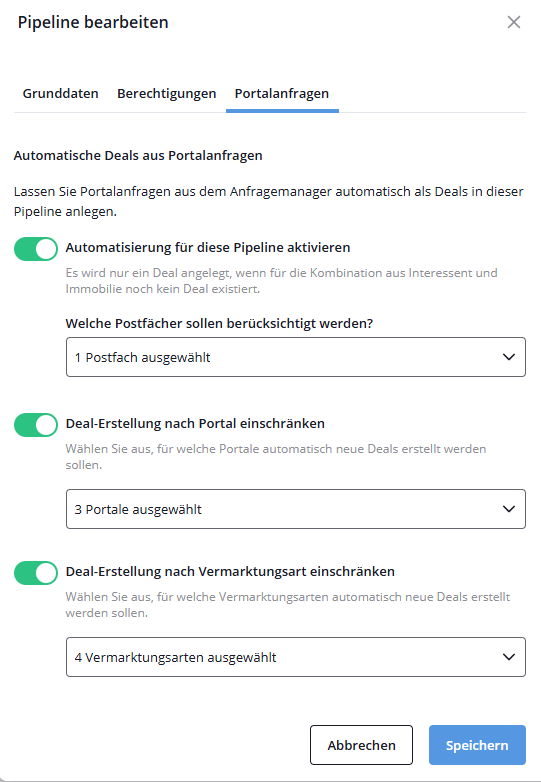
Configuration of automatic deal creation

Automation makes it possible to create portal requests that are processed via the Enquiry Manager directly as deals in a pipeline. This function is only available for prospect pipelines.

Step-by-step setup

  • Activation: The option “Activate automation for this pipeline” must be activated in the pipeline configuration (“Portal requests” tab).
  • Restriction according to criteria: To distribute deals specifically to different pipelines, you can filter the creation according to the following characteristics.
    • Mailboxes: Either select all mailboxes assigned to the pipeline owner/creator with an active enquiry manager or make an individual selection.
    • Portals: The creation can be limited to specific portals that are active in the enquiry manager.
    • Marketing types: Specify the property marketing types (e.g. purchase or rental) for which deals are to be created in this pipeline.
    • Contact type: Restrict the creation to certain contact types of the requesting contact [not yet available].

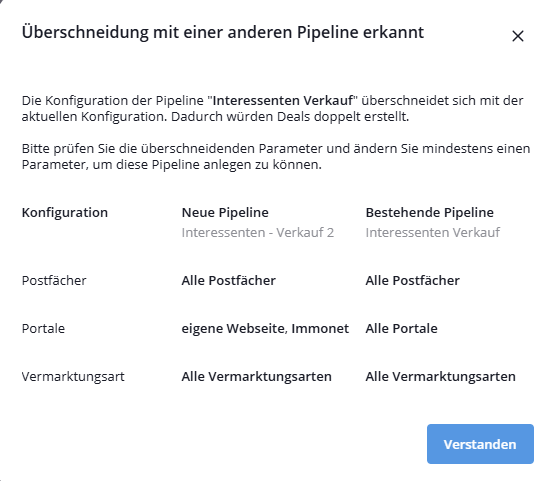
Avoidance of configuration conflicts

The system automatically checks for overlaps with other pipelines during setup.

  • Warning: If a combination of portals, mailboxes and other criteria is already active in another pipeline, a warning is issued.
  • Memory lock: If there is a partial or complete overlap, the configuration cannot be completed in order to avoid duplicate deal creations.

Deal creation process

As soon as the enquiry manager has successfully assigned a portal request to a contact, the deal creation process is triggered.

  • Time – Maximum one minute after processing in the enquiry manager.
  • PhaseNew deals are always created in the first phase of the pipeline.
  • UniquenessA deal is only created if there is not yet an open deal for the combination of prospect and property.
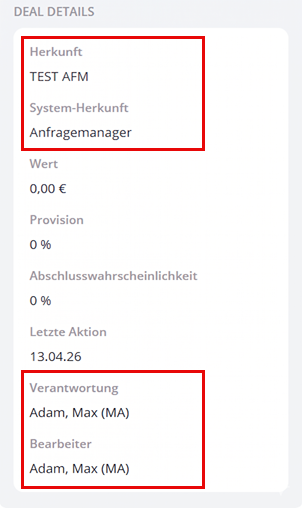
  • Responsibility The user who is assigned to the receiving mailbox in the enquiry manager is entered as the person responsible

Origin information in the deal

Each automatically created deal receives information about its creation:

  • System origin: Is automatically assigned “Enquiry manager”.
  • Origin (portal): Contains the name of the portal from which the request originated.

These fields can be viewed in the deal detail card .

Deals