 Entry
Entry Dashboard
 Contacts
 Properties
 Email
Email Calendar
 Tasks
Tasks Acquisition Cockpit
 Audit-proof mail archiving
 Automatic brochure dispatch
 Billing
 Groups
 Intranet
 Marketing Box
 Marketplace
 Multi Property module
 Multilingual Module
 onOffice sync
 Presentation PDFs
 Process manager
 Project Management
 Property tracking
 Property value analyses
 Enquiry Manager
 Showcase TV
 Smart site 2.0
 Statistic Tab
 Statistics toolbox
 Success Cockpit
 Time Tracking
 Address from clipboard
 Text block
 Customer communication
 External Tools
 Favorite links
 Calculating with formulas
 Mass update
 onOffice-MLS
 Portals
 Property import
 Quick Access
 Settings
 Templates
 Step by step


You are here: Home / Tutorials / Step by step / Administrative instructions / Marketplace - Activate provider

Step by step
Marketplace – Activate provider
Inhaltsverzeichnis
Marketplace overview
Open the overview at the top via the menu bar . Here you can find out about the various providers and their services.
In the overview you will find details about the provider and information about the terms and conditions, data protection and order data processing.
Clicking on “More information” or “Activate now” will take you to the details.
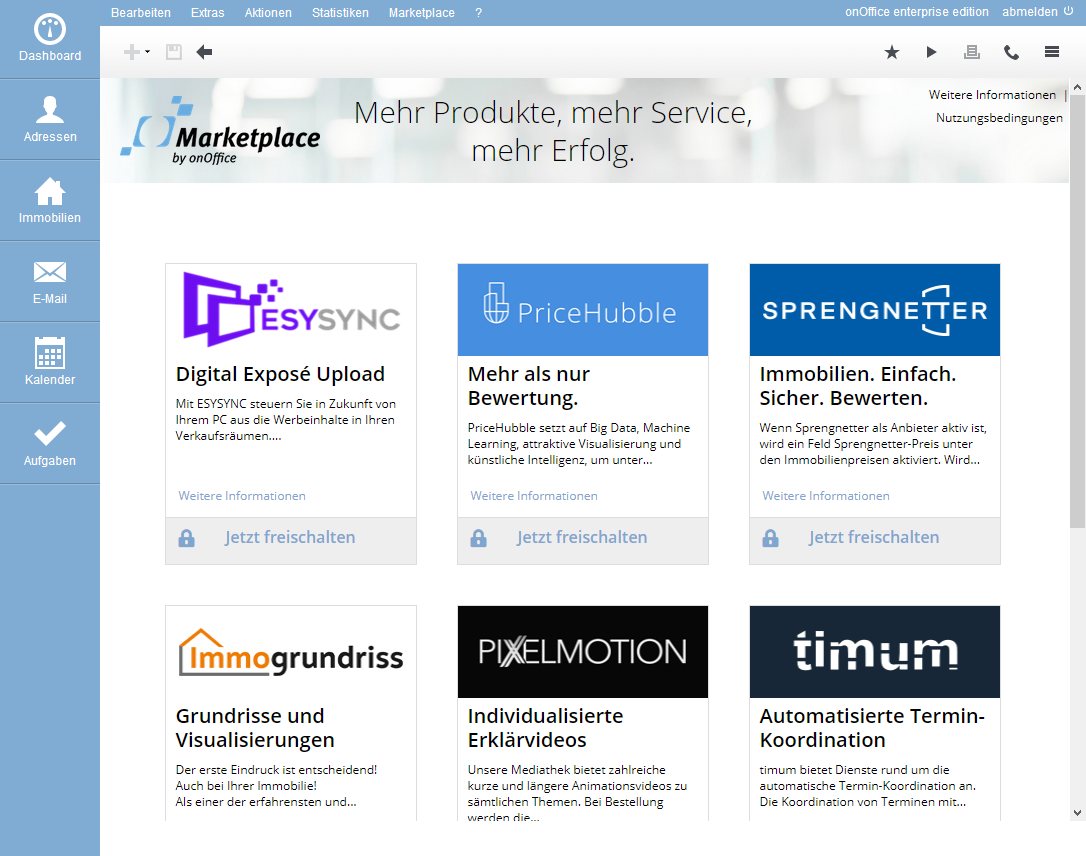
You can always call up the details of the provider and information on the general terms and conditions, data protection and order data processing in the overview.
A click on “More information” or “Activate now” will take you to the details
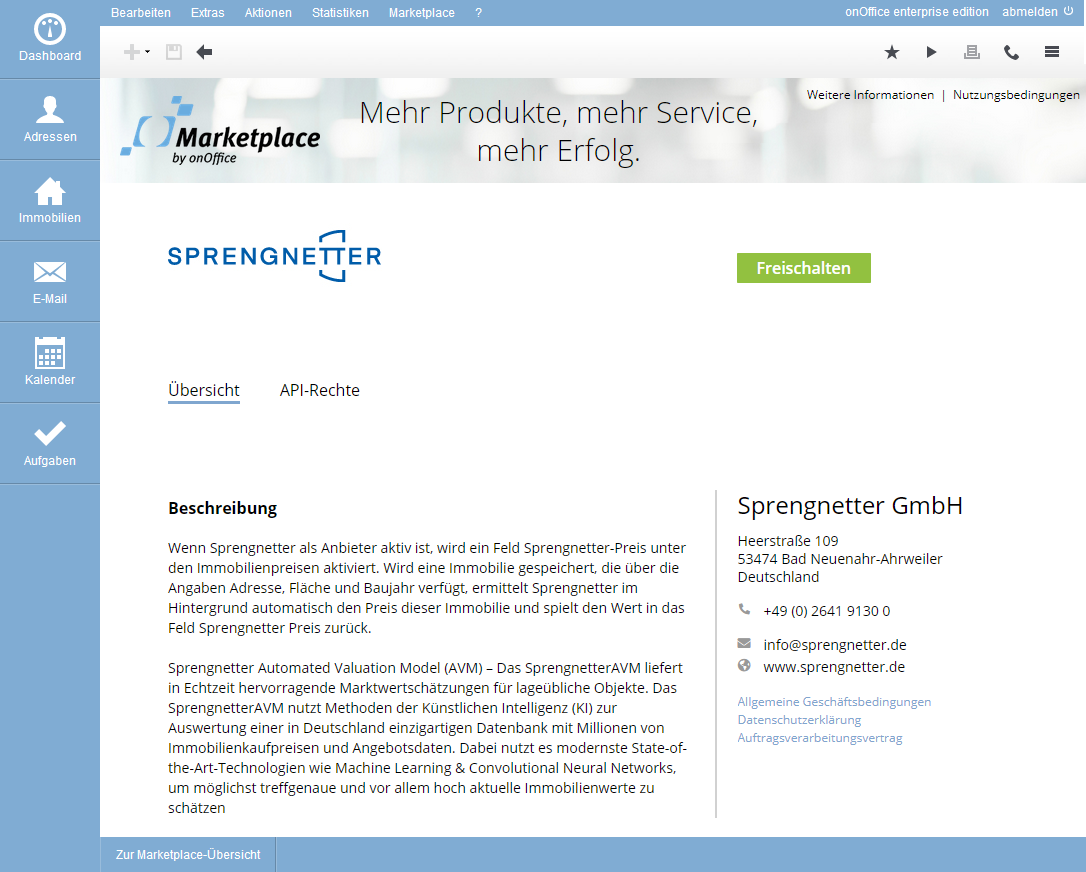
Provider details
In the provider details you will find a description of the services and the provider’s contact details. You will also find its General Terms and Conditions (GTC), the Privacy Policy and the Data Processing Agreement (DPA).
The “API rights” tab briefly explains which access rights the provider requires to your data in order to create their product. This tells you what data the service provider is allowed to read, what it needs write access to, etc.
Click on “Activate” to proceed to the next step.
Activation GTV / AVV
The most important information about the provider is shown here again. Before you can continue, please confirm its terms and conditions and the GCU.
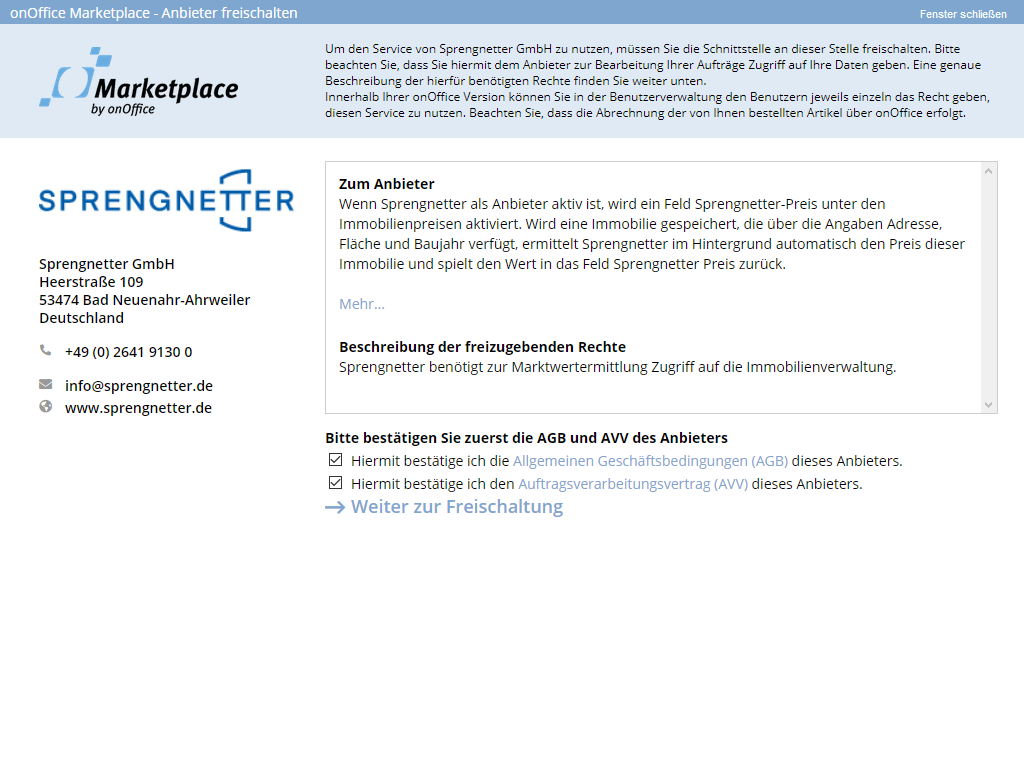
Unlock
In the last step, you determine whether the service should be available for all users or only for administrators.
The specific release for individual users takes place specifically in the user rights and can of course be subsequently adjusted (in the “Rights” tab in the “Marketplace – external services” category).
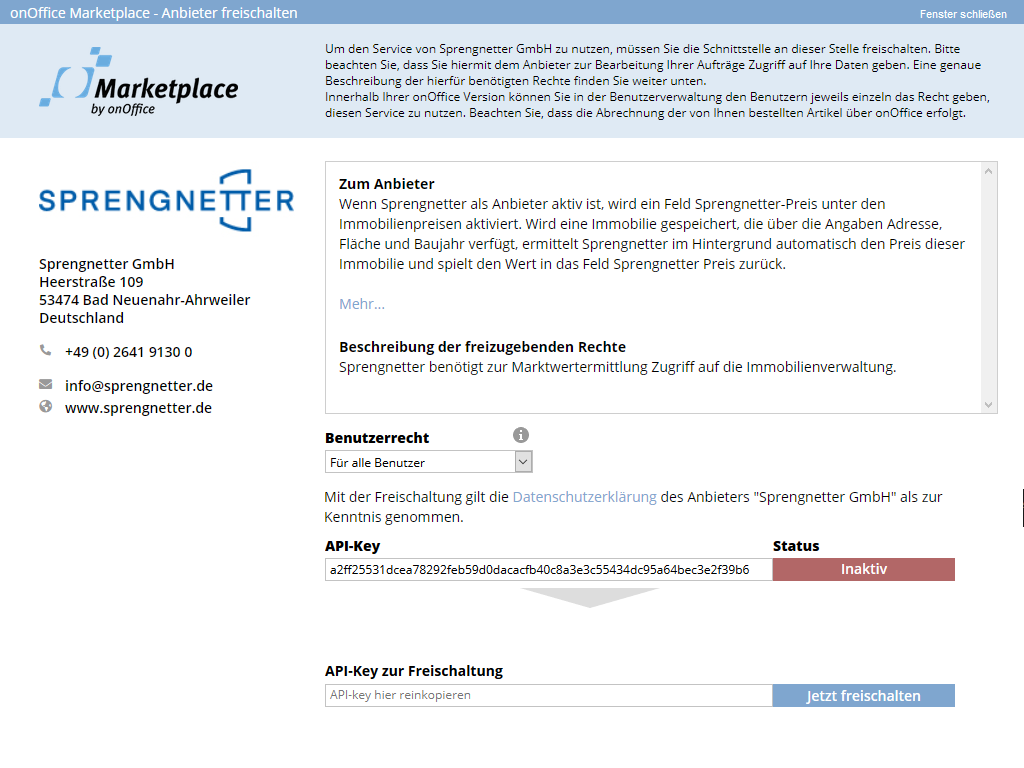
An API key will then be displayed. This is the “key” with which onOffice and the provider connect. Please copy the API key from the upper field into the lower field “API key for activation” and then click on “Activate now”.
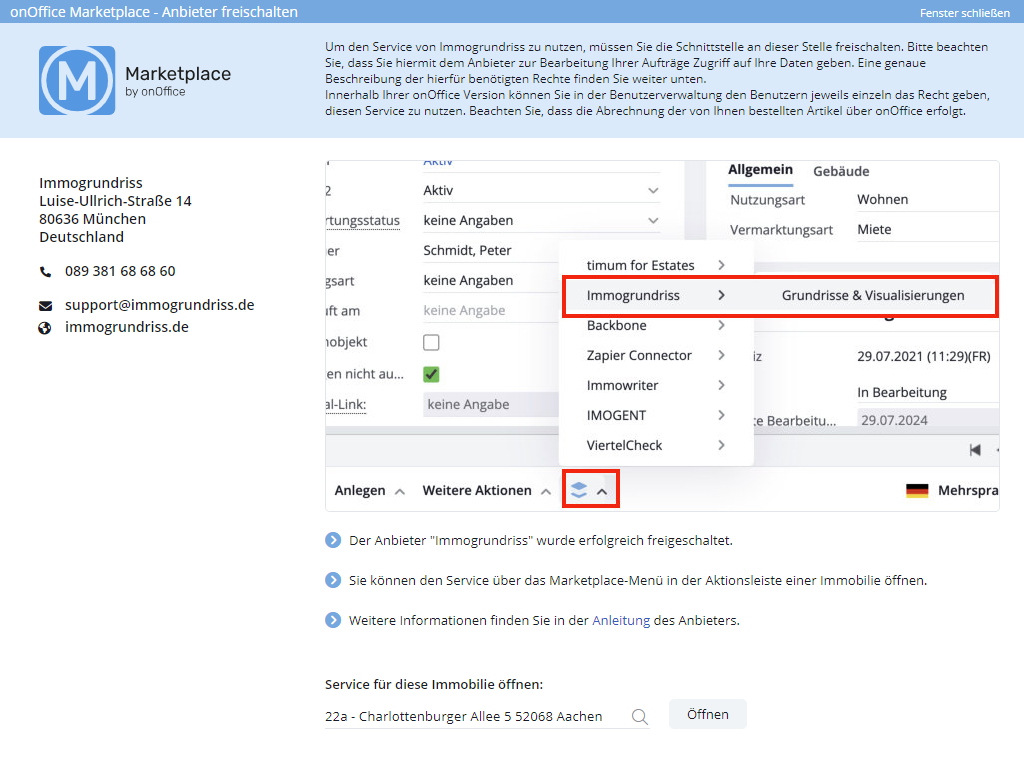
The service is now activated. You will then be shown an overview page for the service:
- with further information on the service.
- where you can access the service.
- which fields are used by the service.
- a link to the instructions for the service.
You can select a property/address via “Open service for this property/address” and call up the service directly.