 Entry
Entry Dashboard
 Contacts
 Properties
 Email
Email Calendar
 Tasks
Tasks Acquisition Cockpit
 Audit-proof mail archiving
 Automatic brochure dispatch
 Billing
 Groups
 Intranet
 Marketing Box
 Marketplace
 Multi Property module
 Multilingual Module
 onOffice sync
 Presentation PDFs
 Process manager
 Project Management
 Property tracking
 Property value analyses
 Enquiry Manager
 Showcase TV
 Smart site 2.0
 Statistic Tab
 Statistics toolbox
 Success Cockpit
 Time Tracking
 Address from clipboard
 Text block
 Customer communication
 External Tools
 Favorite links
 Calculating with formulas
 Mass update
 onOffice-MLS
 Portals
 Property import
 Quick Access
 Settings
 Templates
 Step by step


You are here: Home / Modules / Contacts / Address detail view / Property search - overview

Contacts
Property search – overview

The property search offers a modern and configurable list view of the results and an easier selection of further actions. The presentation of the details is clearer and more informative. The tab is divided into the Search Profiles, Property search Results and Detail View sections. The layout is customizable.
What can be changed in the layout?
The search profile row can be halved in height  using the arrow icons . The detail view can be displayed next to or below the list view
  /
/  .
.
Structure of the surface
At the top there is a search profile line with the tiles of the individual search profiles. The tile displays the most important data. Preview and edit function can be called up via “mouseover icons”.
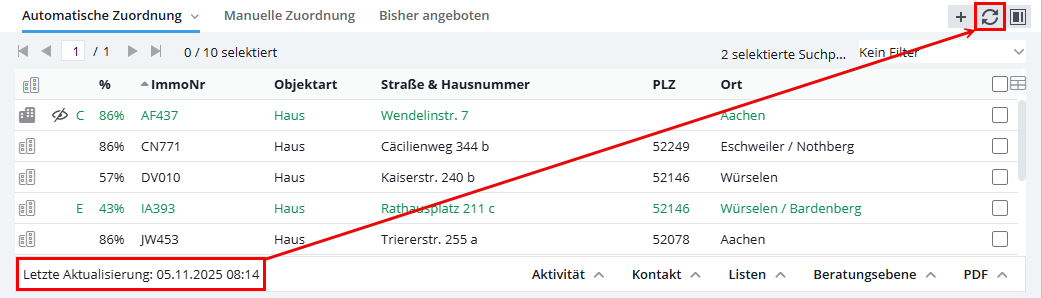
Centrally in the middle you will find the results list of the property search. The list uses “list tabs” that you can add and customize. By default, the list tabs “Automatic assignment”, “Manual assignment” and “Previously offered” are available. The configuration of the list tab can be used to determine which status is displayed or whether properties already offered are hidden.
In the results lists, the hover icon “Edit” allows you to open the property in a new tab. On the “Manual assignment” tab, properties that have been manually added to the interested party can be removed using the “Remove” icon. The “Show units” icon also appears for master properties.
The results lists can be restricted using filters. The filter applies to all list tabs. Exception: In the case of manually created list tabs based on an individual filter, only this filter is taken into account.
How does the property search work?
The property search compares all properties with the active search profiles in the contact record. A percentage match value is calculated for each pair. The list shows the results according to configuration and filter. For example, to display only properties with a match of over 80%, select the value in the list tab configuration under “Display via:”.
Property search update
The search results of the property search are automatically updated by default when the tab is opened (provided the user setting “Automatically update search results when entering the property search” is active). In addition, a manual update (only for the currently selected status) is possible via the update icon  at the top right of the results list view. The date of the last update can be found at the bottom left of the results list view.