
You are here: Home / Additional modules / Success Cockpit / Show Cockpit

€

Success Cockpit
Show Cockpit
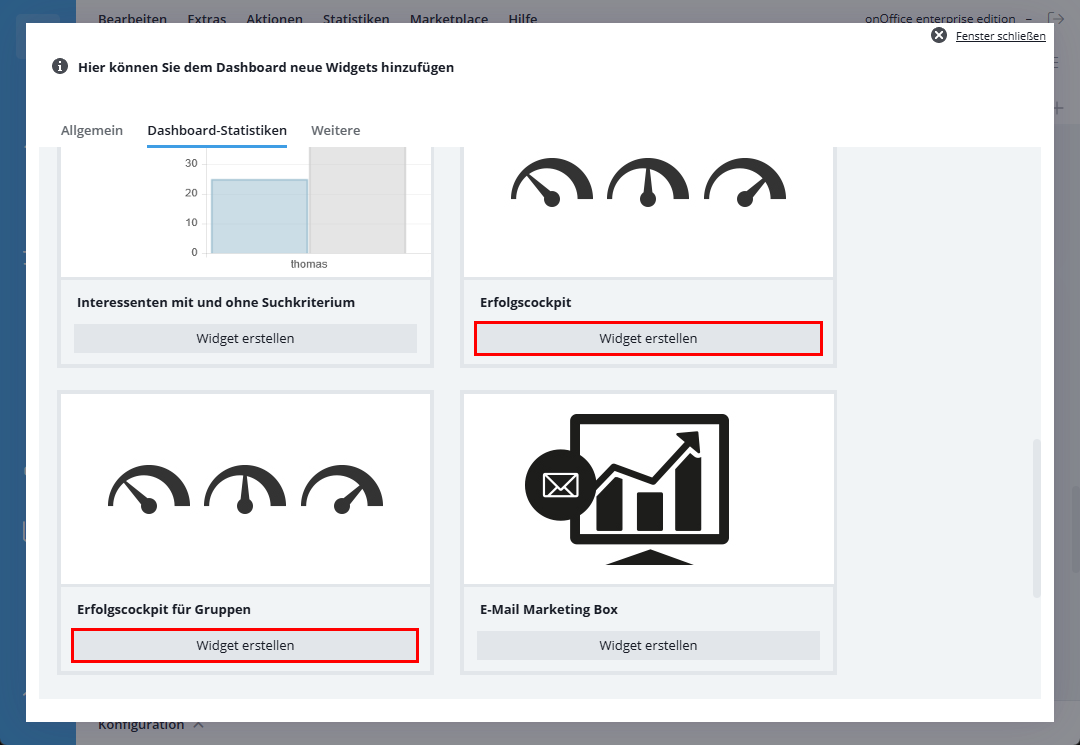
To view the Success Cockpit, you must add the corresponding widget to your dashboard. The employee needs the “Success Cockpit” widget. To do this, click the gray wrench icon in the upper-right corner of your dashboard. Once the icon has turned light, please click the plus icon on the left to add a new widget. In the dialog box that appears, please select the “Statistics” tab. For the “Success Cockpit” widget, click “Create Widget.”
A group leader, team leader, or company president can view the Cockpit metrics for their members or employees in a summary format. To do this, he must create the “Success cockpit for groups” widget.
Notice:
To use the Success cockpit for groups, you must be an administrator or group leader.
For both widgets, you can select the time period – last month or this month – using the wrench icon at the top of the widget frame.
Inhaltsverzeichnis
Success Cockpit for employees
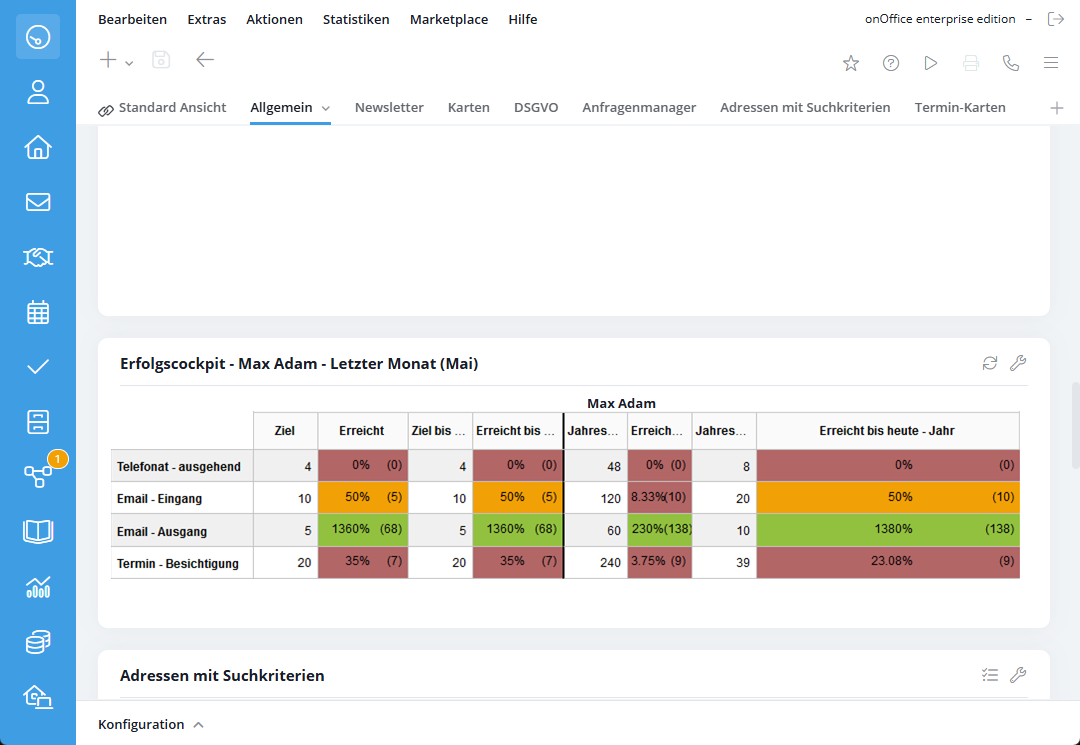
The Success Cockpit is now on your dashboard. Arrange it here according to your preferences and needs. For more information on creating widgets and configuring the dashboard, see here. The dashboard displays the values for the current or previous month. In addition, an annual evaluation can also be configured for the types/kinds of actions. This is displayed in addition to the monthly report. Depending on your rights settings, you can also choose whose Success Cockpit you can view – your own or also that of your colleagues.
The success cockpit for employees shows you both the monthly target and the cumulative target to date. For example, if the monthly goal is set at 30 phone calls, then on the 11th day, the goal so far is 11 phone calls. The number in parentheses shows you the total number of phone calls, emails, etc., received so far.
The Success Dashboard only counts results based on an activity or agent’s log entry. So every phone call, every email, and every appointment must be linked to a property or a contact.
Depending on the settings, appointments are tracked for either the person who created the appointment or the participating users. If you subsequently make a change to an appointment that is no more than 7 days in the past, these changes will be adopted and displayed for the counting period. For more information on the special features of appointment activities, see Create Cockpit .
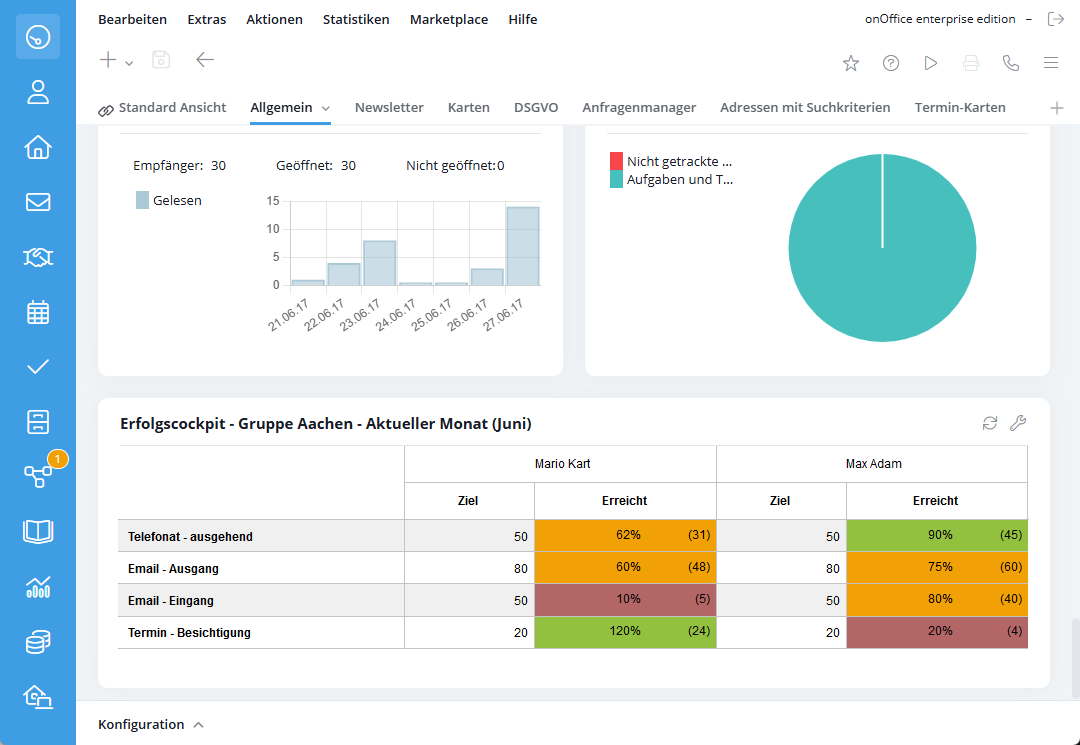
Depending on the percentages achieved, the corresponding column in the Success Cockpit changes color, so you can always quickly see which goals have been met. Up to 49%, the field appears red; between 50% and 80% yellow, and at 81% or higher, the field turns green.
Notice:
The Success Cockpit analyzes your activities overnight, so you won’t be able to view the results until the next day.
Success Cockpit for Groups
In the Group success cockpit, you can select the desired group in addition to the time period. To view the group’s success cockpit, you must be either an administrator or the group leader. If you are a group leader in only one group or do not have a group module, the group selection option is not available.
A pair of columns is added for each employee. You can also set the “Goals for the Entire Year” in the widget settings. This also displays the year-to-date figures as of today, as well as the total annual target, for each user.
Update Success Cockpit Data
The cockpit data is saved and totaled every night. However, the system does not check whether anything has changed in the “old data.” As a result, it is possible that agent’s log entries or activities related to emails, letters, or tasks were deliberately deleted. Using the bulk update feature, you can click the “Update Cockpit Values” button to synchronize the database with the actual data from the agent’s log and Activities. The data from the last 30 days will be reviewed. This check also takes place at night – so there isn’t an immediate visible change in the various success cockpits.

Entry
Dashboard
Contacts
Properties
Email
Calendar
Tasks
Acquisition Cockpit
Audit-proof mail archiving
Automatic brochure dispatch
Billing
Groups
Intranet
Marketing Box
Multi Property module
Multilingual Module
onOffice sync
Presentation PDFs
Process manager
Project Management
Property value analyses
Enquiry Manager
Showcase TV
Smart site 2.0
Statistic Tab
Statistics toolbox
Success Cockpit
Time Tracking
Address from clipboard
Text block
Customer communication
External Tools
Favorite links
Calculating with formulas
Mass update
onOffice-MLS
Portals
Property import
Quick Access
Settings
Templates
Step by step