 Entry
Entry Dashboard
 Contacts
 Properties
 Email
Email Calendar
 Tasks
Tasks Acquisition Cockpit
 Audit-proof mail archiving
 Automatic brochure dispatch
 Billing
 Groups
 Intranet
 Marketing Box
 Marketplace
 Multi Property module
 Multilingual Module
 onOffice sync
 Presentation PDFs
 Process manager
 Project Management
 Property tracking
 Property value analyses
 Enquiry Manager
 Showcase TV
 Smart site 2.0
 Statistic Tab
 Statistics toolbox
 Success Cockpit
 Time Tracking
 Address from clipboard
 Text block
 Customer communication
 External Tools
 Favorite links
 Calculating with formulas
 Mass update
 onOffice-MLS
 Portals
 Property import
 Quick Access
 Settings
 Templates
 Step by step


You are here: Home / Additional modules / Marketplace / Provider overview / onOffice Services - AI Connector

Marketplace
onOffice Services – AI Connector
Inhaltsverzeichnis
Description
The AI Bridge for Your Real Estate Brokerage!
Easily connect all popular LLMs—such as ChatGPT, Claude, or Mistral—to onOffice enterprise using our onOffice AI Connector!
Manual data transfer and isolated AI tools are now a thing of the past. Once our AI Connector is activated, you can integrate state-of-the-art AI features with onOffice enterprise. Thanks to the interface, you can access your database directly from your preferred AI chat. Here’s how to natively integrate artificial intelligence into your onOffice enterprise core system and seamlessly incorporate the speed and intelligence of state-of-the-art language models into your workflows.
✅ Numerous compatible AI providers
Easily connect selected, industry-leading AI providers to onOffice enterprise. The AI Connector supports the integration of OpenAI, Claude, Mistral, and other systems.
✅ Smart Data Processing and Retrieval
Make your data from onOffice enterprise usable for AI. For example, retrieve the specific information you need from the relevant AI provider and have content directly related to your data processed—ideal for quickly creating texts, summaries, or analyses.
✅ AI-powered workflows
Integrate these smart workflows into your day-to-day operations. With this integration, you can streamline and automate recurring processes, giving you more time for your clients and your core real estate business.
✅ Quick and easy setup
Get started without any major technical hurdles. Setup is straightforward and specifically designed to provide a fast, secure, and convenient connection.
Unlock the onOffice AI Connector here in the Marketplace and discover how easy it is to work smart with onOffice enterprise!
API Permissions
Description of the Rights to Be Granted
For services in the onOffice Service series, a single API user is activated. This happens automatically when the first service is activated. This API user is only used by onOffice itself and has all rights to access the data. The onOffice services are created and managed by onOffice and hosted on our own servers.
You can find the exact technical details and requirements for this standard in the official specification: Model Context Protocol Specification – Dynamic Client Registration
Tested Providers (as of July 2026)
- OpenAI ChatGPT
- Anthropic Claude
- Mistral Vibe
- Long Dock
Instruction
Before activation
Before you activate the onOffice AI Connector, carefully review your planned use case. This is especially true if you process personal data through third-party AI providers.
Be sure to pay special attention to the following points:
- Data protection: Determine in advance whether, and under what conditions, personal data may be transferred to the selected AI provider. This is particularly relevant for providers whose servers are located outside the EU.
- Choosing a Provider: European providers or local LLMs are particularly well-suited for sensitive data. This allows you to maintain greater control over the processing and create a more secure foundation for use in your daily work.
Activation
The onOffice AI Connector is part of onOffice enterprise all-in. Enable the feature here in the Marketplace before setting it up.
Setup
Using Claude as an example, we’ll show you how to connect the onOffice AI Connector to your AI chat.
Step 1: Copy the MCP server URL
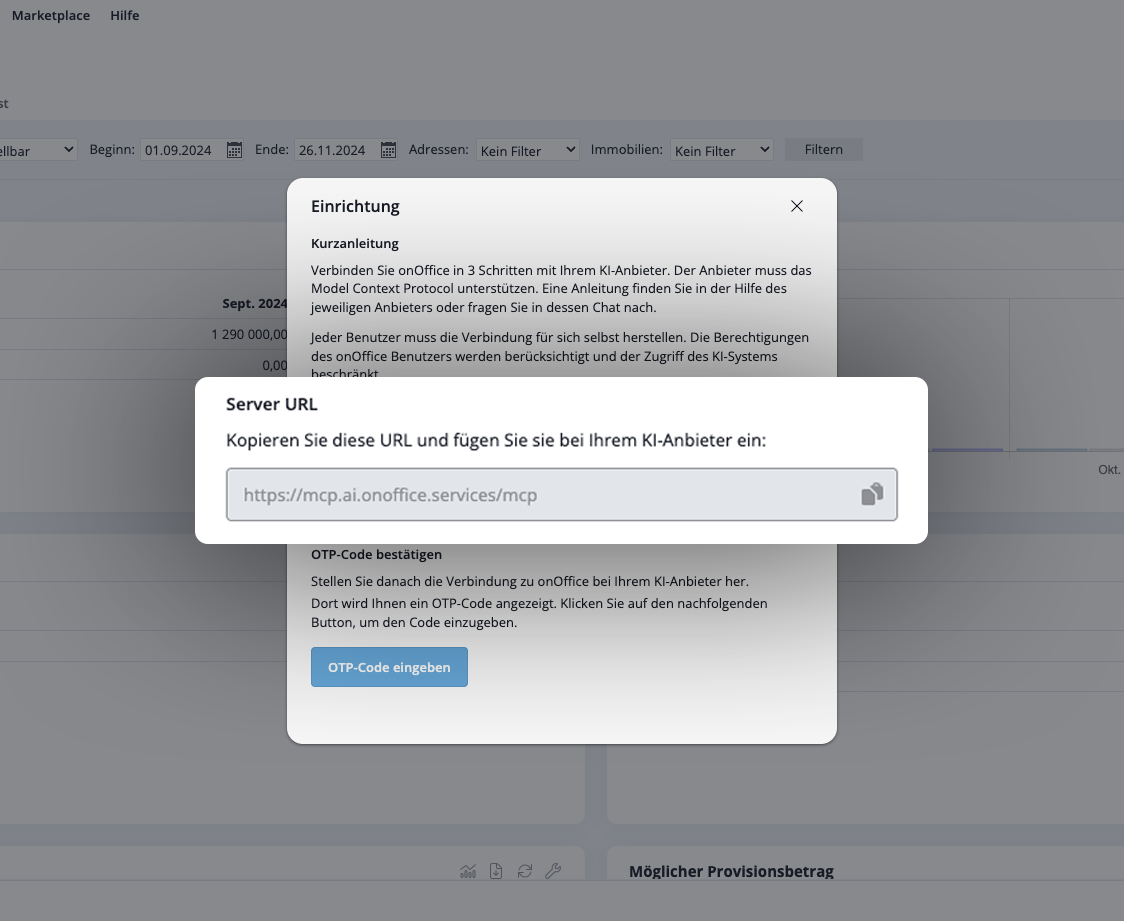
First, open onOffice enterprise and navigate to Marketplace → onOffice AI Connector → Set Upvia the menu bar.

A lightbox opens. There you will find the displayed MCP server URL. Copy this URL so you can paste it into Claude in the next step.
Step 2: Establish a connection in Claude
Open Claude and go to Settings. Select the “Connectors” section there and click Add → Add Custom Connector.
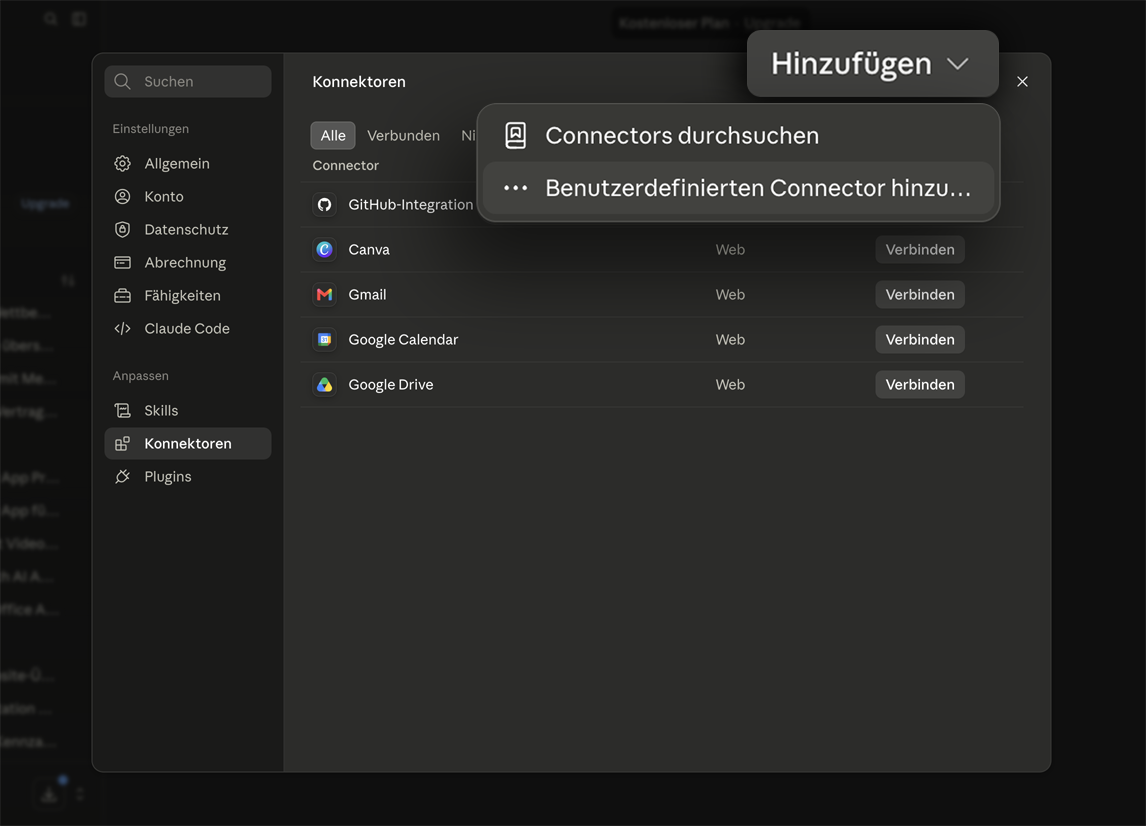
Enter a suitable name for the connection, such as “onOffice enterprise,” and paste the MCP server URL you copied earlier. Follow the remaining instructions. Claude automatically detects the authentication method and then displays a code for you.

Step 3: Complete Authentication in onOffice enterprise
Return to onOffice enterprise and navigate again via the menu bar to Marketplace → onOffice AI Connector → Setup. Click “Enter OTP Code,” paste the code that Claude displayed into the field, and confirm your entry.
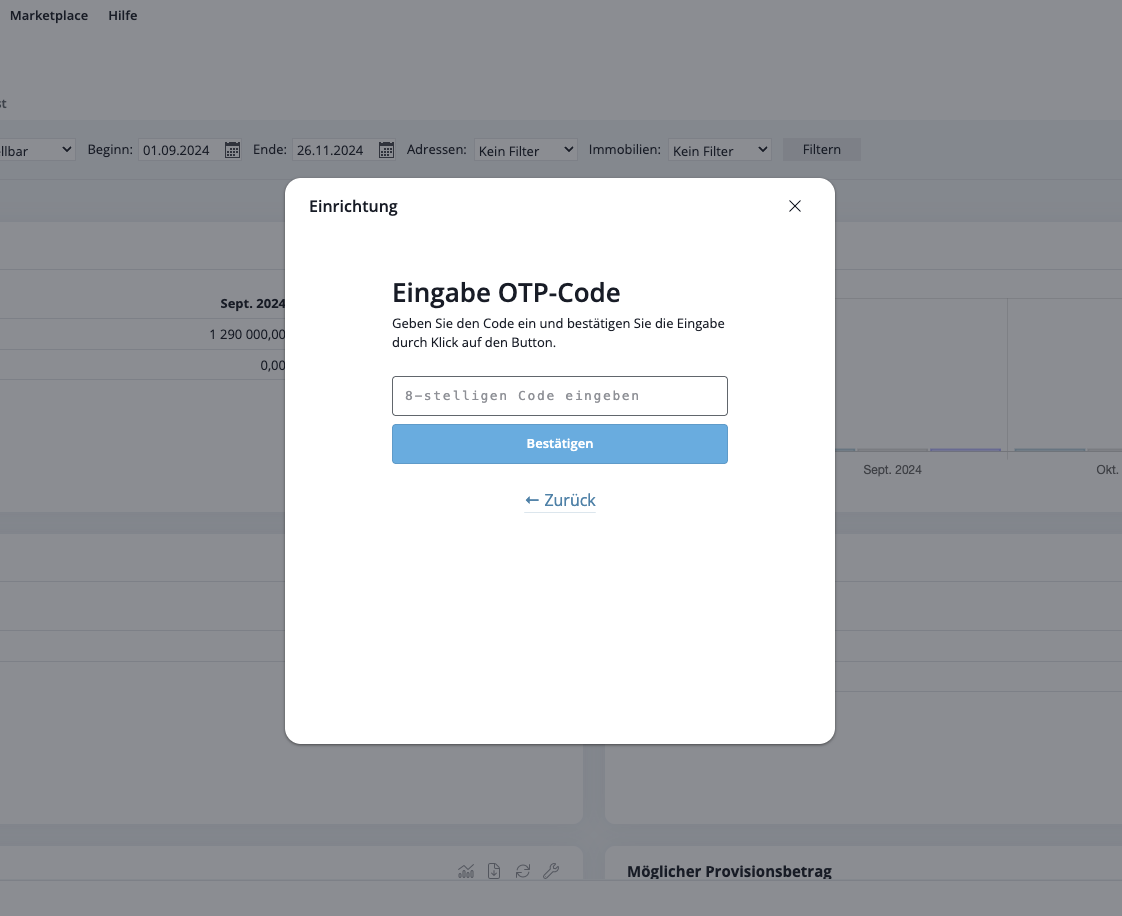
This establishes the connection between Claude and onOffice enterprise.
Step 4: Start Your First Chat
Now open a new chat in Claude and make your first request, for example:
“Show me all my current properties.”
Claude automatically detects that the onOffice AI Connector is available and retrieves the relevant data via the connection.
Optional: Customize Tool Permissions
In Claude’s connector settings, you can specify how the AI is allowed to use individual tools. For each feature, you decide individually whether Claude can use it automatically, should ask for permission first, or should never use it.

We recommend carefully configuring the settings in advance, especially for tools that access personal data—such as when searching for addresses. This way, you can control what information Claude is allowed to access directly.
- Value added tax on marketplace purchases
- Assign debits via reference ID
- Provider overview
- Casafari - AI meta property search
- onpreo - Property acquisition
- Wordliner - Acquisition marketing software
- onOffice Services - DocuSign Connector - digital signatures
- onOffice Services - WKO Marketplace - Portal for joint business in Austria (MLS)
- onOffice Services - Zapier - Data exchange and automation
- PriceHubble Deutschland GmbH - Interactive property value analysis
- propform.io - Webforms
- PropNow - Digital quotation process
- PROPUP - Digital form & workflow management
- Residenture - Online auction platform
- onOffice Services - Gender API
- Sprengnetter property Valuation
- Sprengnetter - Real estate valuation in Europe
- timum - sightseeing organizer
- Total Render - Floor Plans Italy
- ViertelCheck - Information on the micro and macro situation
- finioo - Application folder
- Justhome - Real estate financing
- BOTTIMMO - Marketing software and digital acquisition
- ESYSYNC - Display systems
- FPRE - property analysis and valuation
- Geolyzer - infrastructure data
- immo-billie - Digital bidding process
- Immogrundriss - Floor plans & visualizations
- AreaButler - Interactive maps and AI assistant
- Kerberos compliance management systems
- KIM real estate valuation
- Lead Import
- Tenant check - credit check of prospective tenants
- MYVIVENDA - Print on Demand
- onOffice Services - PhotoDesigner
- onOffice Services - AI-Writer - AI for property texts
- Service not usable?
- Use service
- Unlock/lock provider
- Manage account
- Create account