 Entry
Entry Dashboard
 Contacts
 Properties
 Email
Email Calendar
 Tasks
Tasks Acquisition Cockpit
 Audit-proof mail archiving
 Automatic brochure dispatch
 Billing
 Groups
 Intranet
 Marketing Box
 Marketplace
 Multi Property module
 Multilingual Module
 onOffice sync
 Presentation PDFs
 Process manager
 Project Management
 Property tracking
 Property value analyses
 Enquiry Manager
 Showcase TV
 Smart site 2.0
 Statistic Tab
 Statistics toolbox
 Success Cockpit
 Time Tracking
 Address from clipboard
 Text block
 Customer communication
 External Tools
 Favorite links
 Calculating with formulas
 Mass update
 onOffice-MLS
 Portals
 Property import
 Quick Access
 Settings
 Templates
 Step by step


You are here: Home / Additional modules / Marketplace / Provider overview / BauDarlehen24 - Mortgage Brokerage

Marketplace
BauDarlehen24 – Mortgage Brokerage
Description
With BauDarlehen24, you can offer your prospects the right financing—directly from within onOffice and at no cost to you. As a financial broker, we compare over 520 banks and guide your buyers through the entire process until the deal is closed.
This expansion offers you:
✅ Financing Calculator for This Property
Monthly payment, nominal interest rate, and effective interest rate for the selected property—based on current bank terms and your choice of down payment.
✅ Financing Examples (PDF)
Create a document for each property that you can give directly to prospects.
✅ One-Click Referral
Start from the property listing or directly from the contact—your prospect is immediately connected to our advisory team.
✅ Financing Status at a Glance
See how far along your buyer’s financing has progressed in the property details and the deal overview.
✅ Complete Documentation
Every handover is automatically recorded in the agents’s log for the property and contact.
No extra effort, no costs: You’ll sell faster, and your buyers will have no trouble securing financing.
Activation
You can easily activate HiNoa here in the Marketplace.
Instruction
Welcome to BauDarlehen24
BauDarlehen24 integrates construction financing directly into onOffice. In just a few seconds, you can generate a sample financing calculation for a property, refer interested buyers to our financing advisory service with a single click, and later check the status of each enquiry in onOffice. This service is free of charge for you; BauDarlehen24 is compensated by the financing bank.
Once your account has been activated, you can contact BauDarlehen24 in two ways.
In a property listing, you’ll find the new “Financing” tab. It displays the app directly in the record; the purchase price and property details are already pre-filled.
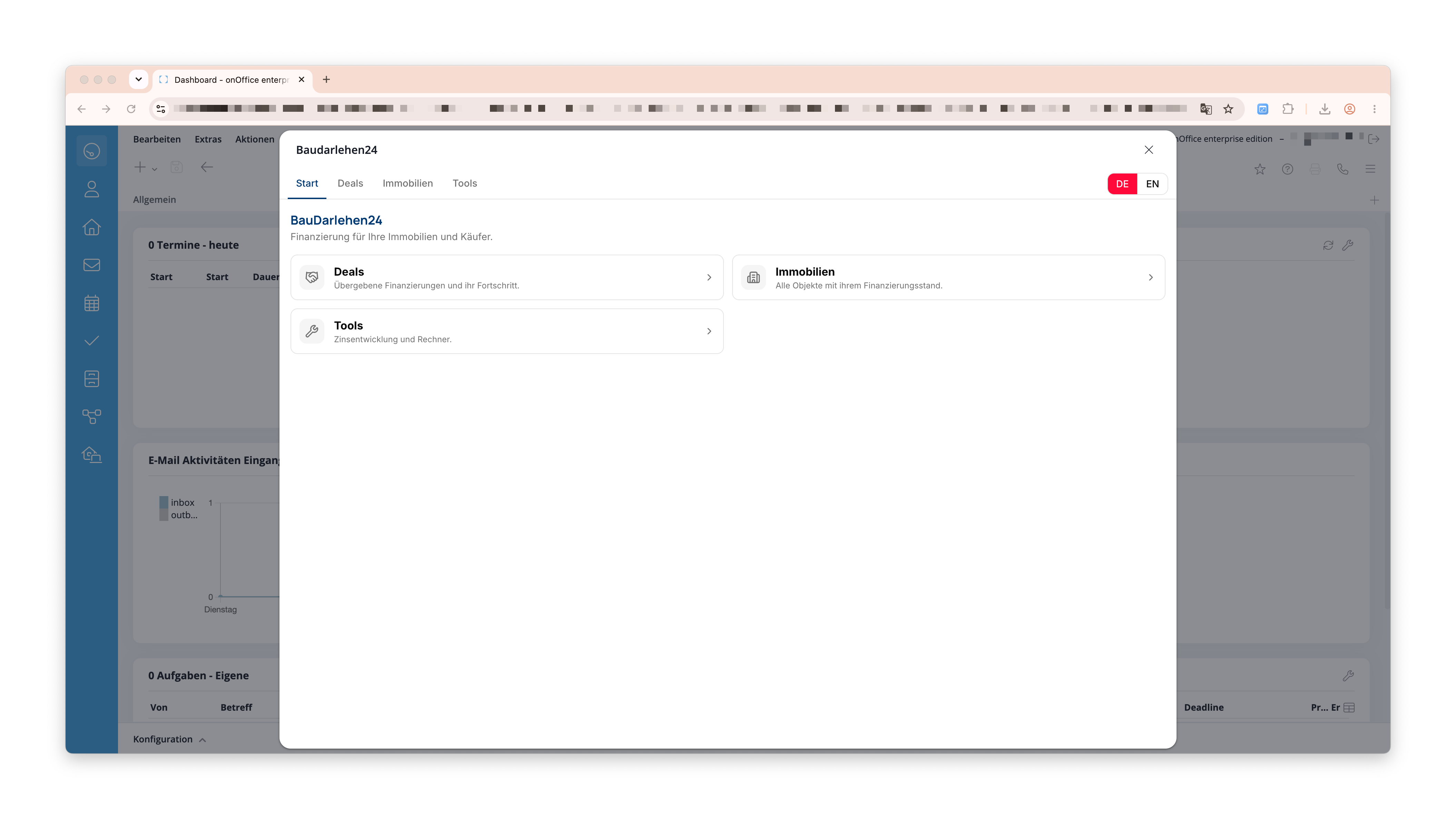
In a contact, launch the app from the action bar; do not select an entry from the Marketplace menu. In both cases, it opens in a window above onOffice. If there are no records, the first section is labeled “Start”; from there, three tiles lead directly to Deals, Properties, and Tools.
You use the same interface in both the tab and the window. Above, you’ll find four sections:
- Current Property: the property where you opened the app
(when accessed from a contact, this section is called “Current Contact”) - Deals: Your requests already submitted to BauDarlehen24
- Properties: All properties in your account
- Tools: Additional features, currently interest rate trends
In the upper-right corner, you can switch between German and English.
Please note: If you exit the app while preparing a request, any entries that haven’t been submitted yet will be lost. This applies to closing the window as well as to switching to a different tab or record. As long as the app remains open, your entries are secure; this means you can safely switch between sections and between prospects.
1. Current Property
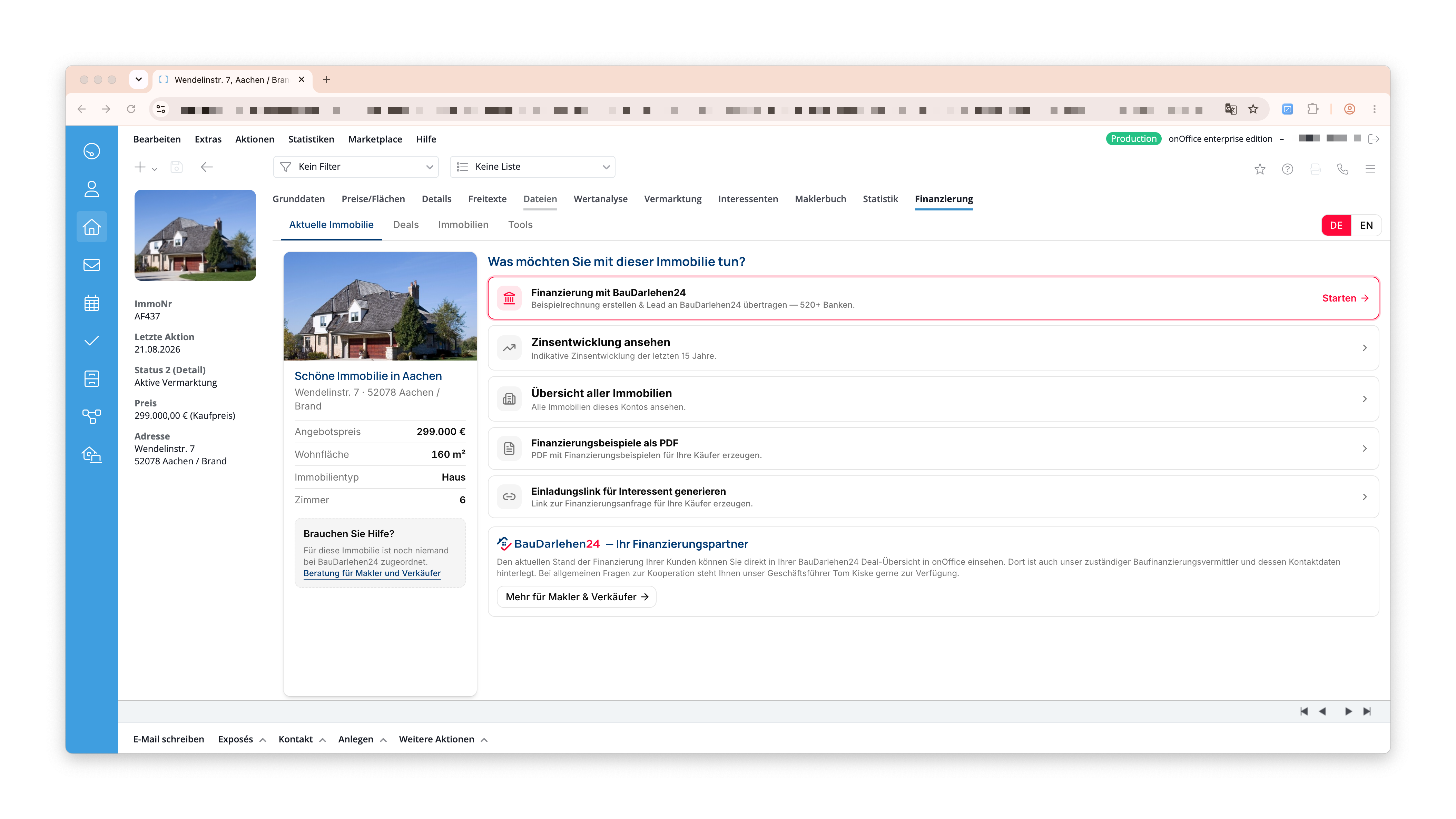
On the left, you’ll see the property listing with a featured image, title, address, and key details. This information is retrieved directly from onOffice, so you don’t have to enter anything twice.
On the right, under “What would you like to do with this property?”, you have the following options:
- Financing with BauDarlehen24: Create a sample calculation and provide it to the prospect
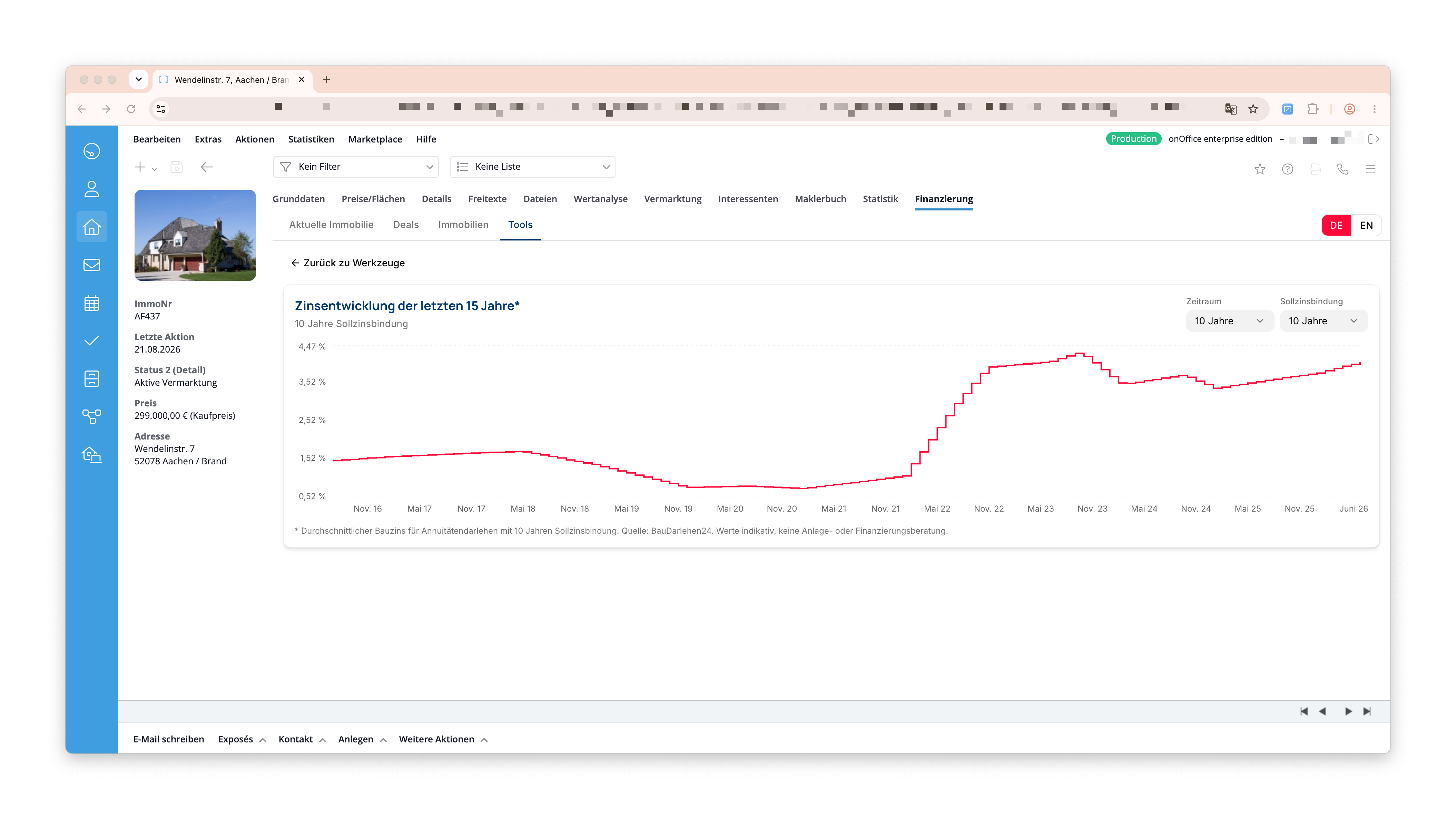
- View interest rate trends: indicative construction loan interest rates over the past 15 years
- Overview of all properties: all properties in this account
- Financing Examples (PDF): Information for Your Buyers
- Generate an invitation link for prospects: Link to the financing request
Below the property listing, you’ll see “Need help?” along with the name of your contact at BauDarlehen24 for this property. If no one has been assigned yet, the link takes you to general advice for real estate agents and sellers.
“Financing Examples (PDF)” generates a one-page document for your buyers: Property details, a breakdown of the total costs including real estate transfer tax and notary fees, the three financing options, your contact information, and a QR code for a financing request. It always uses the offers and parameters you currently see on the screen, including the selected card.
If you’d like to contact a buyer directly, “Generate Invitation Link for Prospects” creates a link to the financing request for this property. One click copies it to the clipboard.
2. Request Financing (Step 1)
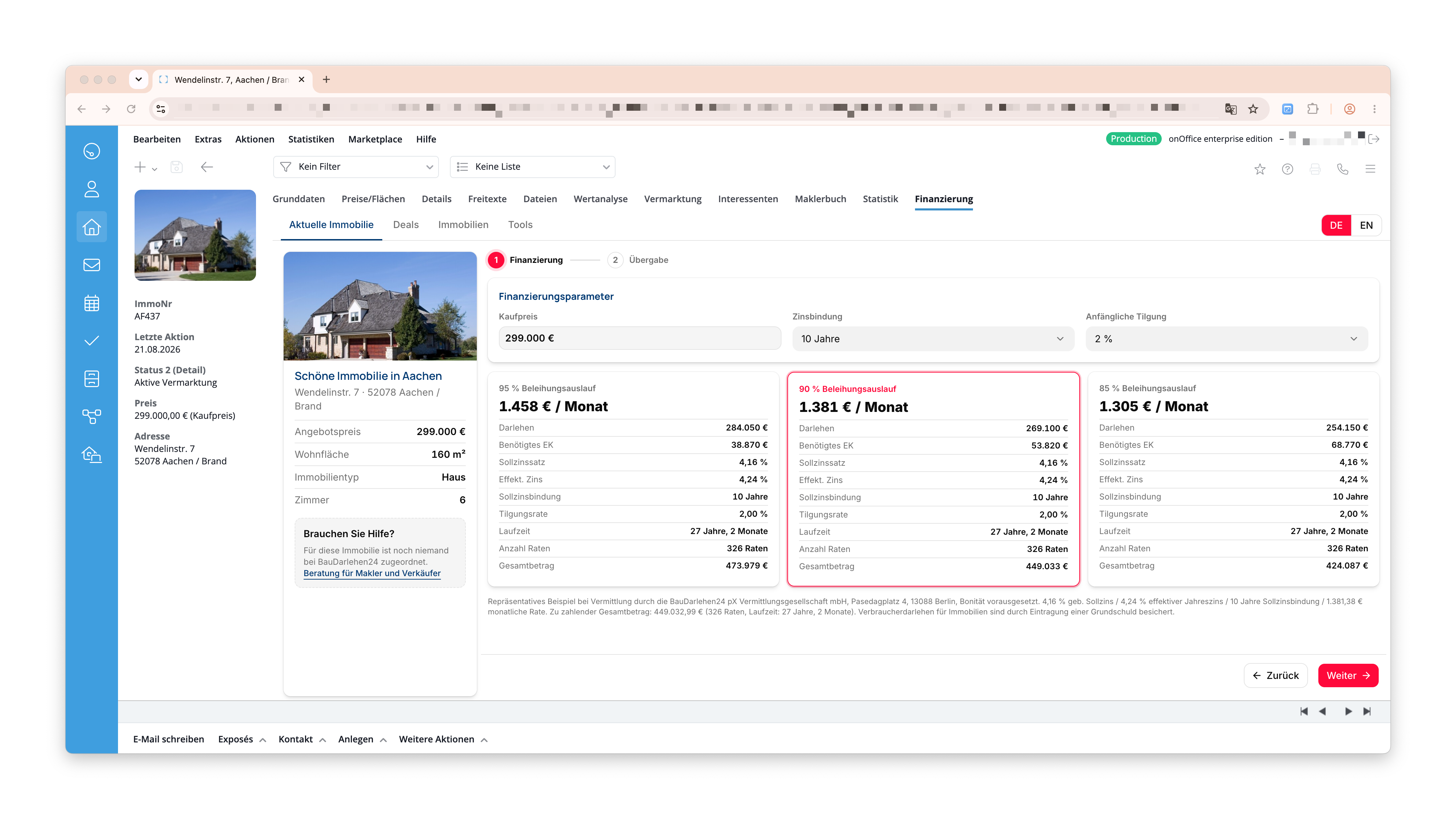
In the “Financing Parameters” field, you’ll see the purchase price from onOffice and can enter two values yourself:
- Fixed interest rate: 5, 10, 15, or 20 years
- Initial repayment: 1, 2, 3, or 4%
Below that, under “Financing Options,” there are three offers that differ in terms of their loan-to-value ratio: 95%, 90%, and 85% of the purchase price. The middle option is preselected as a recommendation.
If you change the fixed-rate period or the principal repayment amount, all three offers will be recalculated. Below the maps is the representative example, as required by the Price Disclosure Regulation, for each selected offer.
The quotes are sample calculations based on the purchase price and your settings. The final terms will be determined based on the information provided by the buyer and the bank’s review.
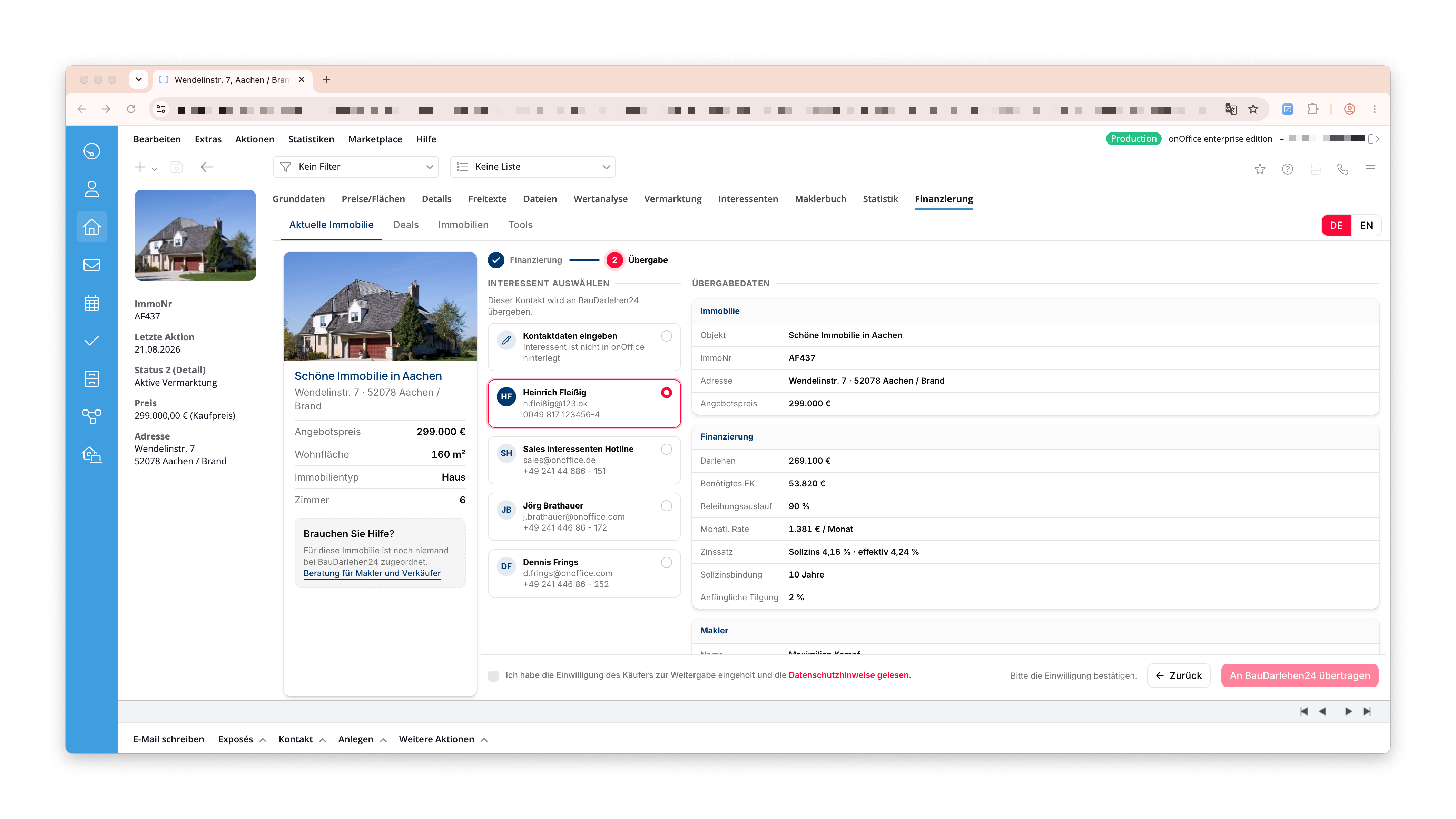
3. Forward to a prospect (Step 2)
Under “Select Prospect,” you’ll find all the contacts who are potential buyers for this property. They are divided into three groups so you can see at a glance where a contact comes from:
- Manually assigned: Prospects you have linked to this property in onOffice
- Already offered: Contacts to whom the property has already been offered, according to the agent’s log
- Automatically suggested: Contacts whose search criteria in onOffice match this property
Only one manually assigned prospect is preselected at a time. Automatically suggested contacts have not expressed interest in this property; they are marked and can be selected. Be sure to check here, in particular, whether you have obtained consent for the disclosure.
If a group is empty, it is not displayed. Contacts without a registered email address are marked and cannot be selected, as consultations are conducted via email.
If the appropriate buyer isn’t listed in onOffice, select “Enter contact information” at the top and enter the first name, last name, email address, and, optionally, the phone number.
On the right, under “Data Transfer,” you can see exactly what is being transmitted: the property details, the selected offer, and your name as the real estate agent.
Finally, check the box to confirm that you have the prospect’s express consent: for the transfer of their data, for BauDarlehen24 to contact them by phone and email regarding financing advice, and for BauDarlehen24 to provide you with updates on the status of their application. The exact wording appears next to the checkbox; the privacy policy is linked there. Then click “Transfer to BauDarlehen24.”
A message appears during the transfer. Please let it sit for a few seconds.
You will then see a confirmation message with the transaction number and the deal phase.
In addition, an entry is made in the property’s agent’s log and, if the buyer is an onOffice contact, the entry is also assigned to that contact. The handover is thus documented in onOffice without you having to make a note of it yourself.
If the transfer fails, your entries will be saved and you can try again.
4. Deals
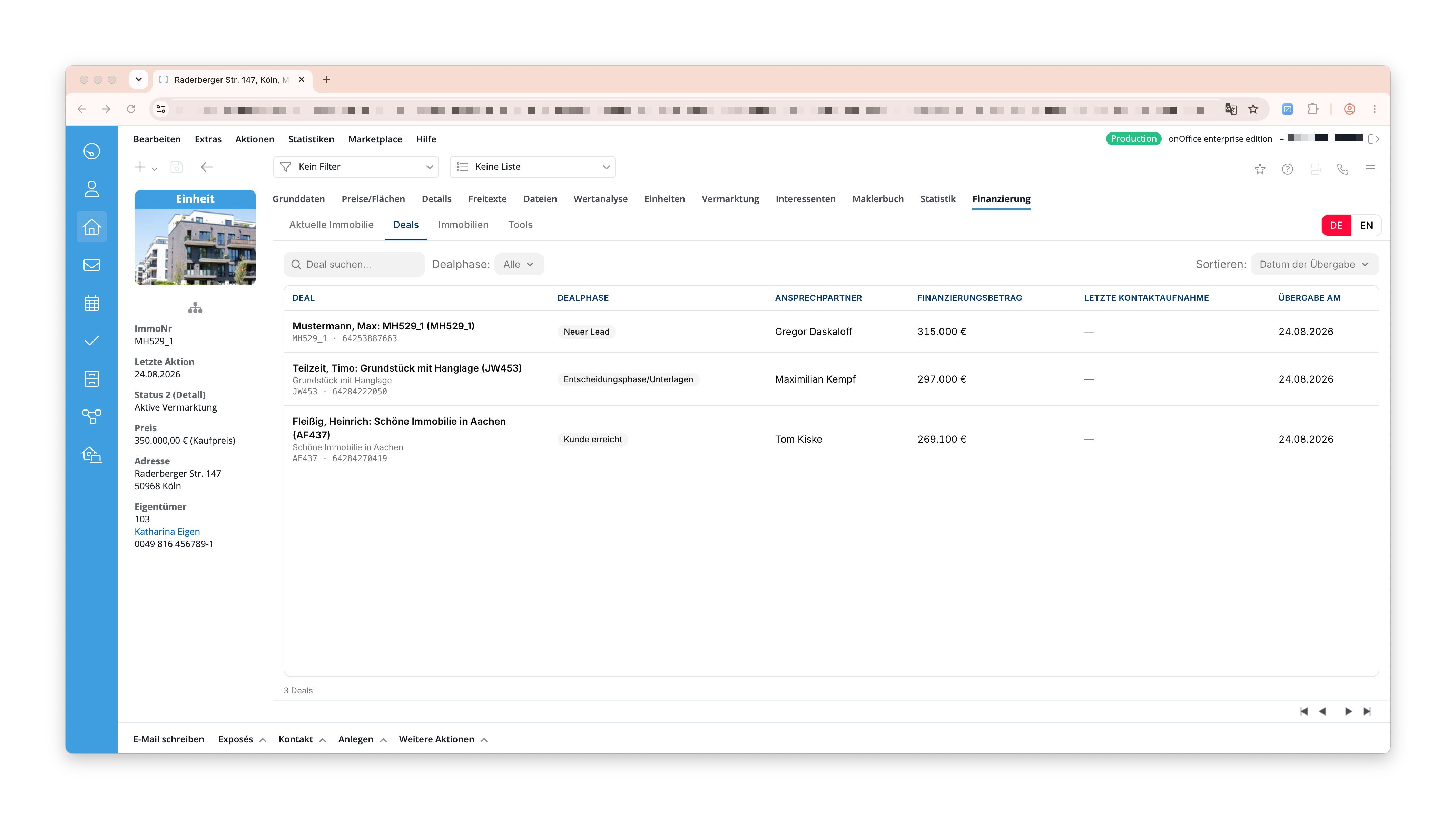
Under “Deals,” you’ll find all the requests you’ve submitted to BauDarlehen24, including the deal phase, contact person, financing amount, and date of submission.
The first column contains three rows: the name of the deal at BauDarlehen24, followed by the associated property (if a link exists), and below that, the property number and transaction number. This transaction is uniquely identified at BauDarlehen24 via this number; it also appears in the confirmation after hand-over and in the agent’s log entry of the property.
Clicking on a row opens the deal’s details view. This is helpful if you want to provide a buyer with an update on the current status.
5. Properties
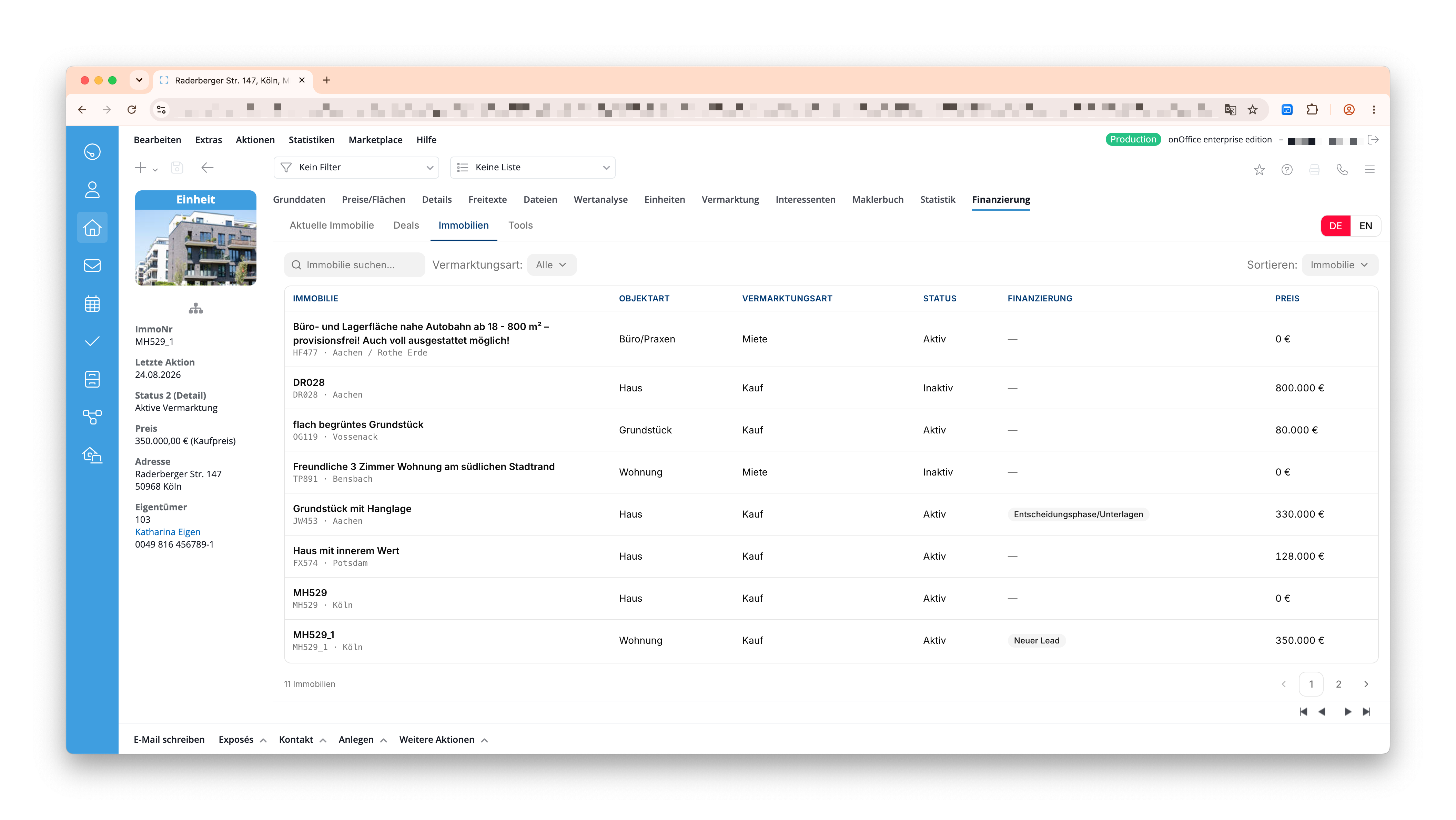
The “Property” section lists all the properties in your account. The “Financing” column shows the status of a property on BauDarlehen24. The search field searches titles and property numbers.
6. Detail view of a property
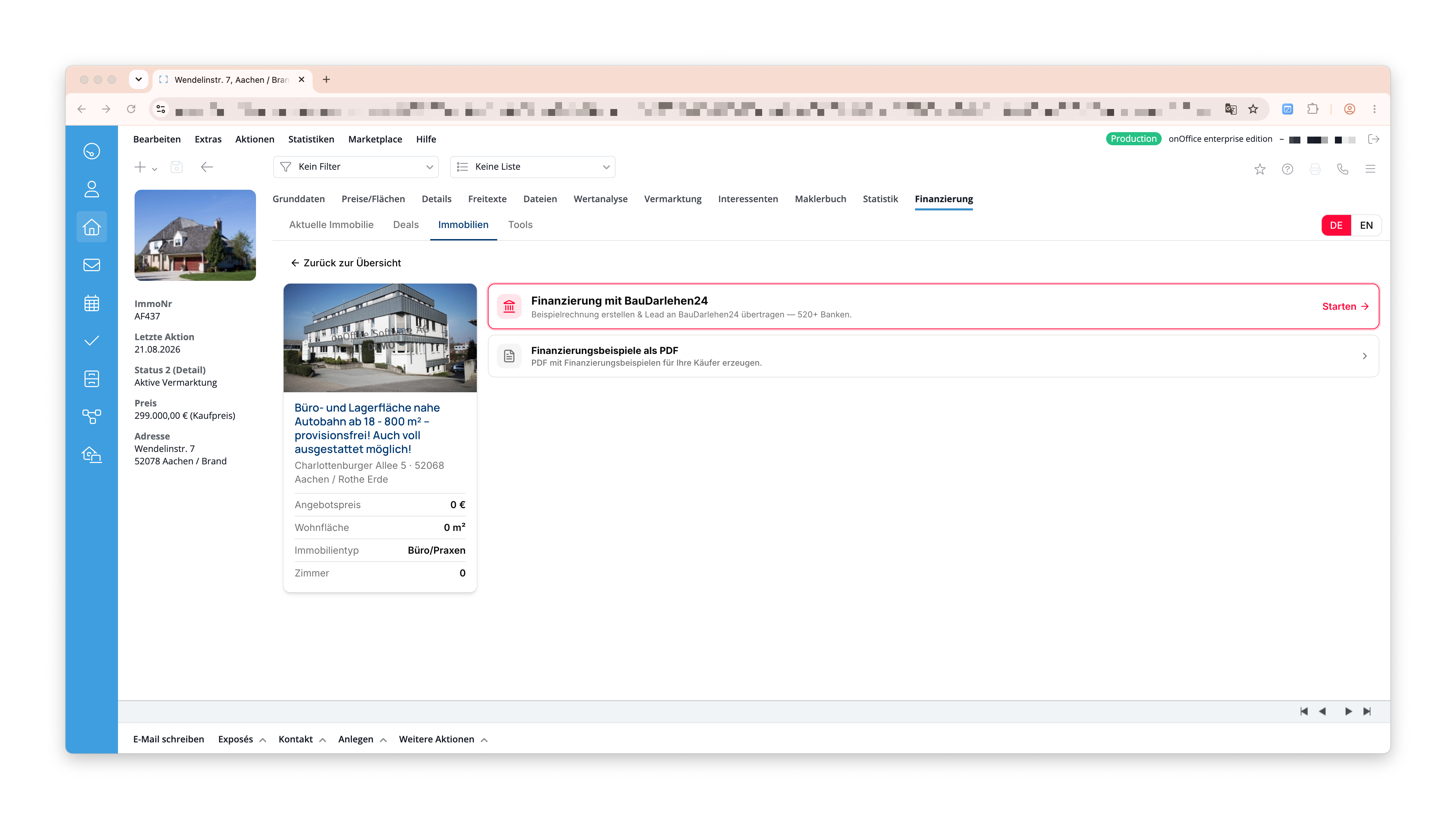
The detailed view displays the same property card as the “Current Property” section and offers two actions: start financing and generate a PDF. This is how you start financing a property that you haven’t yet opened in onOffice.
7. Tools: Interest Rate Trends
The interest rate trend shows construction interest rates over the past 15 years. You choose the term (6 months to 15 years) and the fixed-rate period.
These figures are for illustrative purposes only and are intended to serve as a guide during discussions; they do not represent current terms and conditions. The financial advisory service will provide you with the binding interest rates.
8. Start from a contact
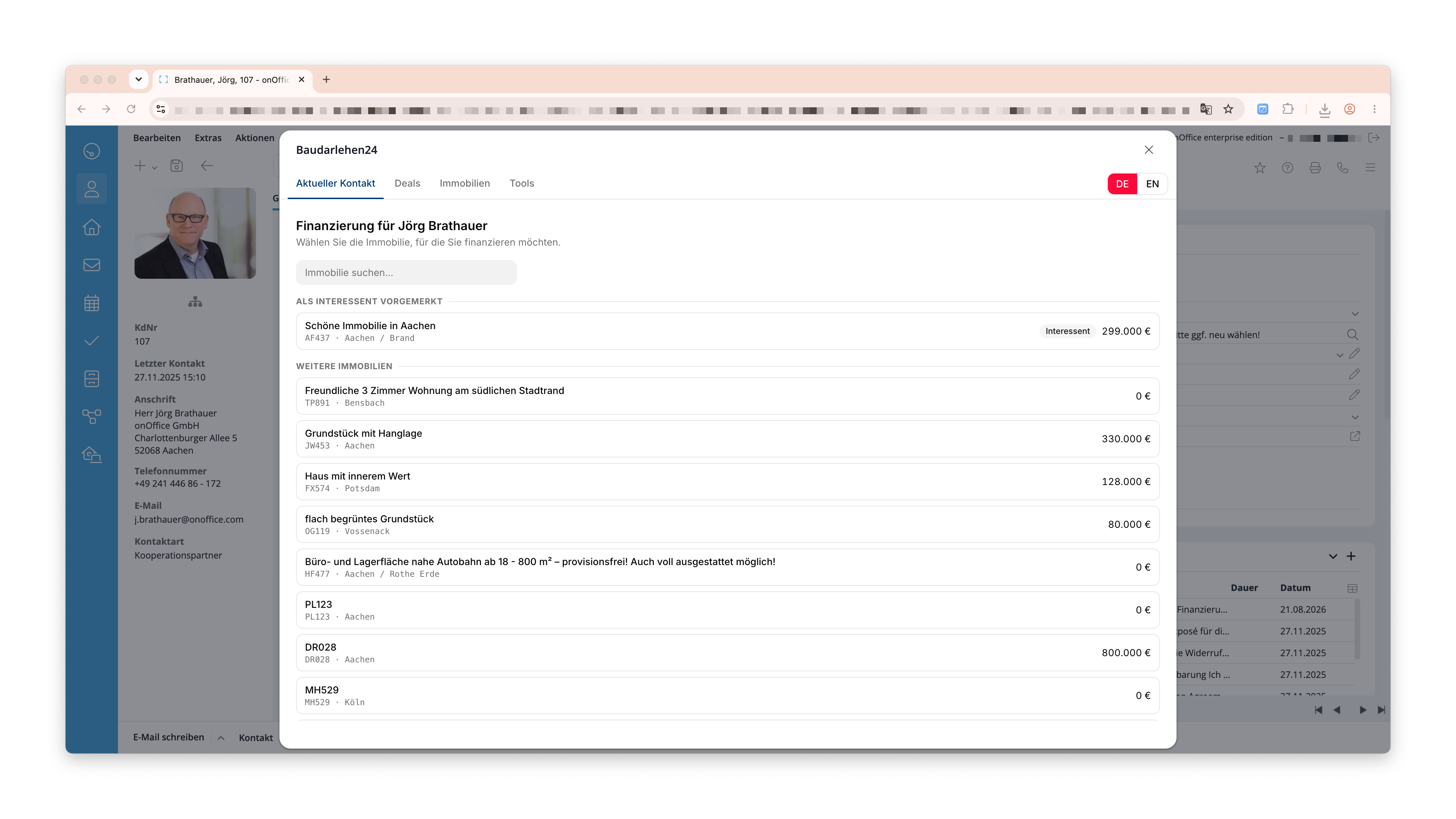
If you open the app from a contact record using the action bar, it opens on the buyer’s page instead of the property page: Under “Financing for …,” you’ll first see the properties for which this contact is listed as a prospective buyer, followed by the other properties in your account.
You select the property and are taken through the familiar two-step process. The buyer is already selected; they are automatically populated from the open contact.
Support & Contact
If you have any questions about setup or use, you can reach us at:
Tom Kiske
Phone: +49 30 398200711
Email: tom.kiske@baudarlehen24.com
BauDarlehen24 pX Vermittlungsgesellschaft mbH
Pasedagplatz 4
13088 Berlin