 Entry
Entry Dashboard
 Contacts
 Properties
 Email
Email Calendar
 Tasks
Tasks Acquisition Cockpit
 Audit-proof mail archiving
 Automatic brochure dispatch
 Billing
 Groups
 Intranet
 Marketing Box
 Marketplace
 Multi Property module
 Multilingual Module
 onOffice sync
 Presentation PDFs
 Process manager
 Project Management
 Property tracking
 Property value analyses
 Enquiry Manager
 Showcase TV
 Smart site 2.0
 Statistic Tab
 Statistics toolbox
 Success Cockpit
 Time Tracking
 Address from clipboard
 Text block
 Customer communication
 External Tools
 Favorite links
 Calculating with formulas
 Mass update
 onOffice-MLS
 Portals
 Property import
 Quick Access
 Settings
 Templates
 Step by step


You are here: Home / Additional modules / Marketplace / Provider overview / onOffice Services - AI Studio - Image optimization (beta)

Marketplace
onOffice Services – AI Studio – Image optimization (beta)
Functions at a glance
Image optimization offers specialized options for different types of images. Simply select the photo you want and choose from the following actions:

Interior view
Specific tools are available for rooms to improve the atmosphere and tidiness, for example:
- Optimize lighting
- Renovating surfaces
- Tidy up the room
- Remove people and remove/replace personal photos
- Optimize perspective (correction of camera errors)
- . . .
Exterior view
Optimize the facade and surroundings of your property, for example:
- Optimize sky (bright blue sky)
- Remove vehicles
- Make license plate/house number unrecognizable (data protection function)
- Optimize perspective
- . . .
Individual customizations
You can use the text field “What else should be adjusted?” to enter your own instructions to have specific details (e.g. color tone adjustments) controlled by the AI. You can also adjust the amount of plants in the picture.
The before and after comparison (slider)
A special highlight in the editing process is the interactive slider. The generated result is displayed directly above the original image.
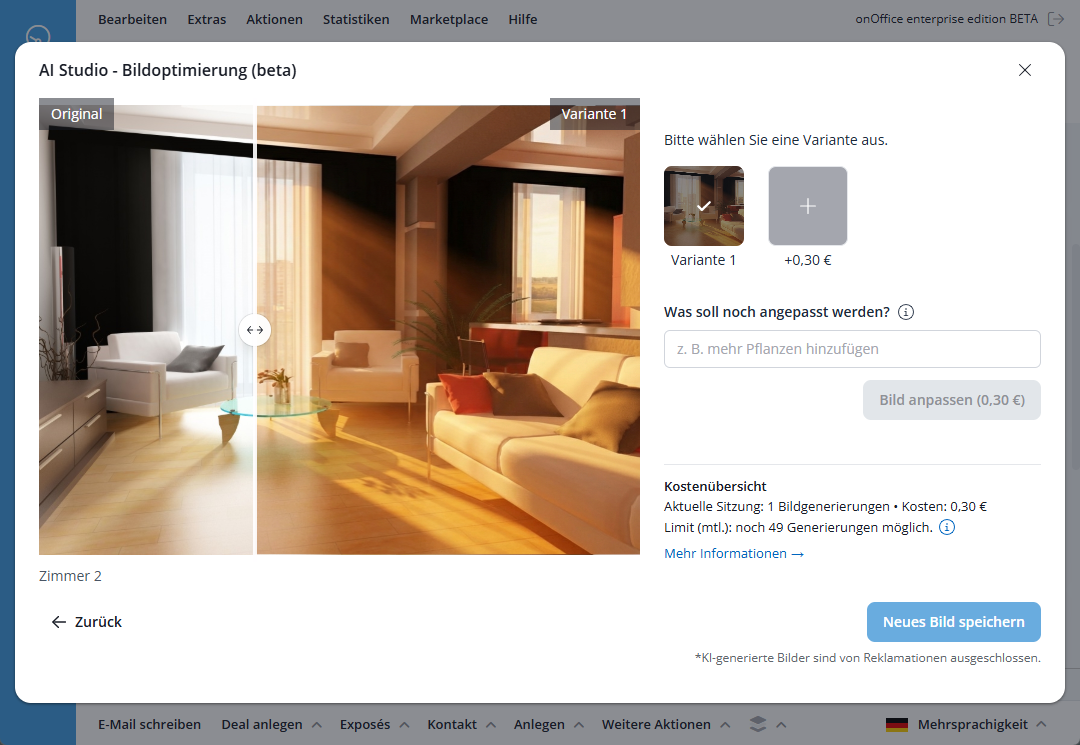
Move the slider to check the changes you have made in detail.
This allows you to precisely control the image quality before saving the optimized version in your property data.
The images created are also saved in the property, the original is retained.
Procedure
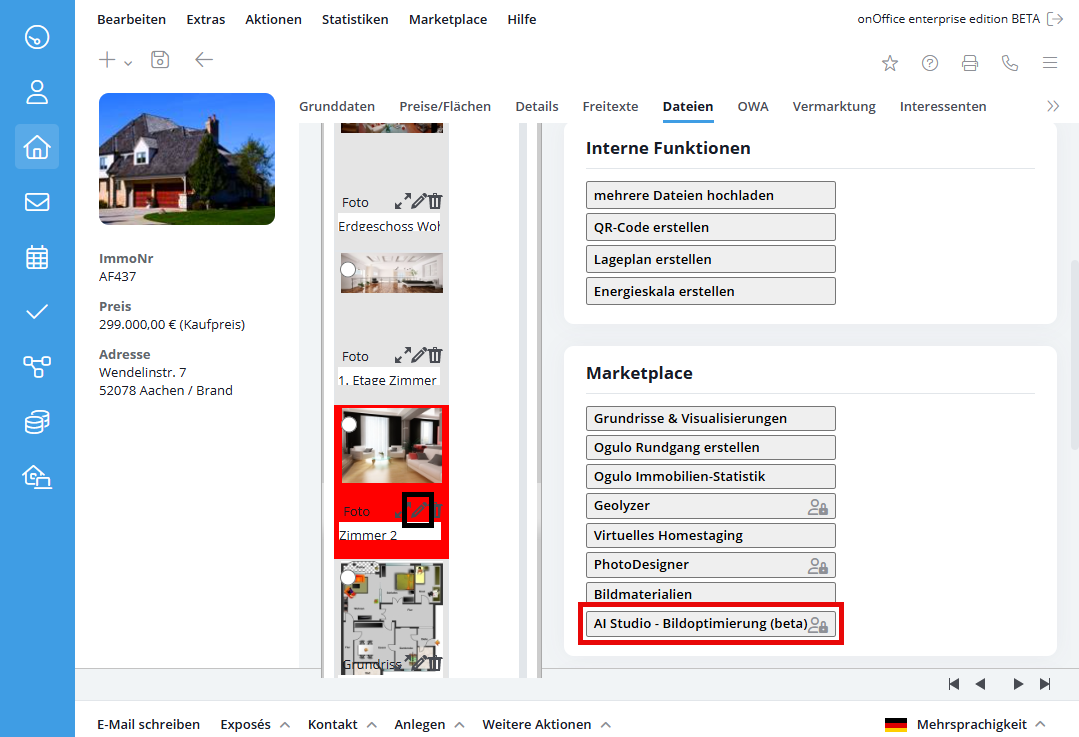
- Open the “Files” tab in your property.
- Select a photo (Edit icon
 ) and click on “AI Studio – Image optimization (beta)” in the “Marketplace” area on the right.
 - Select the appropriate category (interior or exterior view) and select the desired actions.
- Click on “Generate new image“.
- Use the sliderto check the result.
- If necessary, adjust the images in further steps using the prompt.
- With “Save image” the image is saved in the property, the original is retained.