 Entry
Entry Dashboard
 Contacts
 Properties
 Email
Email Calendar
 Tasks
Tasks Acquisition Cockpit
 Audit-proof mail archiving
 Automatic brochure dispatch
 Billing
 Groups
 Intranet
 Marketing Box
 Marketplace
 Multi Property module
 Multilingual Module
 onOffice sync
 Presentation PDFs
 Process manager
 Project Management
 Property tracking
 Property value analyses
 Enquiry Manager
 Showcase TV
 Smart site 2.0
 Statistic Tab
 Statistics toolbox
 Success Cockpit
 Time Tracking
 Address from clipboard
 Text block
 Customer communication
 External Tools
 Favorite links
 Calculating with formulas
 Mass update
 onOffice-MLS
 Portals
 Property import
 Quick Access
 Settings
 Templates
 Step by step


You are here: Home / Additional modules / Marketplace / Provider overview / onOffice Services – onOffice WordPress Website

Marketplace
onOffice Services – onOffice WordPress Website
Description
Manage your onOffice WP website and all settings related to your customer login directly in onOffice enterprise—without any system disruption. Relevant information about registered service portal users is automatically synchronized with the corresponding data records. Here’s how to improve your customer service and ensure clearer internal communication workflows.
✅ Configurations for Your onOffice WP Website
- Global Settings: Manage your site’s layout and make changes to elements such as the header, footer, or the display of reviews and news.
- Design and Corporate Identity: Customize your website’s design, such as the color, font, and logo.
✅ Managing Your Service Portal: Enable, disable, and manage features for your customers.
- Basic settings Configure key settings, such as supervisors of records, mailboxes, social login, and more.
- Account Links: Review and manage your registered users based on the records in onOffice enterprise.
- Valuation: Configure the lead generator for property valuation and manage the key details.
- Document Upload for Owners: Create, edit, or delete the document checklist for your property owners.
- Owner Reporting: Configure property tracking settings, such as what data your customers can view.
- Revocation on the Website: Control the settings for revocation on your website.
- Secret Sale: Configure how items in your Secret Sale are displayed.
- Property Listings for Prospects: Customize which lists are displayed to your prospects in the service portal (“Watchlist,” “Recently Viewed,” and “Properties Requested”).
- Document Upload & Applicant Portfolio: Create, edit, or delete the document checklist and applicant folder for your prospects.
- Search Request: Configure the prospect form for your customers’ search requests and manage all the important settings.
Activate the Marketplace service for free now and centrally configure your WordPress website and service portal in onOffice enterprise!
Instruction
Activation
Activate the “onOffice WP-Website” service for free here in the Marketplace. After that, a new icon will appear in the left sidebar, which you can use to access the feature.
Setup
To manage your WP website in onOffice enterprise, you must first verify it in the service. To do this, enter the URL in the field and click “Verify Now.” Once verification is complete, all features will be available to you.
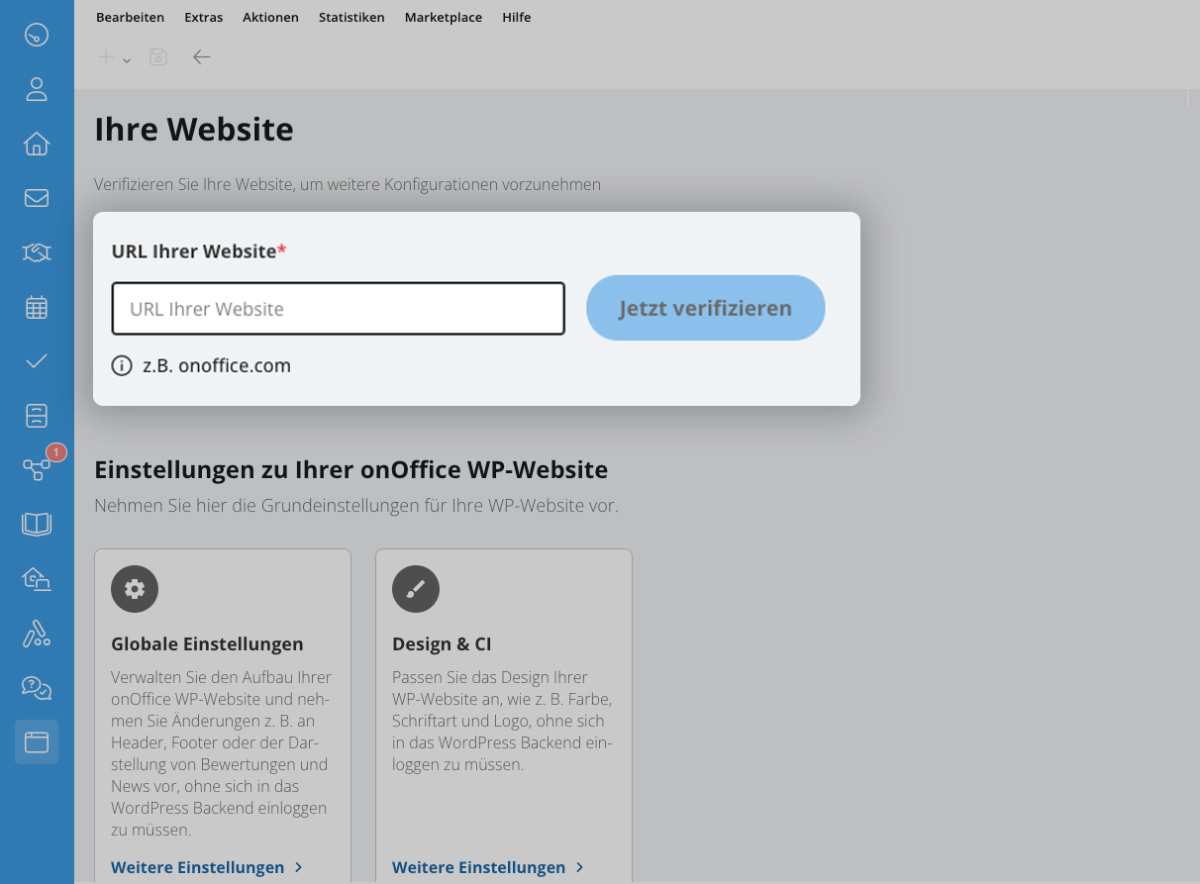
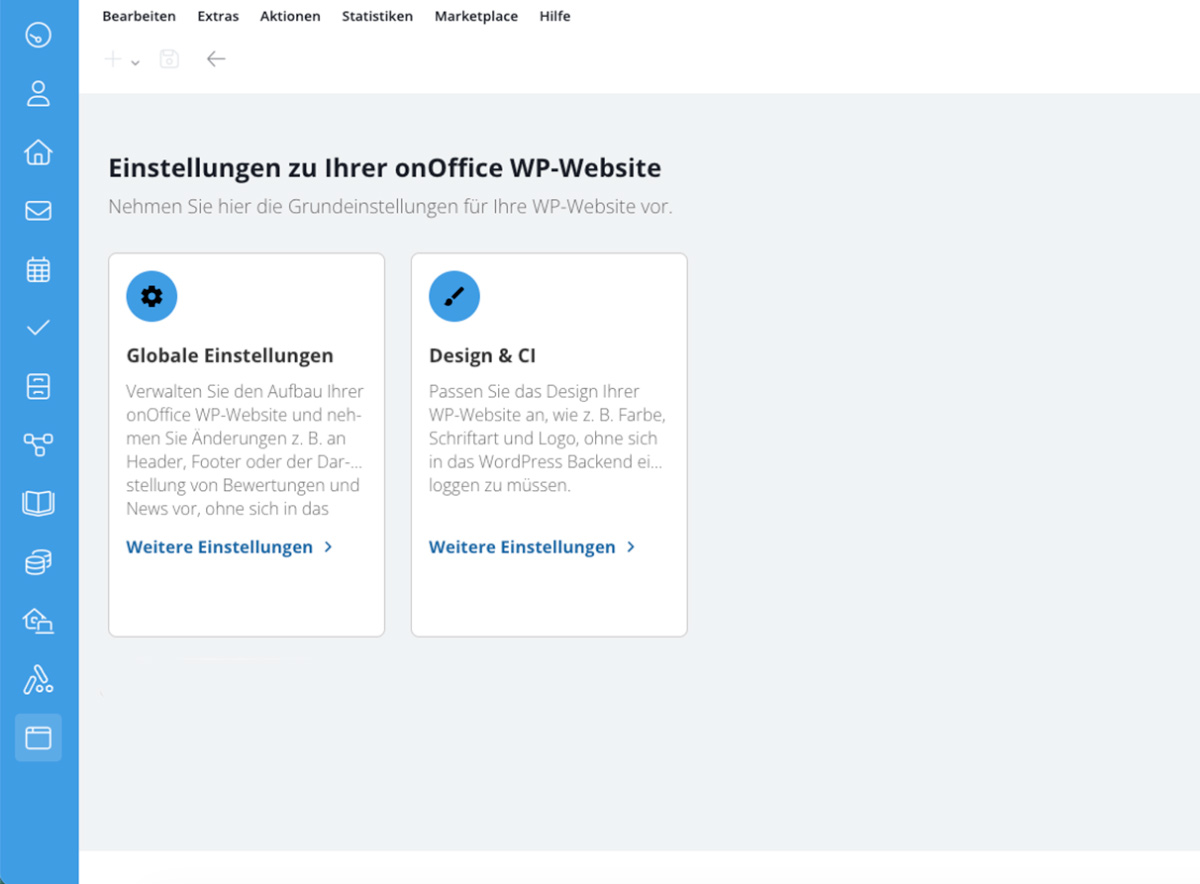
The configurations are divided into “Settings for Your onOffice WP Website” and “Settings for Your Service Portal.”
Settings for Your onOffice WP Website
Manage global settings and your website’s design here.
Global Settings
- General: Default settings for special pages—for example, enabling the “Cancel” button in the footer or managing the BFSG feature for reporting digital barriers.
- Pages: Advanced configuration for specific subpages.
- External Services: Options for storing API keys and IDs for third-party providers (e.g., Google Maps, Google Reviews, ProvenExpert).
Design & Corporate Identity
Upload your company logo, customize the colors to match your corporate design, choose a suitable font, and select your desired background color.
Would you prefer a video explaining how to set up and use the service portal?
No problem! Take a look at our playlist for the service portal.
Settings for Your service portal
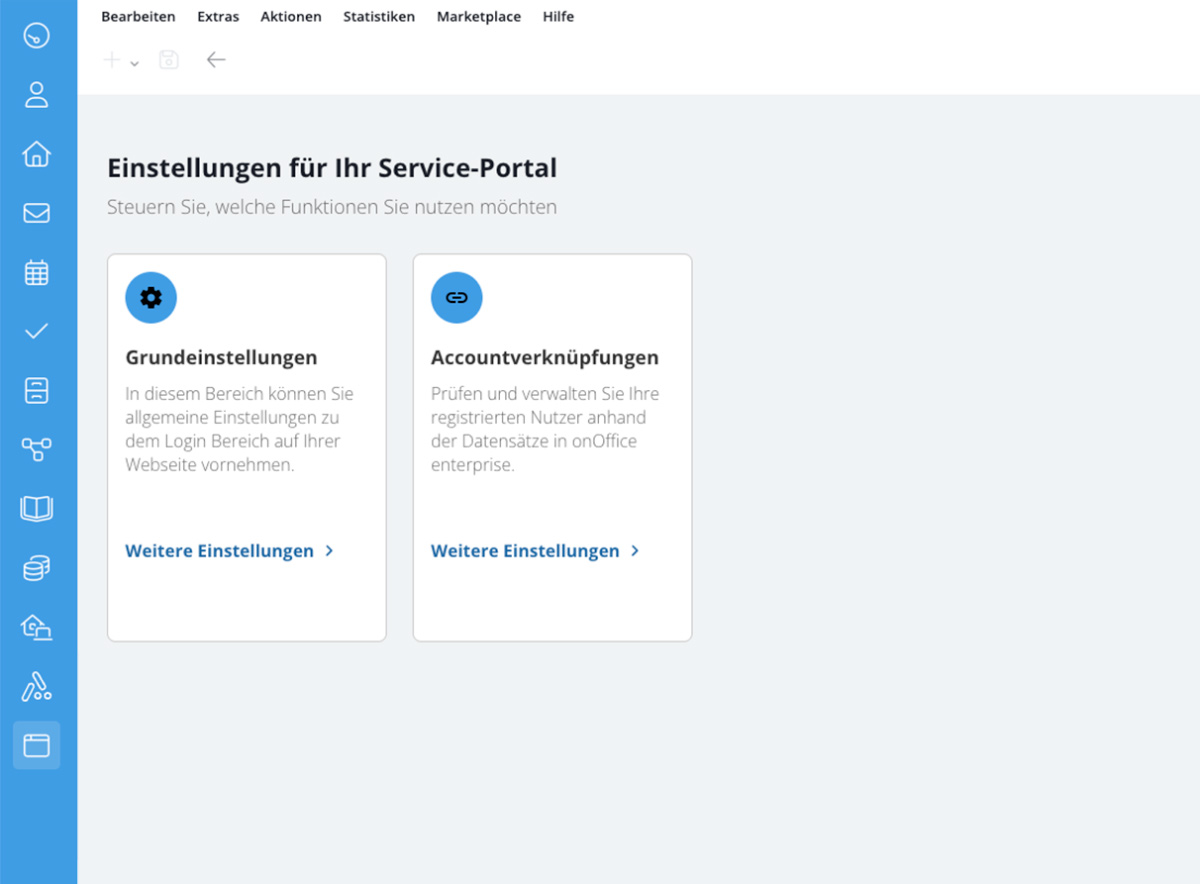
Here you can configure your service portal, including all its features. For a clearer overview, the tiles are arranged in three rows:
- The first line shows your default settings and account links.
- Basic settings: Specify the default manager for new contacts, properties, and search criteria. Also, set up an email account and sender for the service portal, and enable additional features such as social login (for owners and prospects) or newsletter sign-up.
- Account Links: Registration is required for owners or prospects to use the service portal. After you have successfully confirmed your registration via email, you will see all registered accounts here. Check the link to the corresponding contact information here, or edit or remove existing assignments at any time.
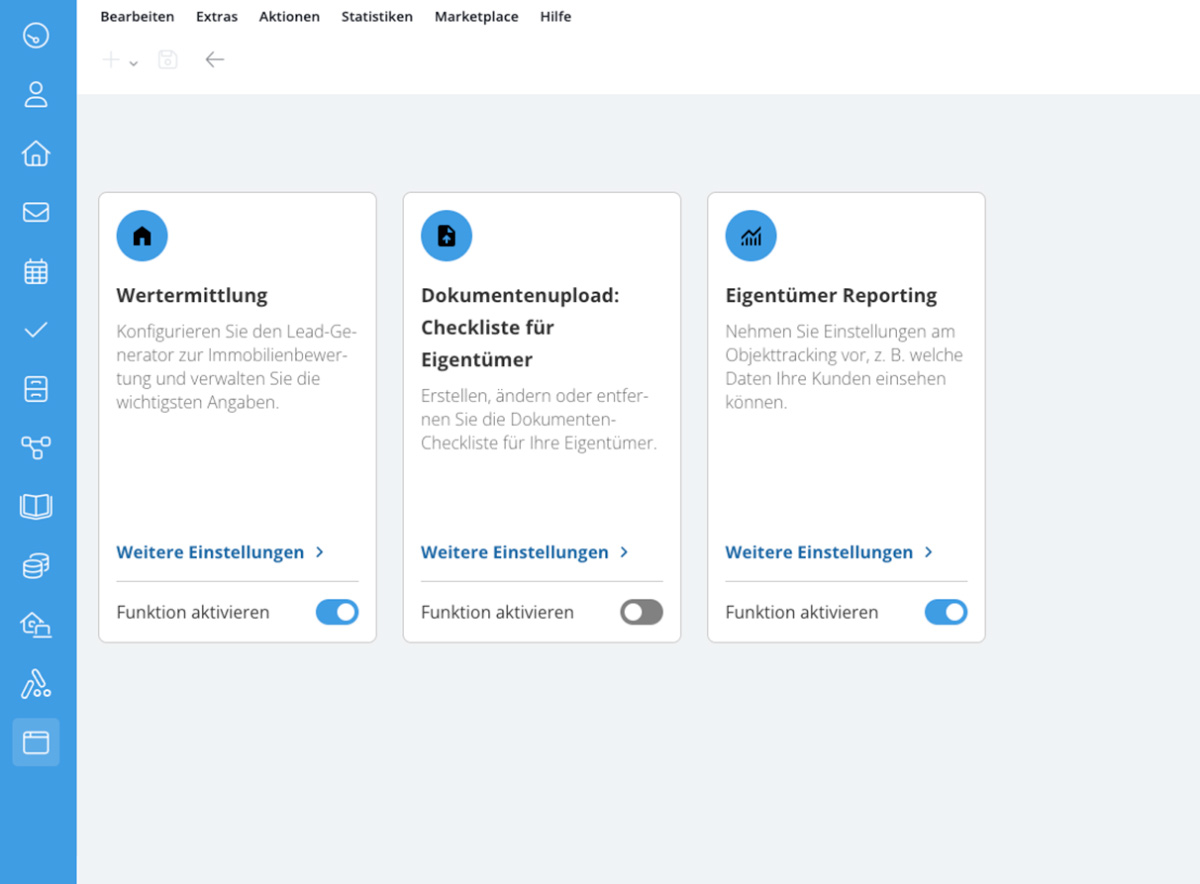
- The second line groups together all the core functions related to the property: Property Valuation, Document Upload (Checklist for Owners), and Owner Reporting.
-
- Valuation: Customize your property valuation lead generator here by adding or removing form fields as needed.
Notice: After making changes, always scroll to the bottom of the form and save your changes by clicking the Save button—only then will the new configuration be applied.
At this point, you should also enable the automatic market price estimate via the free Marketplace service PriceHubble Valuation. - Document Upload: Use this section to create a checklist for your property owners by specifying which documents they can submit. This way, you and your customers can keep track of the document status at all times.
- Owner Reporting: In this section, you can control the sharing and display of statistics and activities for your property owners. To do this, simply enable the “Enable Function” slider once (you can find advanced settings under “Additional Settings”).
Under “Share,” you’ll find a list of all registered owners. Select the desired customer, open their property list, and enable the “Share Statistics” and “Share Activities” toggles for the respective property.
Prerequisite: The contact is listed as the owner and is linked to at least one property.
- Valuation: Customize your property valuation lead generator here by adding or removing form fields as needed.
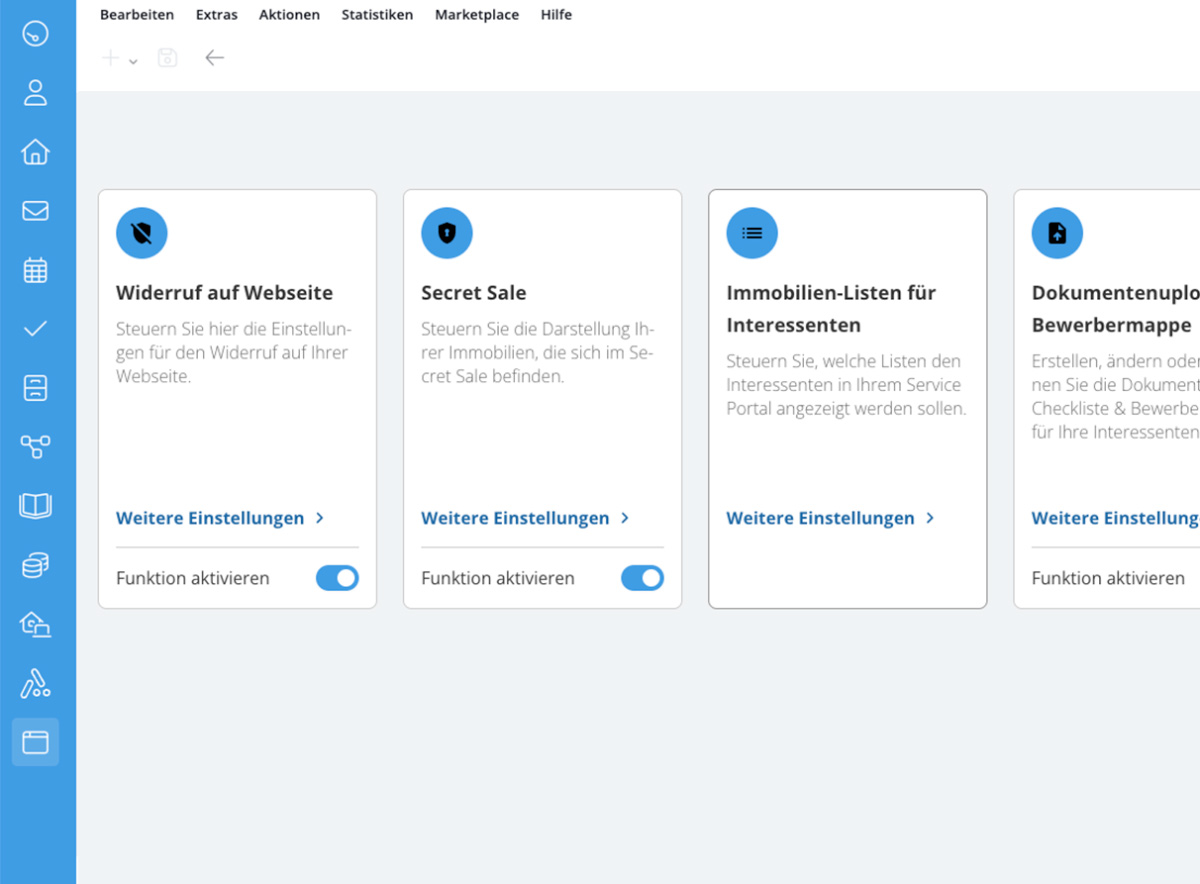
- The third line summarizes all interaction and marketing tools: Withdrawal notices on the website, secret sales, property listings for prospects, document uploads & applicant portfolios, and search requests.
- Withdrawal on the Website: Select which property listing templates to use for your properties and which cancellation rules to apply. Only relevant for PDF downloads preceded by an agreement link.
- Secret Sale: Detailed views for properties in the Secret Sale are visible only to registered users. Set a placeholder image that users who are not logged in will see for these properties.
- Property Listings for Prospects: Enable and disable watchlists, recently viewed properties, and requested properties for your prospects. When a user adds a property to their watchlist, it is saved directly to their account. This way, he can access it from anywhere, regardless of the device.
- Document Upload & Applicant Portfolio: Similar to the owner checklist, you can configure here which documents prospects can upload, such as financing confirmations, identification documents, etc.
- Search Requests: Customize the lead form to match your range of services. Our form wizard will guide you through the configuration process. Created search requests are immediately saved in the corresponding record in onOffice enterprise and form the basis for automatic matching.
Enable only the features that you want to offer your customers in the service portal. Here’s how to customize your digital customer portal to fit your website setup, customer service, and workflows.