
 Entry
 Dashboard
 Contacts
 Properties
 Email
 Calendar
 Tasks
 Acquisition Cockpit
 Audit-proof mail archiving
 Automatic brochure dispatch
 Billing
 Groups
 Intranet
 Marketing Box
 Marketplace
 Multi Property module
 Multilingual Module
 onOffice sync
 Presentation PDFs
 Process manager
 Project Management
 Property tracking
 Property value analyses
 Enquiry Manager
 Showcase TV
 Smart site 2.0
 Statistic Tab
 Statistics toolbox
 Success Cockpit
 Time Tracking
 Address from clipboard
 Text block
 Customer communication
 External Tools
 Favorite links
 Calculating with formulas
 Mass update
 onOffice-MLS
 Portals
 Property import
 Quick Access
 Settings
 Templates
 Step by step


You are here: Home / Additional modules / Marketplace / Provider overview / Zöllner Büro- & IT-Systeme GmbH - NFON Connect Transcription Service

Marketplace
Zöllner Büro- & IT-Systeme GmbH – NFON Connect Transcription Service
Description
Connect Transcript automatically converts phone calls into structured knowledge and specific tasks in onOffice.
At the start of each phone call, you decide whether you want to transcribe the conversation.
The call summary is saved directly as an activity in the notes field for the respective contact. If Connect Transcript identifies a task during a conversation, it is automatically created in onOffice.
This way, you’ll save yourself two manual steps and gain valuable time in your day-to-day work.
This service works with contacts that have been fully created in onOffice and in conjunction with an NFON phone system (Cloudya).
From implementation through ongoing operations, we’re here to support you personally. As an NFON development partner, we develop and support the Connect for onOffice communications platform—drawing on over 45 years of project experience.
Ready to Go in Three Steps
1) Activate
2) Purchase and connect it to your Cloudya extension
3) Done—let’s get started
Work Confidently in the Digital World—Securely and in Compliance with the GDPR.
Activation
You can easily activate the NFON Transcript Service here in the Marketplace.
Instruction
To use the Connect Transcript service, you must have an NFON phone system (Cloudya) and the transcription feature (AI Essentials) enabled in the system.
Step 1: Booking the Connect Transcript Service
Note: During the registration process, your NFON extension will be “linked” to your onOffice account. If you have already logged in to your extension in your browser, the connection will be established automatically in the background.
If you access your extension—for example, via your desk phone or the app—you must enter your login credentials in section 4.5.
Once the rights have been successfully assigned to the user, the user can now book Connect Transcript.
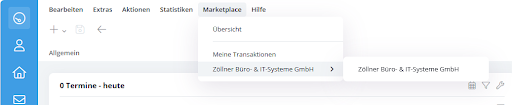
1. To do this, the user selects the service from the Marketplace in the global menu.
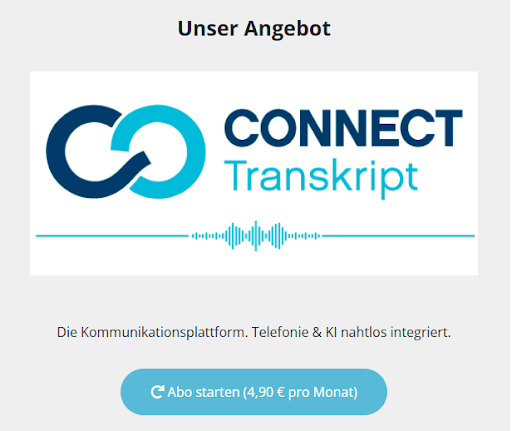
2. The store page opens, and you can continue with your order by clicking the “Subscribe” button.
3. In the order confirmation, click the “Place Order” button, and the payment process will begin.
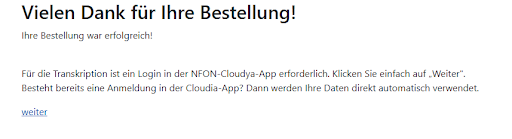
4. The user will be redirected to the “Order Confirmation” page and must click the “Continue” button.
5. To connect to the NFON PBX (Cloudya), you must now click the “Log in to NFON” button.
Users who are logged in to the Cloudya extension browser are automatically redirected.
If the user is not currently logged in to their extension, they should enter their login credentials here (email and password for the Cloudya extension).
Step 2: Using the Connect Transcript Service
Thanks to the automatic registration process, the service is available on the following day .
To ensure that the transcription is automatically transferred from the Cloudya extension to onOffice, the subscriber must be set up in onOffice (phone number and name).
Calls are answered or made using Cloudya. If the user wants a conversation transcribed, Cloudya offers two options for doing so
- Option 1: Use with a landline phone.
To start the transcription, press *4 on your keypad during the call. - Option 2: Using the app or softphone:
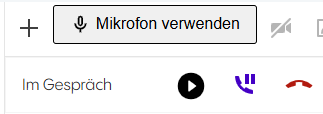
When making or receiving a call, the following screen will appear; click the “Play” button.
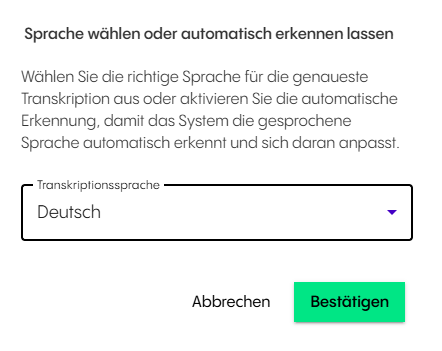
Next, confirm the transaction language (the default is always German).
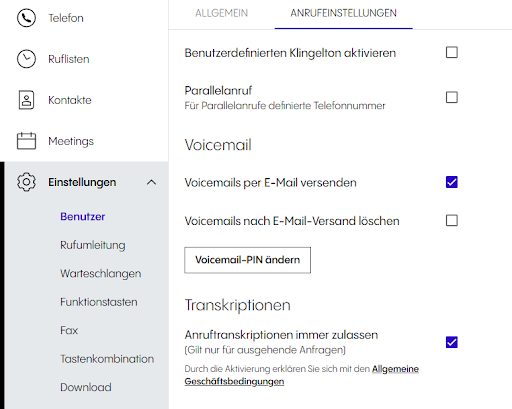
Note: To start transcription more quickly, configure the following settings at the beginning.
1. Log in to your Cloudya account.
2. Under “Settings” and “Call Settings,” enable “Always allow call transcriptions” .
Step 3: Everyday Use
Our short video in the Marketplace will serve as a guide for this. In addition to simple transcription, Connect Transkript can also use the conversations to create specific tasks in onOffice. To do this, it is necessary to provide a brief summary at the end of the conversation and to specify the tasks, actions, or next steps. These are important keywords. Example: Mr. Müller, I understand. As a next step , I will send you the quote again tomorrow.
Do you have questions about NFON or Cloudya?
Please feel free to contact us—we’ll provide you with personalized, expert advice.