

You are here: Home / Additional modules / Marketplace / Provider overview / onOffice onPointment - Online appointment booking
Marketplace
onOffice onPointment – Online appointment booking
Inhaltsverzeichnis
Description
Let your customers book their appointments themselves online on your website – with our appointment booking tool onPointment!
Please note that this service is only available free of charge during the test phase. Later it will be an exclusive feature for all onOffice enterprise all-in and WP-Website customers.
Appointments and endless back and forth by e-mail or telephone are now a thing of the past. Your customers and prospects can easily select and book a free appointment directly via a calendar on your website. You can conveniently configure and manage it in onOffice enterprise via our Marketplace service.
✅ Synchronization with your calendar
You define the available time slots from which your customers and prospects can choose on your website. Booked appointments land directly in your calendar in onOffice enterprise thanks to synchronization.
✅ No media discontinuity
You make all settings and administration in just one system. Link users directly to your data records for even more transparency and overview.
✅ Embedding in external websites
Everyone benefits from our online appointment booking tool onPointment! Simply generate an embed code via the Marketplace service and add it to your website. Alternatively, you can use quick links that lead directly to the booking page.
Activate our onPointment in the Marketplace and discover how easy appointment booking can be!
Activation
Activate onOffice onPointment in the Marketplace now!
Configuration of e-mail dispatch
In order for confirmation emails for appointment bookings to be sent from your mailbox, you must link the onOffice API user to one of your mailboxes. When selecting the mailbox, bear in mind that recipients may reply to these e-mails.
To do this, navigate to Extras >> Settings >> Basic settings >> “E-mail” tab and add the user “onOfficeServices” to the desired mailbox.
Activate field in the administration (optional for the process manager)
To configure onPointment, make sure that the following field is activated in the administration:
Navigate to the “Multiselect” tab via Extras >> Settings >> Administration and select Module “Brokerage book” >> Multiselect field “Feature”. Activate “Appointment booking” there.
You must activate the field in the administration so that possible subsequent processes can be triggered automatically on the basis of these activities.
Setup in the calendar in onOffice enterprise
Navigate to your calendar. Create your configuration for appointment booking in the new “Appointment planning” tab. Fill in all the important data there and choose between the “Time slot” and “Blocker” options.
This is the view when you open onPointment for the first time and no configuration exists yet. Use the “Create appointment configuration” or “New appointment configuration” action buttons to create your first appointment configuration.
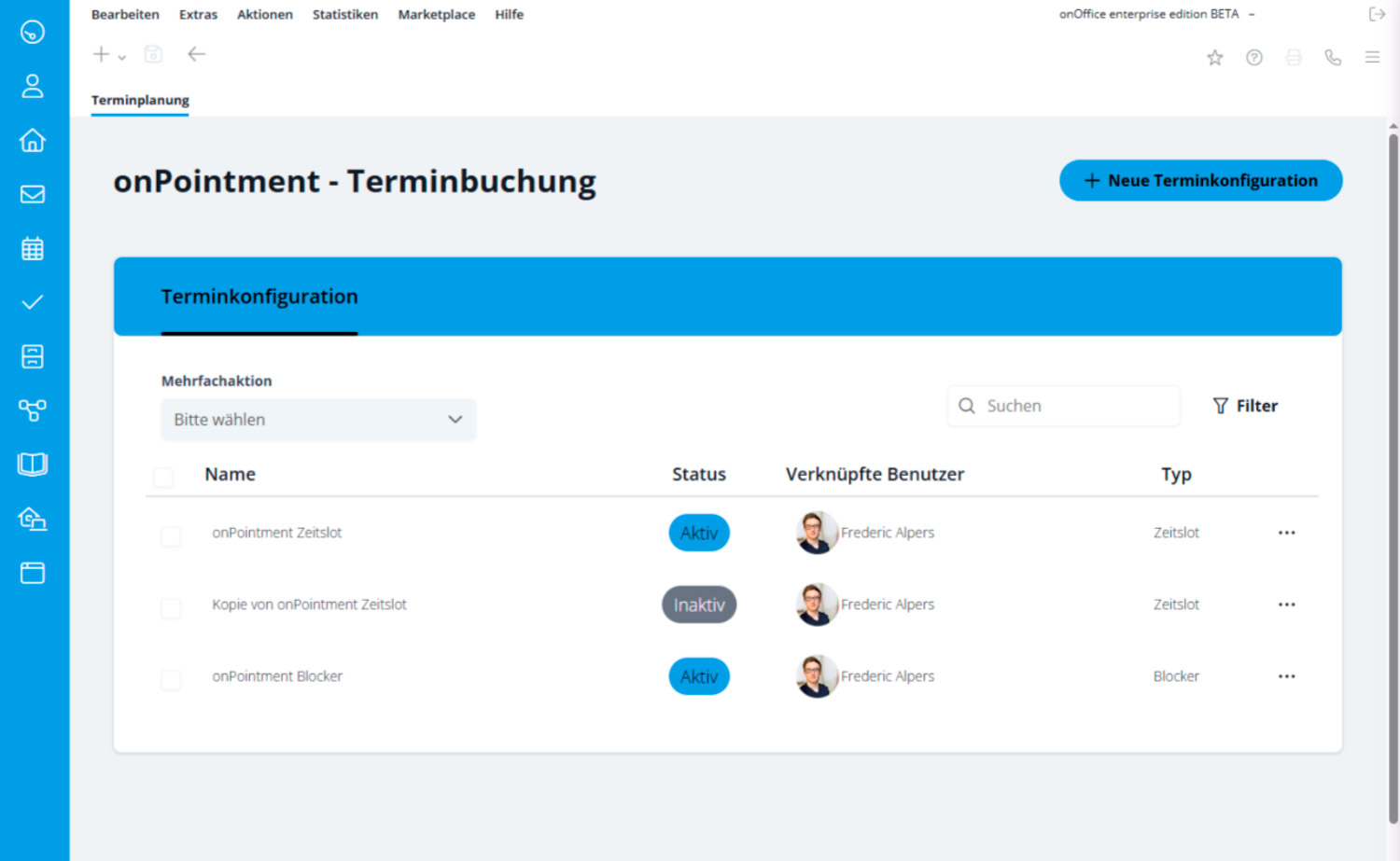
As soon as you have created configurations, they appear in this list view. You can see all created timeslot or blocker configurations including their status (active/inactive) and the assigned users. Edit, duplicate and delete them via the quick action menu or call up the booking page directly to generate the embed code.
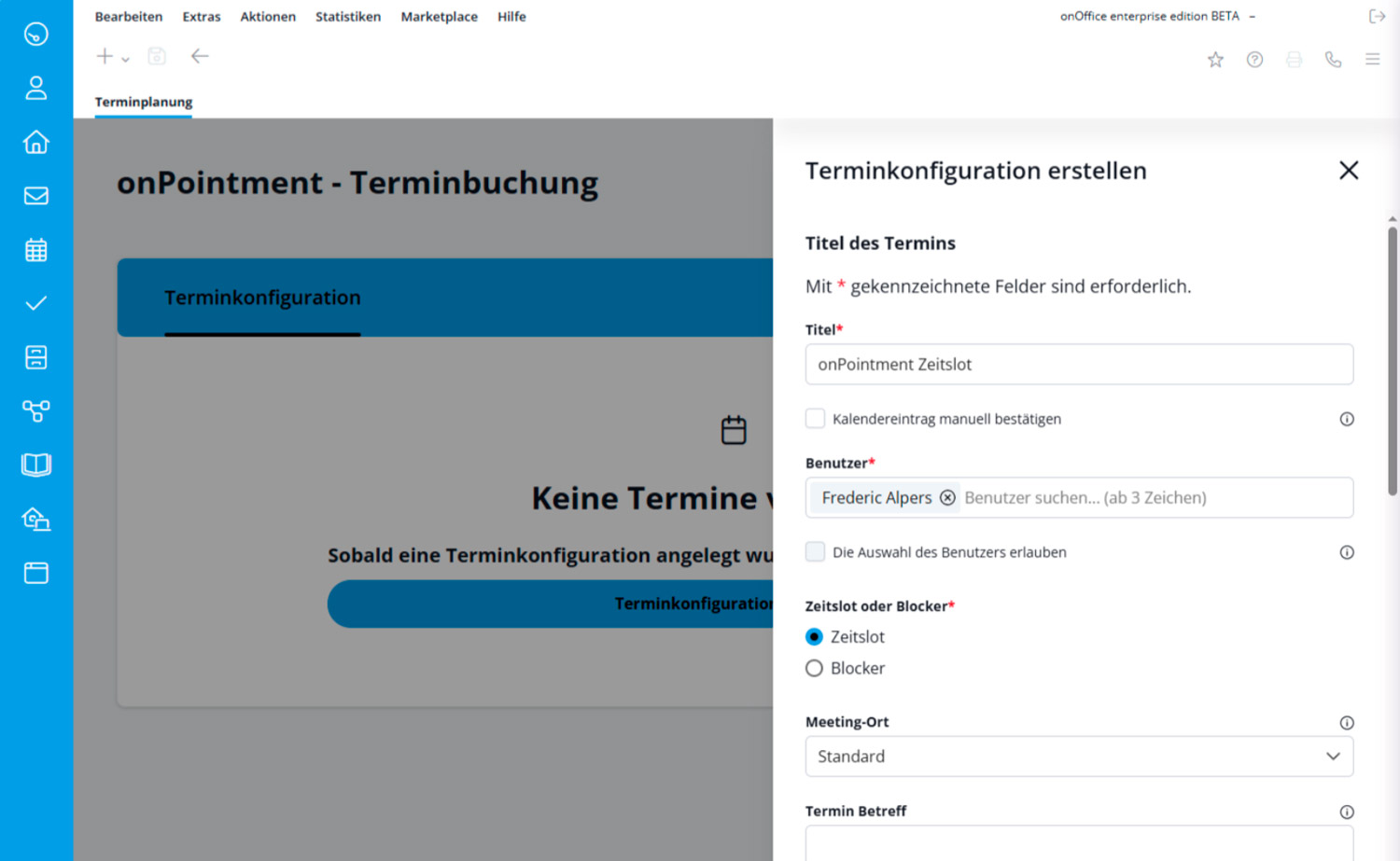
This is where the setup of a new configuration begins.
- Give the appointment a name and specify for which employees (users) the appointments are entered in the calendar.
- Decide on the type of configuration. There are the options “Time slot” or “Blocker”. You will find a detailed explanation below.
- Select the meeting location from the following available options:
- Not specified (default): No location is transmitted.
- Videoconference: Enter a meeting link (e.g. Zoom, Google Meet, MS Teams).
- Video conference from user profile: The URL for the online meeting is automatically taken from the user data (particularly practical for several linked users).
- Other: Free text field for a physical location (e.g. office address).
- Enter an individual appointment subject if necessary.
Define the limits of the available bookings.
- Runtime: From when to when should the configuration apply?
- Fast forward: How spontaneously can a customer book (minimum lead time) and how far in advance (maximum lead time)?
- Appointment type: What type of appointment is it (e.g. consultation or viewing)?
Define the structure of the appointment.
- Repetition: On which days of the week should this appointment generally be offered (e.g. Mondays to Fridays)?
- Slot: Define your time slots for the selected weekdays.
- Duration: How long does a single appointment last (e.g. 30 minutes)?
- Privacy policy: Enter the URL to your privacy policy so that it is correctly linked in the form on the website.
If you select the “Blocker” option for your configuration, appointments from your calendar can be booked in onOffice enterprise with the selected appointment type. They are synchronized with your calendar when you book and filled with all other data.
✅ Timeslot
A timeslot is a free time slot that a user (e.g. real estate agents) actively makes available. Customers can only book it if no other appointment has been entered in the calendar in onOffice enterprise for this period. The entire configuration takes place in the “Scheduling” tab.
Typical use: Consultations, meetings or call-back agreements. This allows your customers to book a free slot defined by you, provided you are available during this period.
⛔ Blocker appointment
A blocker is an appointment that blocks your time in the calendar so that no other appointments can be booked during this period. It therefore serves to restrict availabilities. You first set a blocker in your calendar in onOffice enterprise. When a booking is made, the system then automatically updates it with the customer data.
Typical use: Tours or webinars that take place at set times.
Embedding on the website
- Generate embed code
Open your calendar in onOffice enterprise and go to the “Scheduling” tab. Once you have created a configuration, you can create the embed code in the quick action menu. - Insert code on the website
Copy the generated code and then insert it at the desired location on your website.
Customers with an onOffice WP website do not need the embedding via code, as the Marketplace service onPointment is directly synchronized with your website.
- Value added tax on marketplace purchases
- Assign debits via reference ID
- Provider overview
- onOffice Services - PriceHubble Valuation Service
- onpreo - Property acquisition
- Wordliner - Acquisition marketing software
- Space Renovator- Virtual Homestaging
- onOffice Services - DocuSign Connector - digital signatures
- onOffice Services - Newsletter Connector
- onOffice Services - WKO Marketplace - Portal for joint business in Austria (MLS)
- onOffice Services - Zapier - Data exchange and automation
- PriceHubble Deutschland GmbH - Interactive property value analysis
- propform.io - Webforms
- PROPUP - Digital form & workflow management
- Residenture - Online auction platform
- onOffice Services - Gender API
- Sprengnetter property Valuation
- Sprengnetter - Real estate valuation in Europe
- Total Render - Floor Plans Italy
- ViertelCheck - Information on the micro and macro situation
- finioo - Application folder
- Backbone - Property images
- BOTTIMMO - Marketing software and digital acquisition
- ESYSYNC - Display systems
- FPRE - property analysis and valuation
- Geolyzer - infrastructure data
- immo-billie - Digital bidding process
- Immogrundriss - Floor plans & visualizations
- immowriter - AI for property texts and images
- Kerberos compliance management systems
- KIM real estate valuation
- Lead Import
- Tenant check - credit check of prospective tenants
- MYVIVENDA - Print on Demand
- Ogulo - 360° tour
- onOffice Services - PhotoDesigner
- onOffice Services - AI-Writer - AI for property texts
- Service not usable?
- Unlock/lock provider
- Manage account
- Create account

Entry
Dashboard
Contacts
Properties
Email
Calendar
Tasks
Acquisition Cockpit
Audit-proof mail archiving
Automatic brochure dispatch
Billing
Groups
Intranet
Marketing Box
Multi Property module
Multilingual Module
onOffice sync
Presentation PDFs
Process manager
Project Management
Property value analyses
Enquiry Manager
Showcase TV
Smart site 2.0
Statistic Tab
Statistics toolbox
Success Cockpit
Time Tracking
Address from clipboard
Text block
Customer communication
External Tools
Favorite links
Calculating with formulas
Mass update
onOffice-MLS
Portals
Property import
Quick Access
Settings
Templates
Step by step